
How to Connect SendNow to ChatGPT Using MCP (2026): Complete Setup, Secure Sharing & Analytics Guide

AI Quick Summary (TL;DR)
To connect SendNow to ChatGPT, open a ChatGPT environment that supports custom remote MCP servers. Choose Add → Create custom MCP server, name it SendNow, enter https://share.sendnow.live/mcp, select OAuth and authorize your SendNow account. Test the connection by asking: “List my 10 most recent SendNow documents.” Once connected, supported tools can help upload files, create secure sharing links, review analytics and work with data rooms.
This 2026 walkthrough uses actual screenshots from the ChatGPT + SendNow demo. Menu names, availability and protection settings can vary by account, plan or workspace. Always verify actions and access restrictions before sharing confidential files.
Official SendNow AI and MCP setup instructions
Why connect ChatGPT to SendNow instead of sharing documents manually?
Sharing a business document usually takes more than uploading a file. You need to find the correct version, decide who may open it, configure download and identity controls, share the link and monitor engagement. Founders, sales professionals and advisers repeat these steps for pitch decks, client proposals and agreements.
With SendNow MCP, ChatGPT becomes a conversational interface for supported SendNow actions. Describe what you need, review the actual tool result and keep the file and access controls in SendNow. It is not permission for an assistant to do anything without verification.
What is SendNow MCP?
Model Context Protocol (MCP) is an open standard that lets compatible AI assistants discover and call tools from connected services. Here, ChatGPT is the client, SendNow provides the remote MCP server, and your SendNow account remains the place where documents, links and analytics are managed.
For example, “List my recent documents” can return file records. “Create a secure sharing link” can initiate link creation. “Get analytics for Series A Diligence” can retrieve available activity data. The tools and permissions granted determine what the assistant can actually do; a list of files does not mean it can read all confidential file contents.
Explore the available SendNow AI integration capabilities
Before you start: a quick checklist
- Have a SendNow account and sign-in access. Some advanced protections or data-room actions depend on plan eligibility.
- Use a ChatGPT account or workspace that allows custom remote MCP connections. Interface options may vary.
- Choose a non-sensitive test document first; begin with a read-only request.
- Use the exact endpoint https://share.sendnow.live/mcp. Do not paste passwords or secret API credentials into a prompt.
How to connect SendNow to ChatGPT: step-by-step setup
Step 1: Open Plugins and choose a custom MCP server
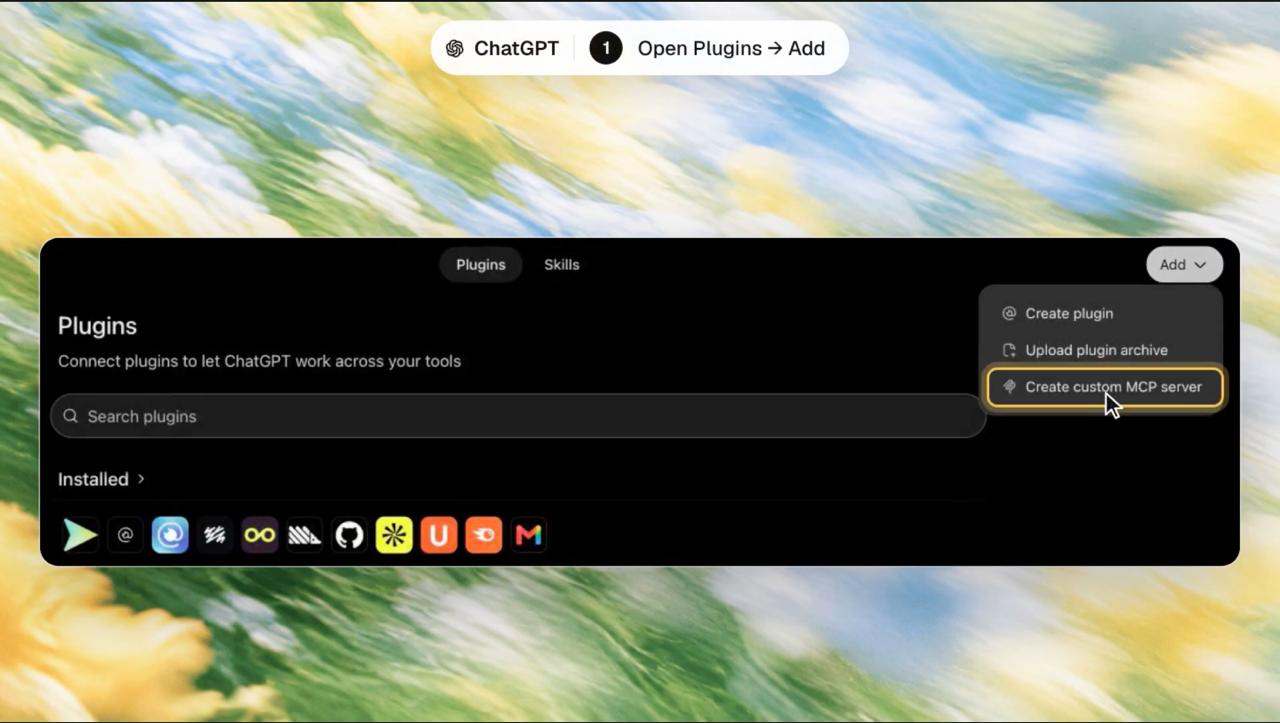
In the demonstrated interface, open ChatGPT Plugins, select Add and choose Create custom MCP server. If your account uses a newer Apps or connector interface, follow the currently displayed controls or the official SendNow integration instructions. The screenshot illustrates the tested path, not a guarantee that every account shows identical menus.
Step 2: Add the official SendNow MCP endpoint
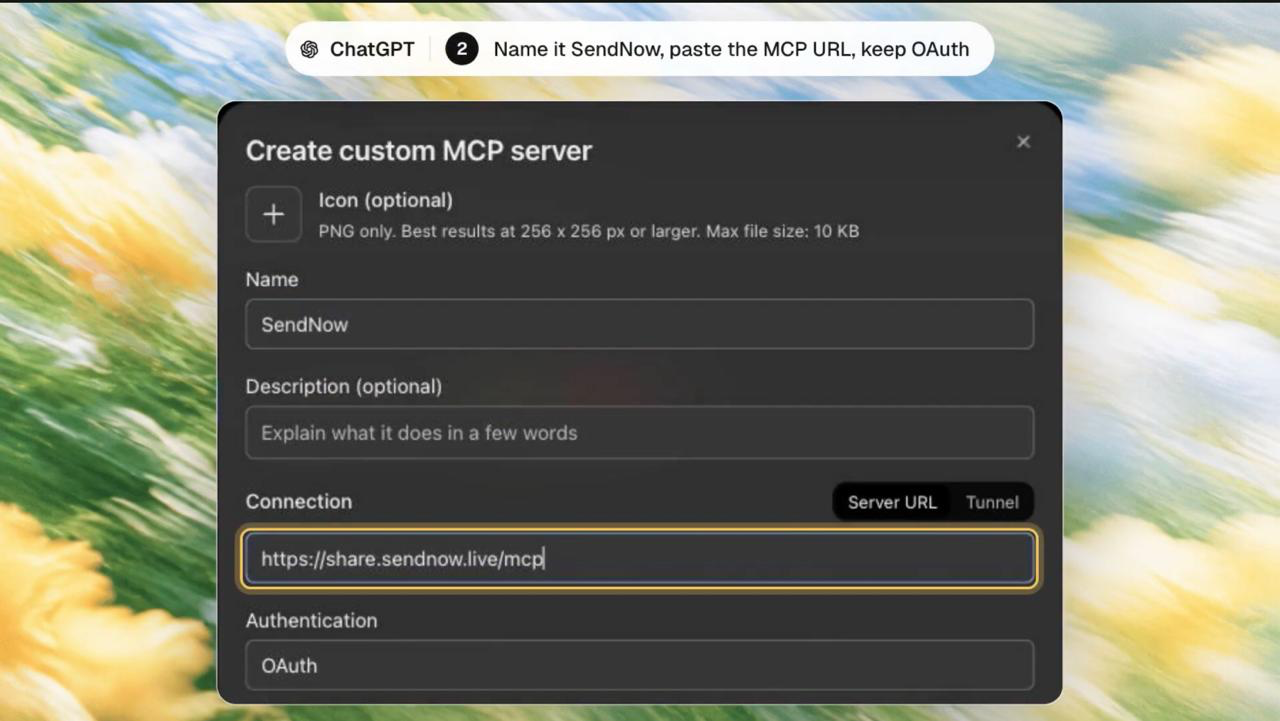
Set Name to SendNow, Connection to Server URL, and URL to https://share.sendnow.live/mcp. Choose OAuth authentication. Copy the URL precisely: the marketing page https://sendnow.live/ai is for documentation, not the remote server endpoint.
Step 3: Review the warning and authorize your account
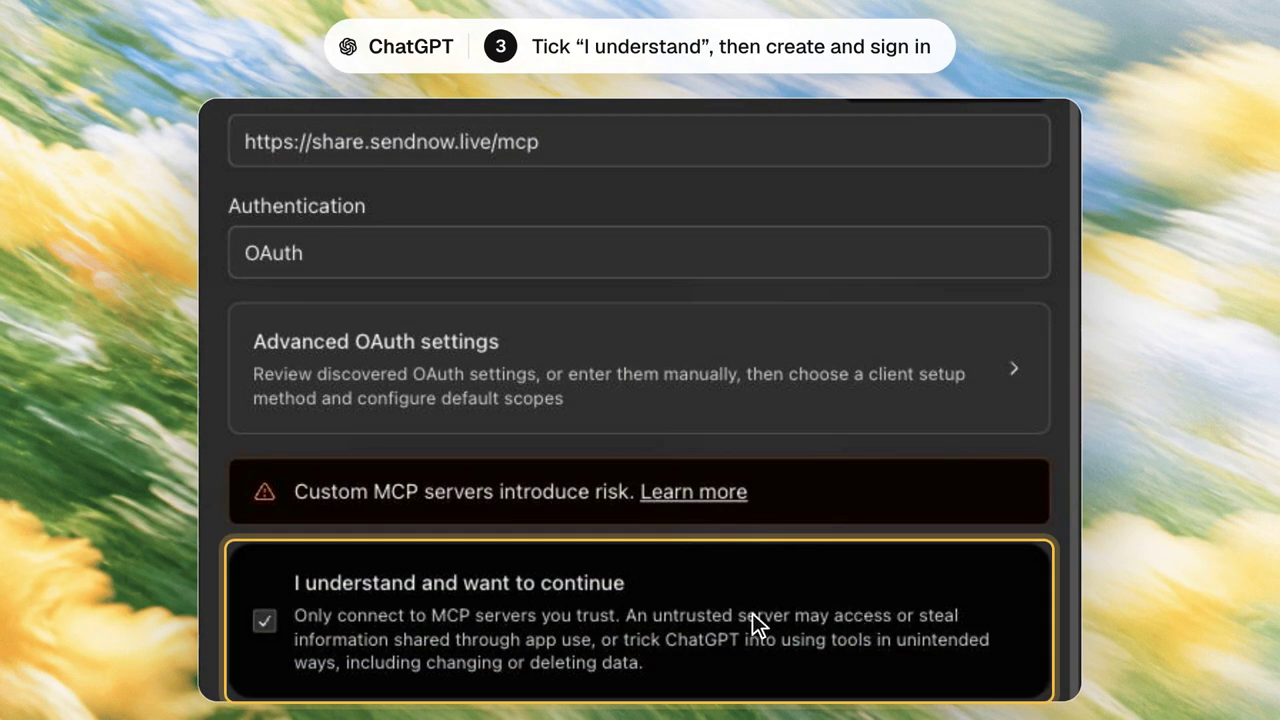
Read ChatGPT’s security warning for custom MCP servers and acknowledge it only if you trust the server. Continue to the SendNow authorization flow, sign into the intended account and review the permissions requested. OAuth avoids putting your SendNow password directly into the conversation.
Step 4: Confirm the connection with a read-only prompt
Ask: “Use SendNow to list my 10 most recent documents, newest first.” Look for tool-confirmed document records. If the response only gives generic instructions, verify that SendNow is connected and enabled for the conversation.
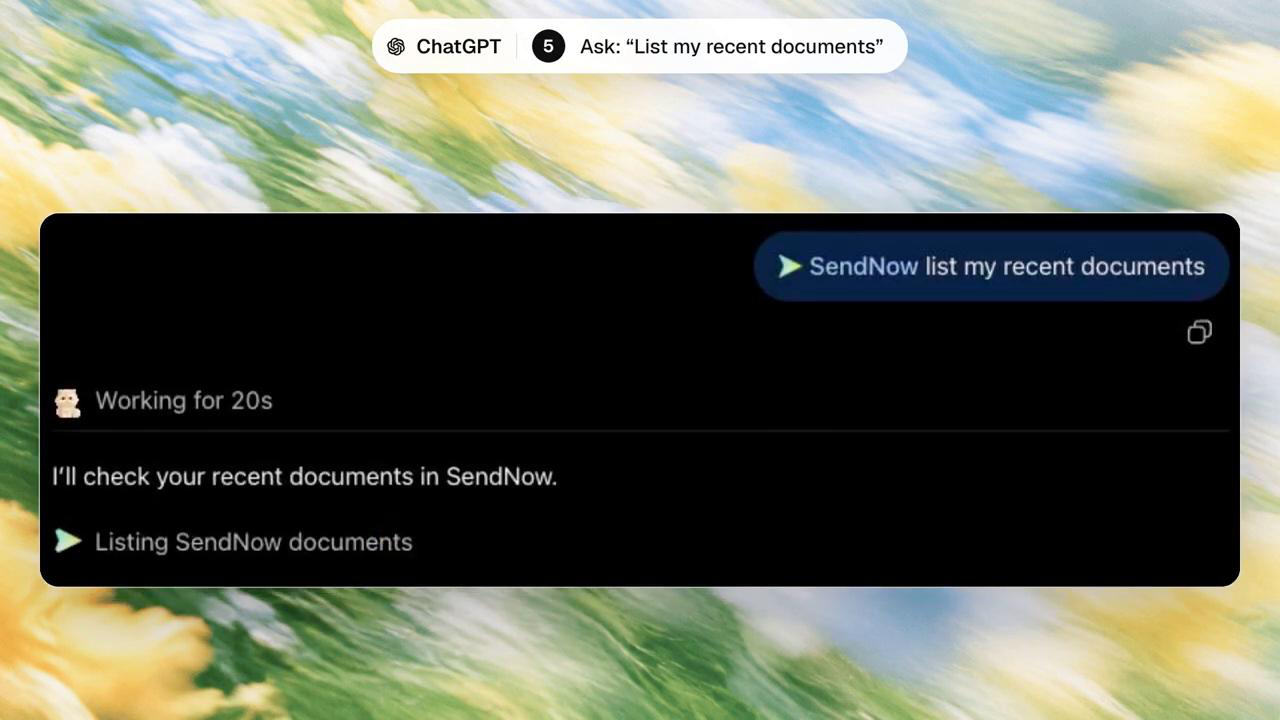
Workflow 1: Find the right document without opening folders
A fast document lookup is valuable when your account contains sales decks, contracts, pricing PDFs and investor material. Ask: “Show my 10 latest SendNow documents with names, file types and upload dates.” For a narrower request, say: “Find documents with ‘Rental Agreement’ in the title. Do not modify or delete anything.”
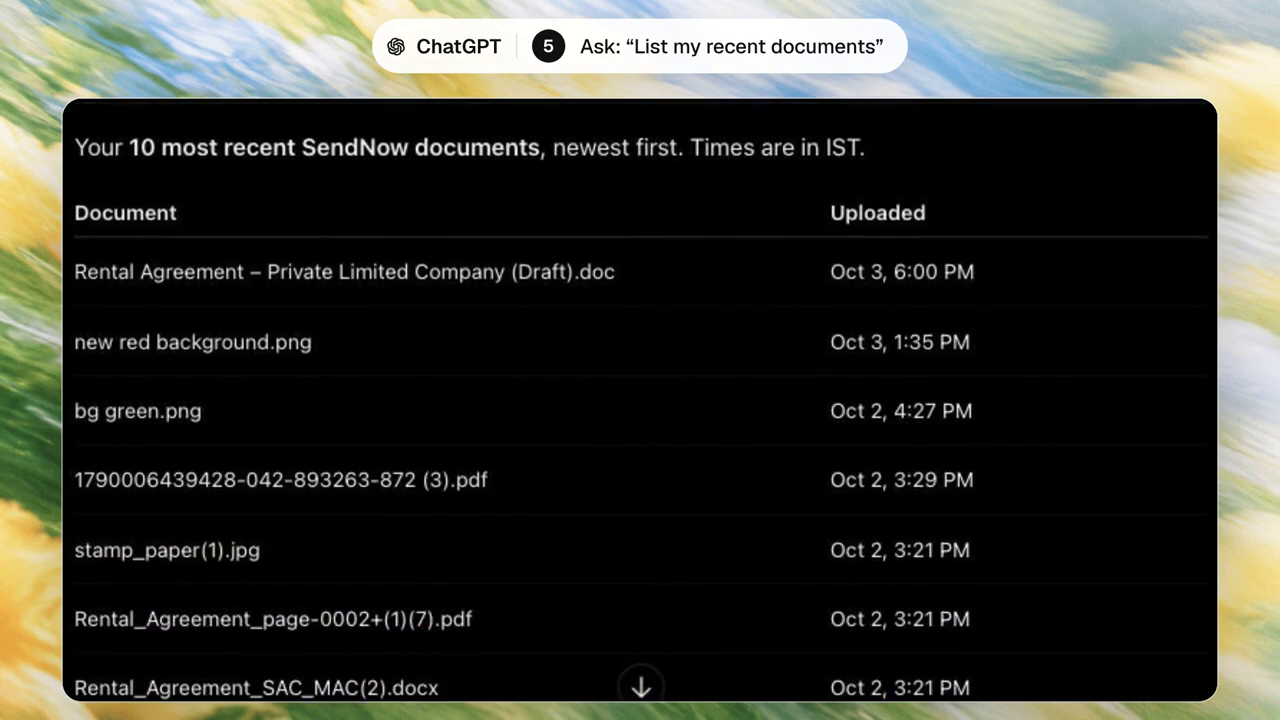
Check the filename and version against your intended task. The retrieved list is document metadata; it is not evidence that ChatGPT has read every page of a confidential document.
Workflow 2: Upload a file and create a secure sharing link
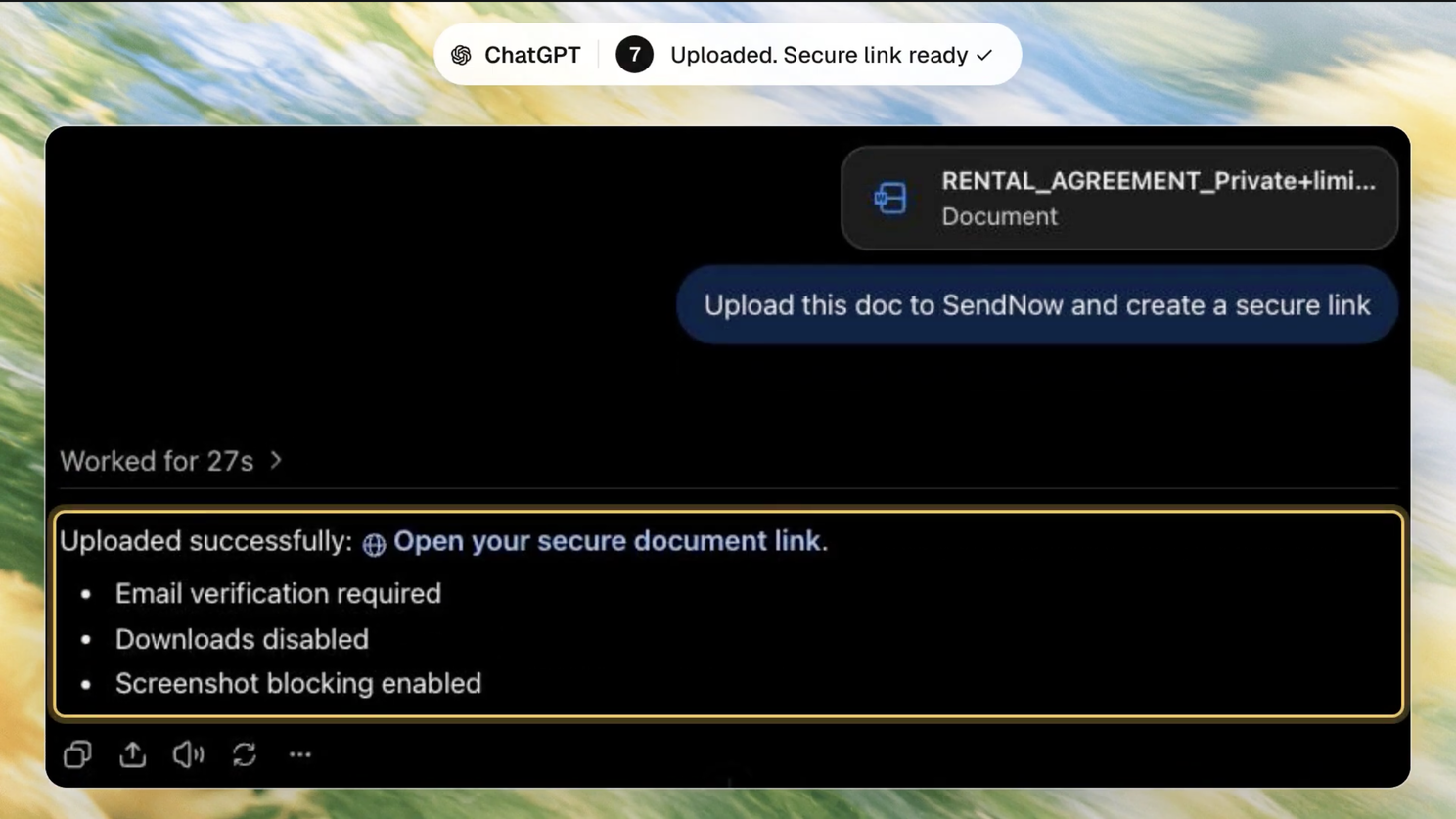
For a proposal or agreement, attach the file and request both upload and link creation. A precise prompt is better than a vague “share securely” instruction because it specifies expected protections and asks for their actual status.
Prompt to copy
“Upload the attached agreement to SendNow and create a new sharing link. Require email verification, disable downloads and enable screenshot protection if my plan supports it. Do not send the link to anyone automatically. Return the created URL and list which protection settings were successfully applied.”
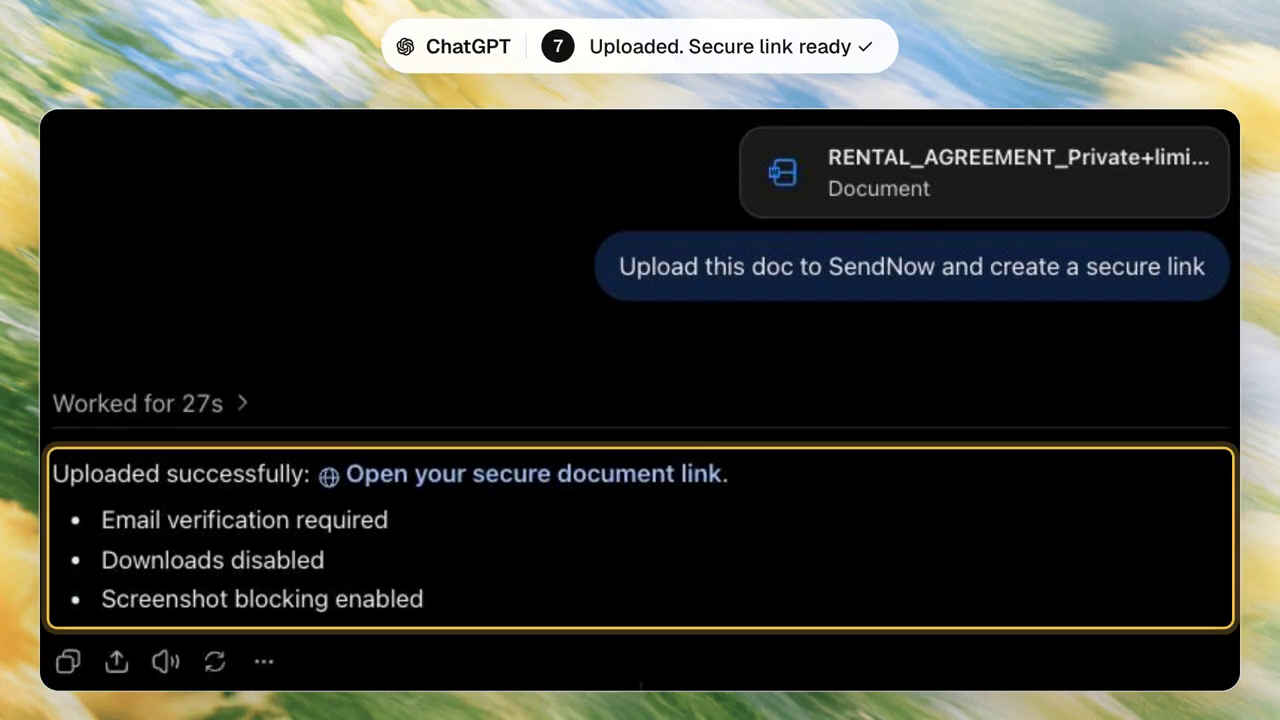
The output should identify the uploaded document and sharing URL, then confirm which controls succeeded. If the plan does not support a requested setting, do not assume the restriction exists.
Recommended link-security controls
- Email verification identifies visitors before access when enabled.
- Download restrictions reduce straightforward downloads but cannot guarantee prevention of all copying.
- Screenshot protection and dynamic watermarks add deterrence subject to client/device limitations.
- Expiration, passcodes, NDA acceptance or authorized-recipient rules may be useful depending on the plan and workflow.
A link can be revoked without necessarily deleting the source document. Review the final link settings before sending a URL to an investor, client or colleague.
Related: secure document sharing and access-control guide
Related: share documents from ChatGPT with trackable links
Workflow 3: Check document or data-room engagement in ChatGPT
After sharing, ask for the activity attached to the precise link, document or room. Example: “Get the analytics for my Series A Diligence data room. Show recorded views, unique viewers, viewing time and the reporting period. If counters disagree, explain the discrepancy.”
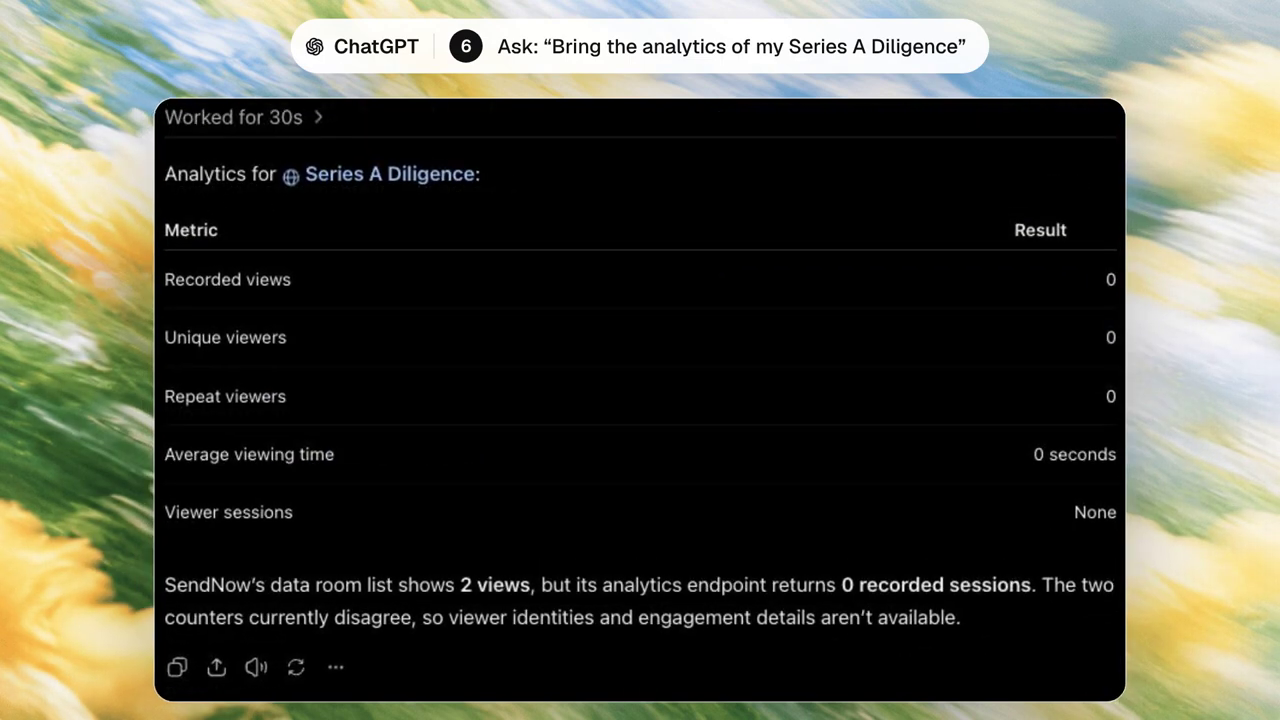
In the screenshot, the room list showed two views while the analytics endpoint returned zero recorded sessions. This does not prove no one interacted; it shows that the two reported measures were inconsistent. Verify raw records and date ranges before making decisions. Likewise, a document view is not proof of buying or investing intent.
Related: understanding page-by-page document analytics
Workflow 4: Prepare an investor data room with AI assistance
When investors or buyers need several files, a structured virtual data room can be more practical than separate links. SendNow supports data-room workflows and the MCP integration exposes supported room-management actions. The exact ability to create rooms, add files and configure advanced access settings depends on your plan and tools.
Try: “Create a data room called Series A Investor Review. Add my pitch deck and financial model, create Pitch and Financials sections, enable available visitor-verification controls and return the created room details. Do not invite anybody yet.”
Do not claim the data room exists until a tool-confirmed result is returned. Have counsel review NDA language and assign appropriate access permissions to each reviewer.
Related: connect ChatGPT and Claude to virtual data rooms
Related: how to build a deal room in 10 minutes
Watch the SendNow + ChatGPT MCP video demonstration
This walkthrough covers custom-server setup, OAuth, document retrieval, link creation and analytics. Use the recording alongside the screenshots above to compare the actual prompts and outcomes.
Troubleshooting SendNow MCP connections
I cannot find Create custom MCP server
Your plan, workspace or ChatGPT interface may not expose the demonstrated option. Check current product settings and the official SendNow AI setup page before relying on older screenshots.
OAuth authorization is failing
Verify the endpoint is exactly https://share.sendnow.live/mcp and authorize the correct SendNow account. Restart authorization if an earlier consent screen expired.
ChatGPT only gives instructions rather than calling SendNow
Make sure the connection is enabled for the chat. Test a straightforward read-only request such as listing recent documents.
My requested protection setting was not applied
Inspect the actual returned link configuration and your plan limits. Never describe downloads as disabled or a link as verified unless SendNow confirmed that setting.
Analytics look incomplete or contradictory
Check which entity, link and date range are being queried. Distinguish room counters from recorded viewer sessions; report uncertainty rather than guessing.
Security and privacy: practical rules
Treat SendNow as a connected business application. Verify the trusted MCP server URL; use OAuth; check permissions; keep sensitive credentials out of prompts; inspect the created link before distributing it; and confirm any action that modifies or deletes data.
The published connector capabilities focus on document records, sharing links, rooms and engagement data. Do not infer that a tool can extract the full text of a confidential PDF without that capability being shown. Revoke a recipient’s link access when it is no longer needed.
Related: is MCP safe for confidential business documents?
When should you use ChatGPT with SendNow?
Sales teams can locate proposals and request tracked links. Startup founders can organize investor-ready material and review engagement. Legal and advisory teams can keep controlled links separate from email attachments. M&A teams can prepare due-diligence rooms and verify reviewer access. In each case, automation should shorten the workflow—not skip permission reviews.
Frequently asked questions
Final takeaway: less navigation, stronger verification
SendNow MCP brings supported document operations into ChatGPT. Connect the approved remote server, start with a harmless document lookup, create protected links with explicit settings, and inspect engagement records after sharing. For more complex fundraising or diligence, use a data room with carefully reviewed access controls.
The most useful rule is simple: ask for a specific action, inspect the result, and only then distribute sensitive material.
About the Author: Rifana Hameem
Rifana is the founder of SendNow. She leads the team in building secure, compliant, and analytics-rich document sharing tools for finance and professional teams worldwide.
Connect on LinkedIn