Can You Really Block Screenshots on a Shared Document?

Can You Really Block Screenshots on a Shared Document?
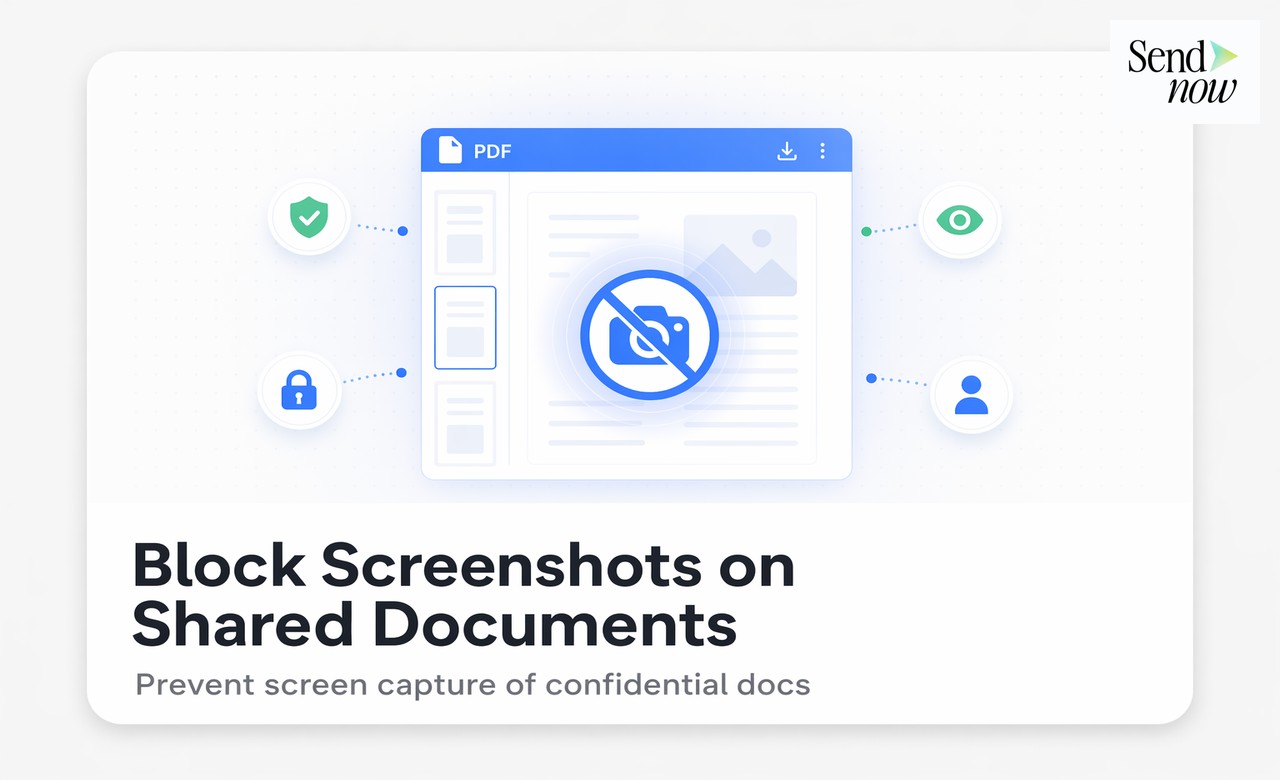
Blocking screenshots on a shared document is technically possible using JavaScript-based detection methods that obscure document content when a screen capture is attempted in a standard browser. While no software solution can prevent every method of screen capture, these controls significantly raise the barrier for would-be leakers and work effectively on standard desktop browsers and mobile devices. Combined with dynamic watermarking and audit logs, screenshot protection forms a strong deterrent layer in a comprehensive document security stack.
How Screenshot Blocking Works Technically
A screenshot blocker in a web-based document viewer typically works through one or more of the following mechanisms:
CSS pointer-events and visibility manipulation. When the viewer detects a screenshot key combination or screen capture API call, it immediately applies a CSS override that makes the document content invisible or replaces it with a dark or white overlay. By the time the screenshot is captured, it shows only the overlay rather than the document content.
Print event interception. Browser print functions are intercepted and redirected to display a blocked message or blank page, preventing the "print to PDF" screenshot workaround.
Fullscreen detection. Some screen recording tools require the document to be in a specific window state. Viewers can detect fullscreen changes and respond by hiding content.
Focus loss detection. When the browser window loses focus, which can indicate a screen capture tool is active, the viewer can temporarily obscure the document.
These techniques are effective against native browser screenshot functions and common third-party screenshot tools. They are not effective against a physical camera photographing the screen, which is why screenshot blocking should always be used alongside dynamic watermarking.
What Screenshot Blocking Can and Cannot Do
Being clear about the limitations of screenshot blocking is important for setting appropriate expectations:
| Method | Blocked? | Notes |
|---|---|---|
| Browser screenshot (Cmd+Shift+4, PrtScn) | Yes | Primary target of the blocker |
| Browser print to PDF | Yes | Print event is intercepted |
| Third-party screenshot tools | Mostly | Depends on tool and OS integration |
| Screen recording software | Partially | Frame capture may be obscured |
| Physical phone camera | No | Cannot be blocked by software |
| VM screenshot | Depends | Depends on viewer access to host OS |
The physical camera gap is why security professionals treat screenshot blocking as one layer in a stack rather than a standalone control. A motivated leaker can always photograph a screen with a second device. What they cannot do is remove a dynamic watermark from the resulting image.
How SendNow Implements Screenshot Blocking
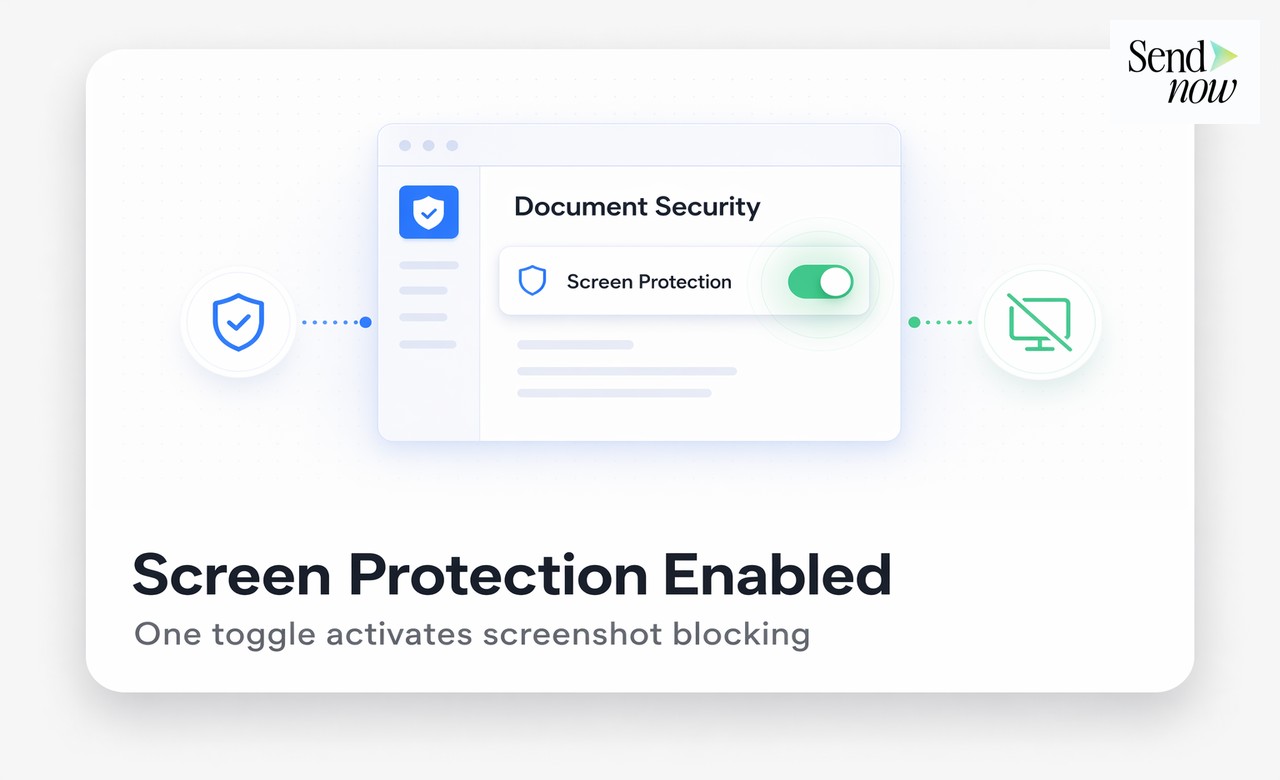
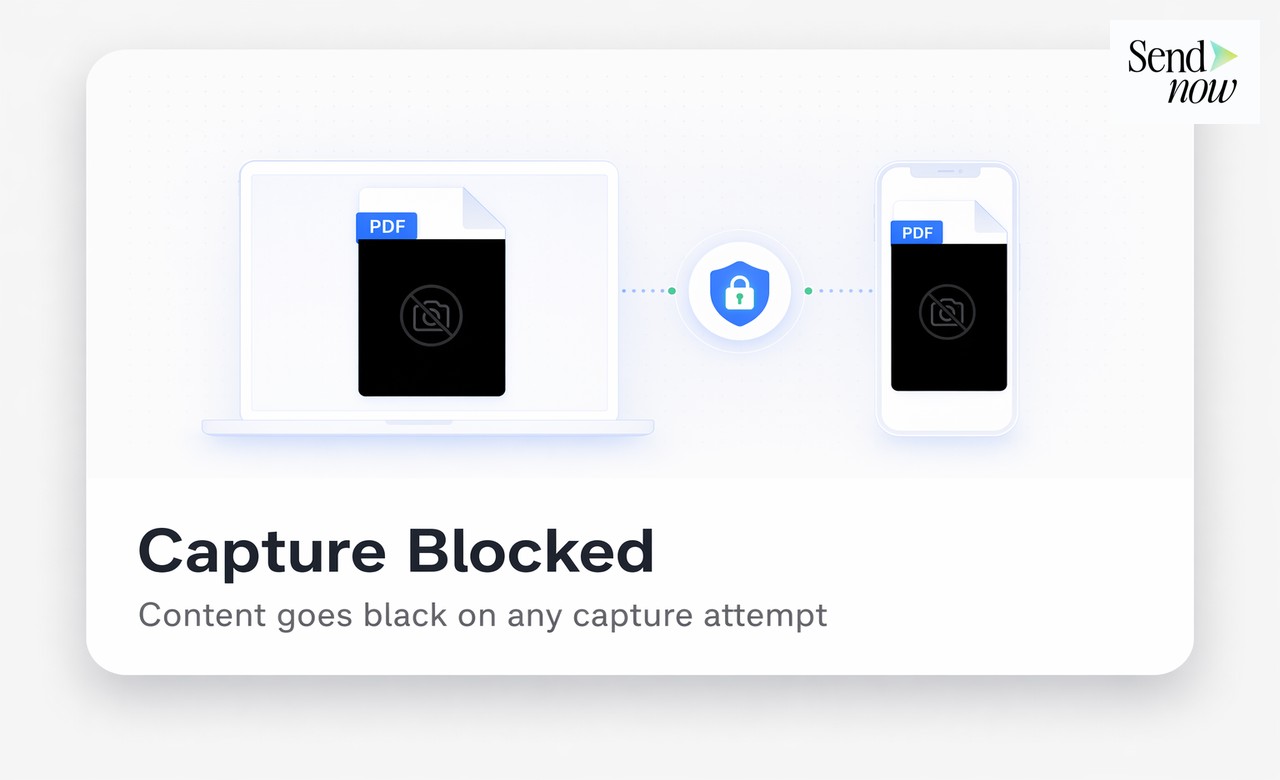
SendNow includes a screenshot blocker as a toggleable option on every share link. When enabled, the document viewer applies detection across browser screenshot commands, print functions, and screen capture API events. If a screenshot is attempted, the viewer displays a dark overlay with the message "Screenshot protection enabled" rather than the document content.
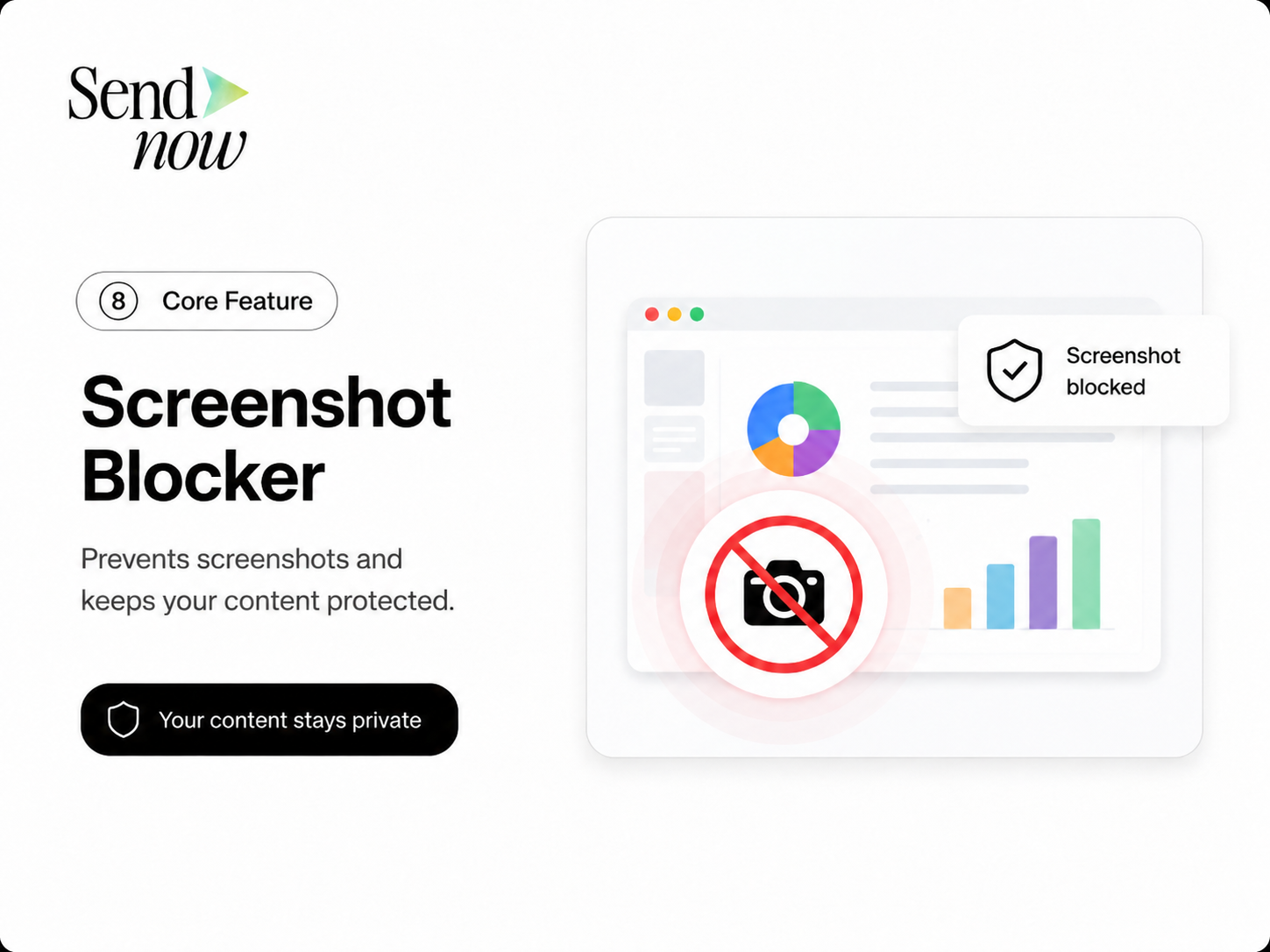
The blocked attempt is also logged in the document's audit trail, timestamped with the viewer's device and session details. This is important: you can see not just that someone tried to screenshot the document, but who attempted it and when.
To enable screenshot blocking in SendNow:
- Click Create Link on your document.
- In the Security Settings section, toggle Screenshot Blocker to ON.
- Generate the link and share it as normal.
The blocker activates automatically for every viewer who opens that link. No configuration is needed per viewer.
Why the Combination of Screenshot Blocking and Watermarking Is Most Effective
Screenshot blocking and dynamic watermarking serve complementary roles:
- Screenshot blocking prevents the most common and convenient methods of capturing document content in a browser environment.
- Dynamic watermarking ensures that if content is captured by any method, the resulting image carries the viewer's identity.
Together, they create a two-layer deterrent. The blocker stops casual attempts. The watermark ensures that determined attempts produce self-incriminating evidence. A leaker who beats the blocker using a camera will produce a photograph that includes their email address and the access date on every page.
The Psychology of Screenshot Deterrence
There is a behavioural dimension to screenshot protection that is worth acknowledging. When a recipient opens a document and sees a notice that screenshot protection is active, it signals that the document owner takes security seriously and is monitoring for unauthorised capture attempts.
This visibility alone deters a significant proportion of casual leaking behaviour. The recipient who might otherwise take a quick screenshot to share with a colleague thinks twice when they know the attempt will be detected and logged.
Practical Applications in Finance
Finance teams benefit from screenshot blocking in several specific scenarios:
Earnings presentations shared before announcement. Preventing screenshots reduces the risk that material information is captured and shared before the official release time.
Confidential term sheets. Sharing pricing and deal terms via a screenshot-blocked link ensures the content cannot be quickly forwarded as an image file.
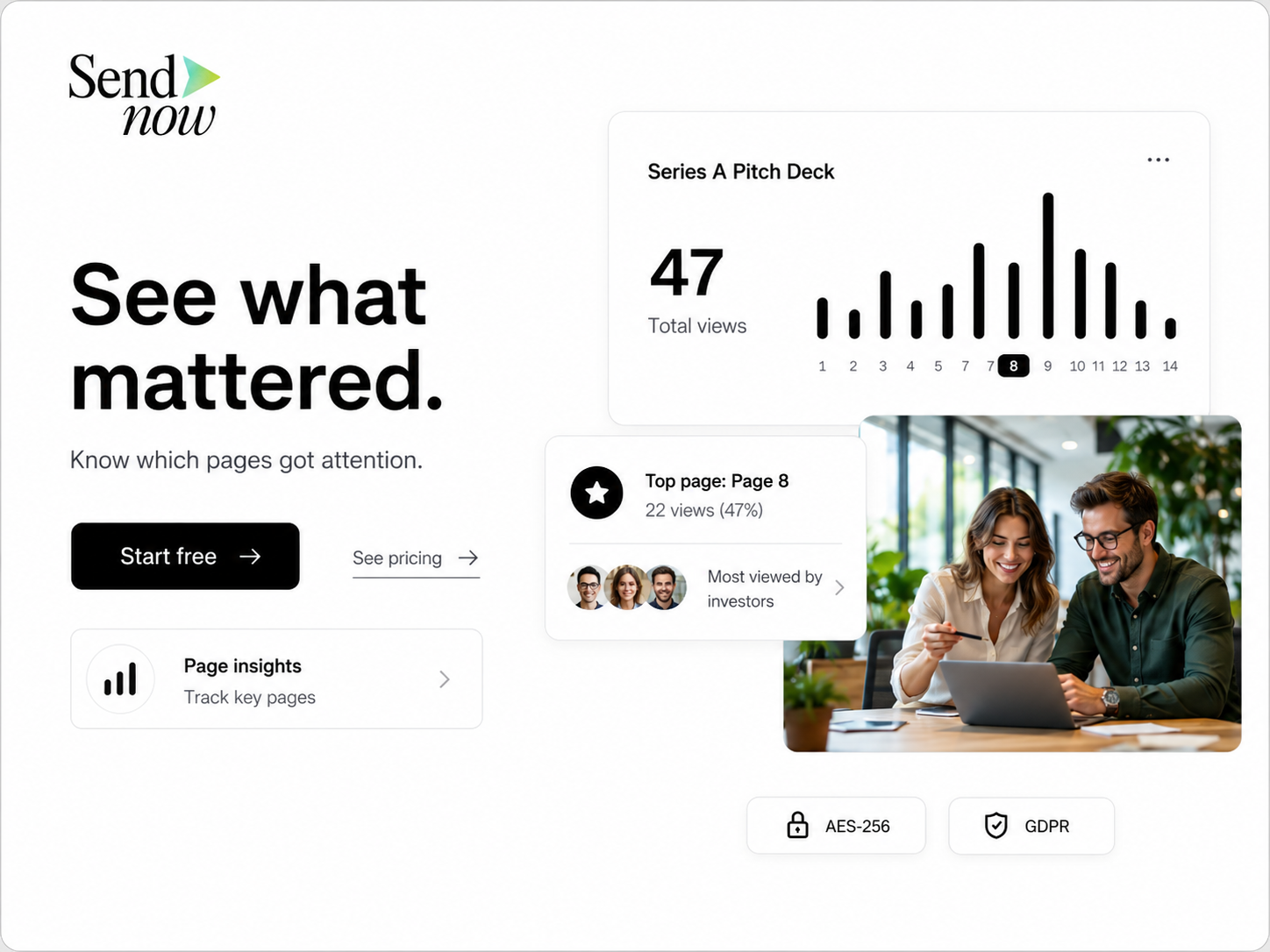
Investor decks during fundraising. A deck shared with potential investors often contains forward-looking statements and financial projections that should not circulate freely. Screenshot blocking adds a visible deterrent during the review period.
Due diligence documents. Sensitive operational data shared in an M&A process is at particular risk during the exclusivity period. A blocked, watermarked, and audit-logged link gives the seller maximum protection.
GDPR Relevance
The EU's GDPR requires appropriate technical measures for documents containing personal data. Screenshot blocking is a legitimate technical control that demonstrates active effort to prevent unauthorised reproduction of data. Combined with an audit trail logging blocked attempts, it provides evidence that the data controller implemented proactive protective measures beyond the minimum.
Related Reading
- The Complete Guide to Secure Document Sharing for Finance Teams
- How to Prevent Confidential Documents From Being Leaked
- How to Stop Recipients From Downloading Your Shared Documents
Frequently Asked Questions
Q: Can you really block screenshots on a PDF? A: Not for a PDF downloaded to a local device. However, when a PDF is delivered via a secure browser-based viewer like SendNow, JavaScript-based screenshot detection can block or obscure the content during standard screen capture attempts.
Q: Does screenshot blocking work on iPhones and Android devices? A: Yes. The SendNow viewer's screenshot blocking works on mobile browsers by detecting the screenshot event and displaying a protective overlay. The effectiveness varies slightly between operating systems and browser versions.
Q: What does a recipient see when they try to take a screenshot? A: They see a dark overlay message stating that screenshot protection is enabled, rather than the document content. The attempt is also logged in the audit trail.
Q: Can screenshot blocking be bypassed? A: Yes, by taking a physical photograph of the screen with a separate device. This is why screenshot blocking should always be combined with dynamic watermarking, which makes any photograph of the screen traceable.
Q: Does enabling screenshot blocking affect the normal viewing experience? A: No. The document functions normally for viewing and navigation. The blocker only activates when a screenshot event is detected.
Q: Is the screenshot attempt recorded? A: Yes. Every blocked screenshot attempt is recorded in the document's audit trail with a timestamp and the viewer's session details.
Q: Can I enable screenshot blocking on all my documents by default? A: Yes. SendNow allows you to set security defaults at the account level so that screenshot blocking is enabled by default on every new link you create.
Q: Does screenshot blocking work when a document is displayed on a second monitor? A: The blocker applies to the browser window displaying the document. Screen capture methods targeting a specific browser window are typically blocked, but secondary display capture methods may vary by operating system.
Enable screenshot blocking on your next document link in seconds. Start your free trial at sendnow.live and add an active deterrent to every share.
About the Author: Rifana Hameem
Rifana is the founder of SendNow. She leads the team in building secure, compliant, and analytics-rich document sharing tools for finance and professional teams worldwide.
Connect on LinkedIn