
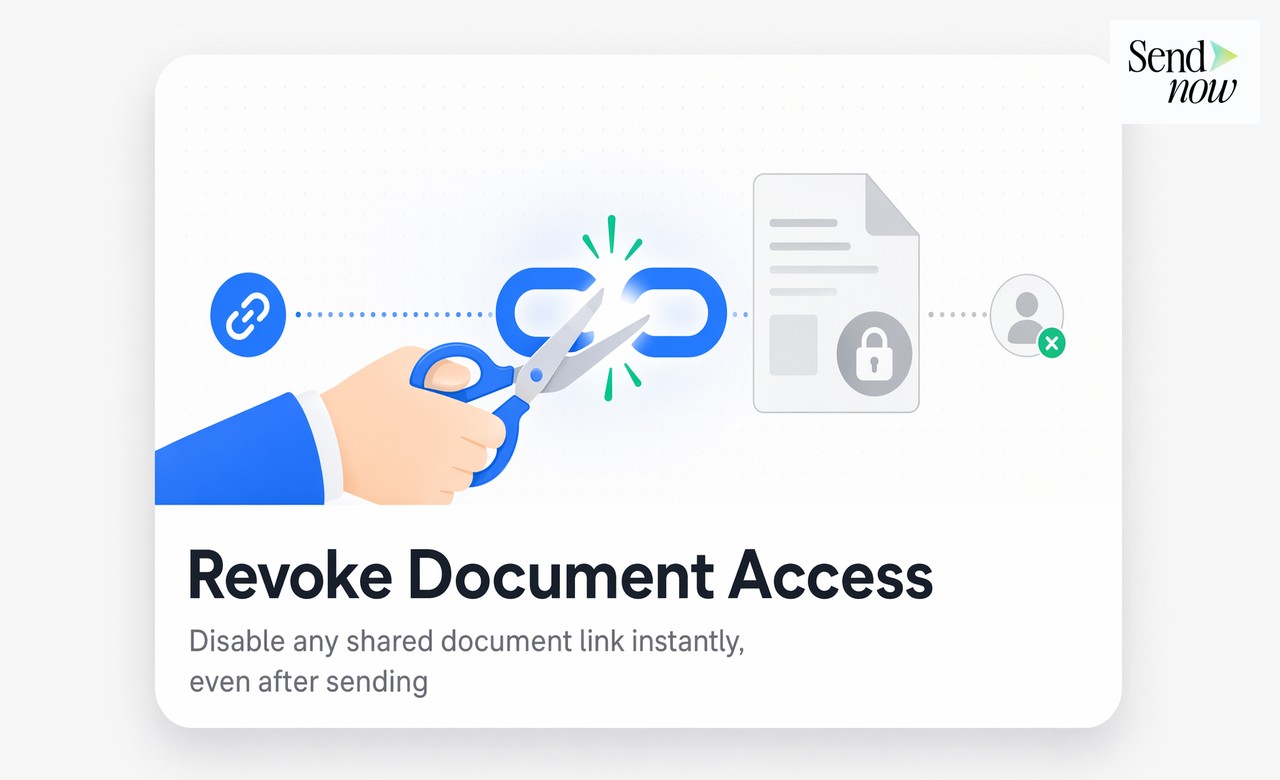
How to Revoke Document Access After You've Already Sent It
Published on April 24, 2026
How to Revoke Document Access After You've Already Sent It
#TLDR: Sending a document is not a permanent commitment. Modern document platforms let you revoke access to any shared link instantly, even days or weeks after sending. This post covers how revocation works, when to use it, and how to make it a standard part of your document workflow.
Table of Contents
- Why You Need to Revoke Document Access
- How Link Revocation Works Technically
- When to Revoke: Four Common Scenarios
- Revoking vs. Deleting: What Is the Difference?
- Revoking Per-File Inside a Microsite
- Building Revocation Into Your Standard Workflow
- Platform Comparison
- FAQs
Why You Need to Revoke Document Access {#why-revoke}
Every document you send via a shared link creates a persistent access point. Once that link exists, anyone with it can view your content, unless you have a way to turn it off.
For financial professionals, this matters across several scenarios. A proposal sent to the wrong recipient. A pitch deck shared before a deal fell through. A contract still accessible after the engagement ended. A due diligence report that a former counterparty can still open months later.
Email-based document sharing provides no solution to this problem. Once a PDF lands in someone's inbox, you have no control over it. Link-based document sharing changes that equation entirely, provided the platform gives you genuine revocation capability.
Revocation is not a niche feature. It is a baseline security control for anyone who shares sensitive materials professionally.
How Link Revocation Works Technically {#how-it-works}
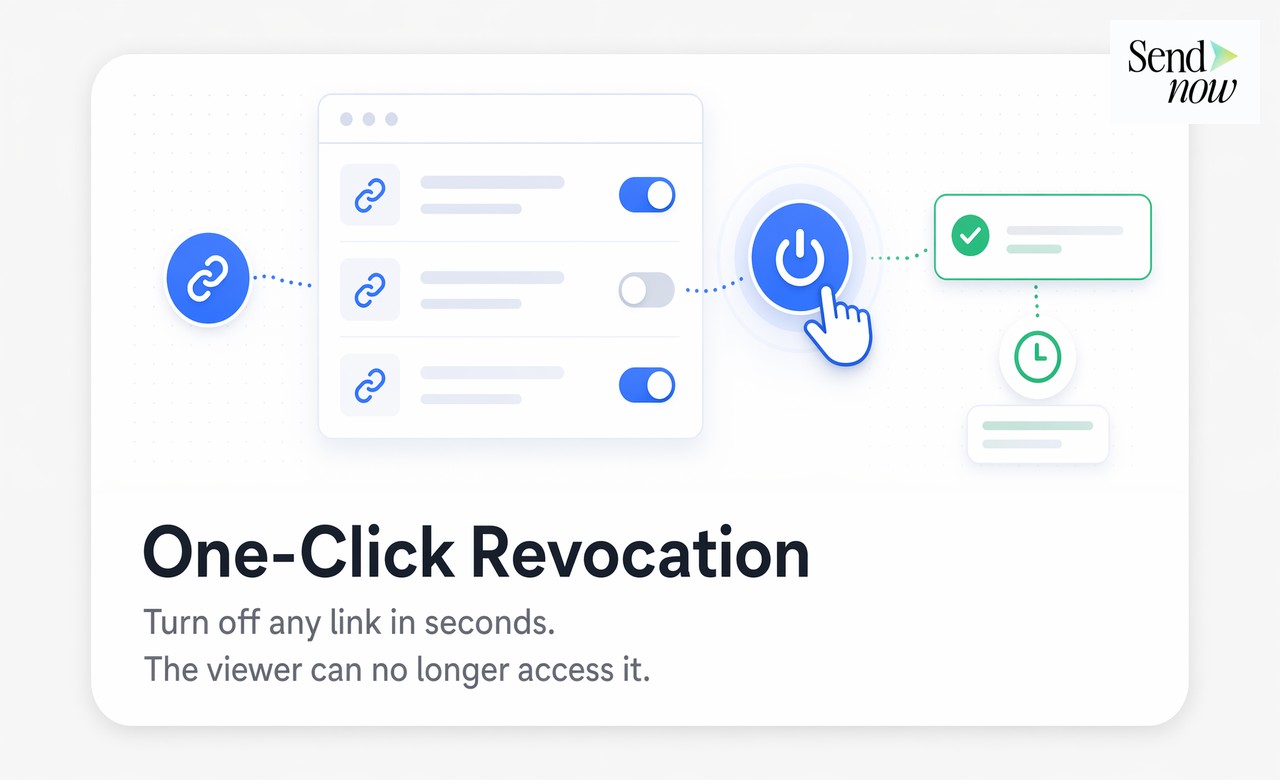
When you share a document via a platform like SendNow, you are not sending the file itself. You are sending a link that points to a controlled viewing environment. The file stays on the platform's servers. Access to it is governed by the platform's link management system.
When you revoke a link, the platform marks that link token as inactive in its database. The next time anyone tries to use that link, the access check fails and the viewer sees an access-denied message. The document itself is not deleted. Only the access pathway is closed.
This means revocation is:
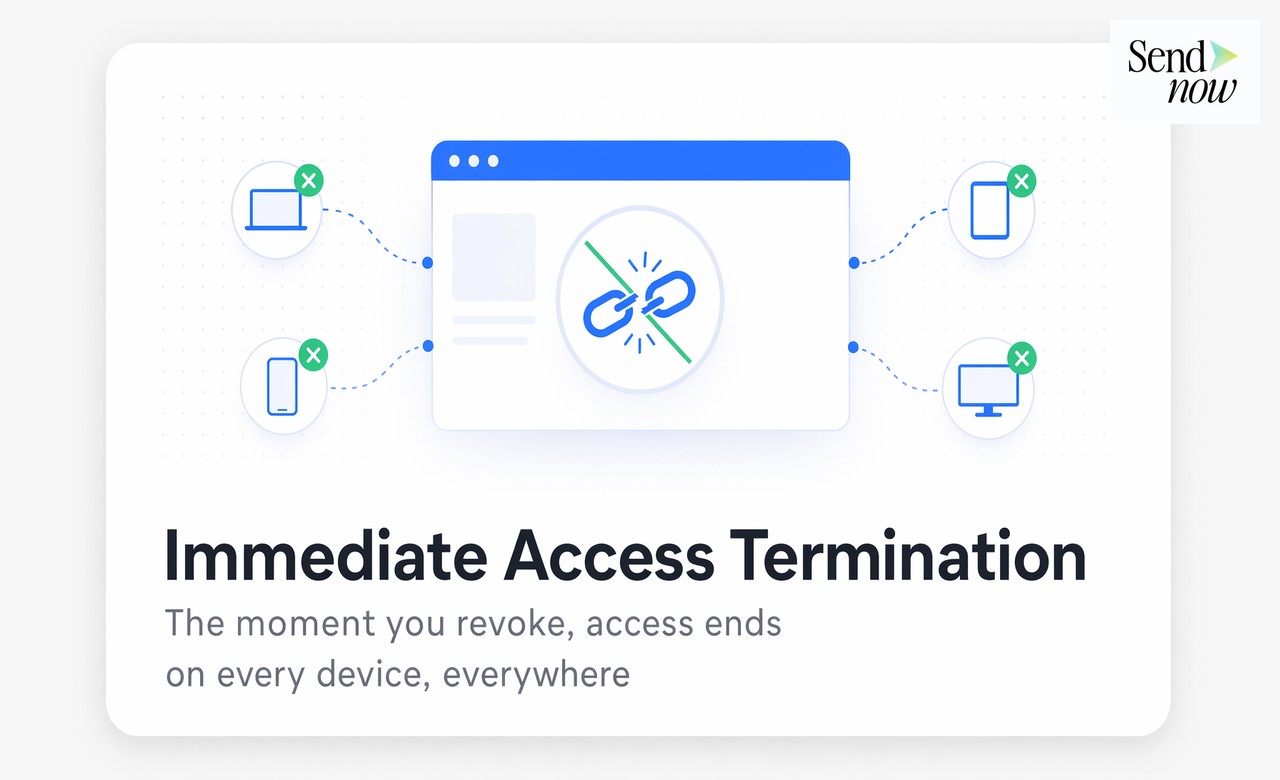
- Instant: There is no delay. The moment you revoke, access ends.
- Universal: It does not matter which device the recipient uses, or how many copies of the link are in circulation. All access via that link stops simultaneously.
- Non-destructive: The document remains intact on your account. You can re-share it with a new link if needed, or keep it locked down indefinitely.
The practical implication is that you retain control over your documents long after the initial send.
When to Revoke: Four Common Scenarios {#when-to-revoke}
1. The deal fell through A prospect reviewed your proposal, negotiations ended, and the relationship closed. Leaving that proposal accessible indefinitely serves no purpose and creates unnecessary exposure. Revoking the link is standard hygiene.
2. You sent to the wrong recipient Misdirected document links happen. A mistyped email address, a wrong contact selected in your CRM. The moment you realize the error, revocation gives you an immediate remedy. Email recall does not work reliably. Revoking the link does.
3. The proposal expired Pricing in a proposal sent six months ago may no longer be valid. If a prospect tries to hold you to expired terms based on a document still accessible via the original link, revocation prevents that scenario entirely.
4. A confidentiality breach is suspected If a shared link appears to have been forwarded to an unauthorized party, or if a viewing session originates from an unexpected location, revocation is the correct first response while you investigate.
Revoking vs. Deleting: What Is the Difference? {#revoke-vs-delete}
Revoking a link and deleting a document are different actions with different consequences.
Revocation disables access via a specific link while leaving the document intact on your account. You can re-enable it, create a new link, or adjust permissions later. Revocation is reversible.
Deletion removes the document from the platform permanently. Anyone trying to access it via any link will get an error. Deletion is not reversible.
For most operational scenarios, revocation is the right choice. It gives you control without destroying the document. Deletion is appropriate when you need to satisfy a right-to-erasure request, permanently close a matter, or remove documents that should never be accessible again under any circumstances.
In practice, you will revoke far more often than you delete.
Revoking Per-File Inside a Microsite {#microsite-revocation}
SendNow supports microsites, which are branded portals that contain multiple documents in a single shareable space. A client might access your microsite to view a proposal, a term sheet, and supporting research, all under one link.
Within a microsite, revocation can operate at the individual file level. You do not have to take down the entire microsite to remove access to one document. You can revoke a specific file while leaving the rest of the microsite fully accessible.
This granularity matters in deals that evolve over time. If you update a term sheet and want to retire the previous version, you revoke it from the microsite and upload the new one. The client's access to the microsite continues uninterrupted, but they can no longer reach the outdated document.
Building Revocation Into Your Standard Workflow {#standard-workflow}
Revocation is most valuable when it is treated as a routine step rather than an emergency response. Here is how to build it into your workflow:
At deal close or termination: Create a standard checklist item to review and revoke active document links associated with that counterparty. This takes under a minute and ensures no stale access points remain open.
At proposal expiry: Set a calendar reminder at the point when you send a proposal. When that date arrives, revoke the link whether or not you have heard back. This keeps your terms protected and your document inventory clean.
After personnel changes: When a counterparty's contact changes, or when someone at a prospect firm leaves, consider revoking links shared with that individual's email and resharing with the new contact.
Periodic audits: Most platforms show you a list of active links with last-access timestamps. Reviewing this list monthly and revoking dormant links is a low-effort, high-value security practice.
The goal is to treat active document links the same way you treat active system access credentials: review them regularly and remove them when they are no longer needed.
Platform Comparison {#comparison}
| Feature | SendNow | Email Attachments | Generic Cloud Links |
|---|---|---|---|
| One-click link revocation | Yes | No | Varies |
| Instant revocation (no delay) | Yes | No | Varies |
| Per-file revocation in microsites | Yes | N/A | No |
| Revocation timestamp logging | Yes | No | Rarely |
| Re-share after revocation | Yes | N/A | Varies |
| Viewer sees professional message | Yes | No | Rarely |
FAQs {#faqs}
Q: Can I revoke a document link after the recipient has already downloaded it? A: Revocation disables the link, stopping future access to the online viewer. It does not affect files already downloaded to the recipient's device. To prevent downloads, enable the download-block setting before sharing.
Q: Does revoking a link notify the recipient? A: No. Revocation is silent. The recipient simply finds the link inactive the next time they try to open it. They receive no notification that access was removed.
Q: Can I revoke access to one person without affecting others? A: Yes, if you created separate links for each recipient. Each link is independent, so revoking one does not affect the others. Creating per-recipient links is a best practice for sensitive documents.
Q: How long does revocation take to take effect? A: Revocation is immediate. There is no caching or delay period. The moment you confirm revocation, anyone trying to use that link will see an access-denied message.
Q: Can I reinstate access after revoking? A: Yes. Revocation is reversible. You can re-enable a revoked link or create a new link for the same document at any time.
Q: What does the recipient see after I revoke their access? A: They see a professional message indicating the link is no longer active. The message does not disclose who revoked access or why.
Q: Does revocation work if the link was forwarded to someone else? A: Yes. Revocation applies to the link token, not to specific recipient email addresses. Anyone trying to use the link, regardless of how they obtained it, will find it inactive after revocation.
Q: How is this different from password-protecting a document? A: Password protection restricts who can open a document initially. Revocation controls access over time, including after the document has already been opened. They address different parts of the access lifecycle and are most effective when used together.
Take back control of every document you have ever sent. With SendNow, revoking access is one click, takes effect instantly, and works on every device. Try SendNow at sendnow.live
Written by Alex Carter. Alex covers document security and access control workflows for financial professionals.