
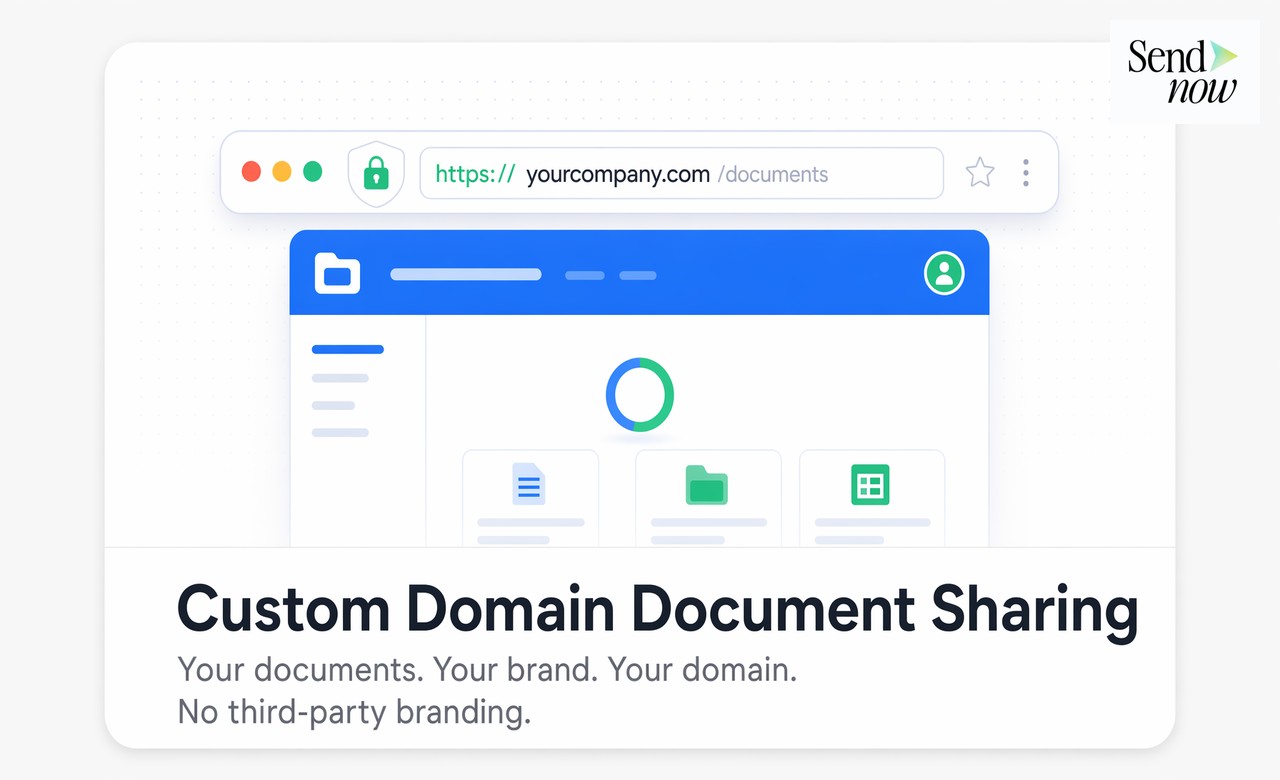
How to Share Documents from Your Own Domain
Published on April 24, 2026
How to Share Documents from Your Own Domain
#TLDR: When you share a document with a client, the link they receive reflects either your brand or your vendor's brand. Custom domain document sharing means every link comes from docs.yourfirm.com, your document viewer carries your branding, and no third-party platform name appears anywhere in the client experience. This post covers how it works, why it matters, and how to set it up in minutes.
Table of Contents
- Why Your Document Sharing Domain Matters to Clients
- How Custom Domain Setup Works
- What Clients See at Every Touchpoint
- SSL and Security on Custom Domains
- Combining with White Labeling for the Complete Brand Experience
- Step-by-Step Setup Guide
- Platform Comparison
- FAQs
Why Your Document Sharing Domain Matters to Clients {#why-domain-matters}
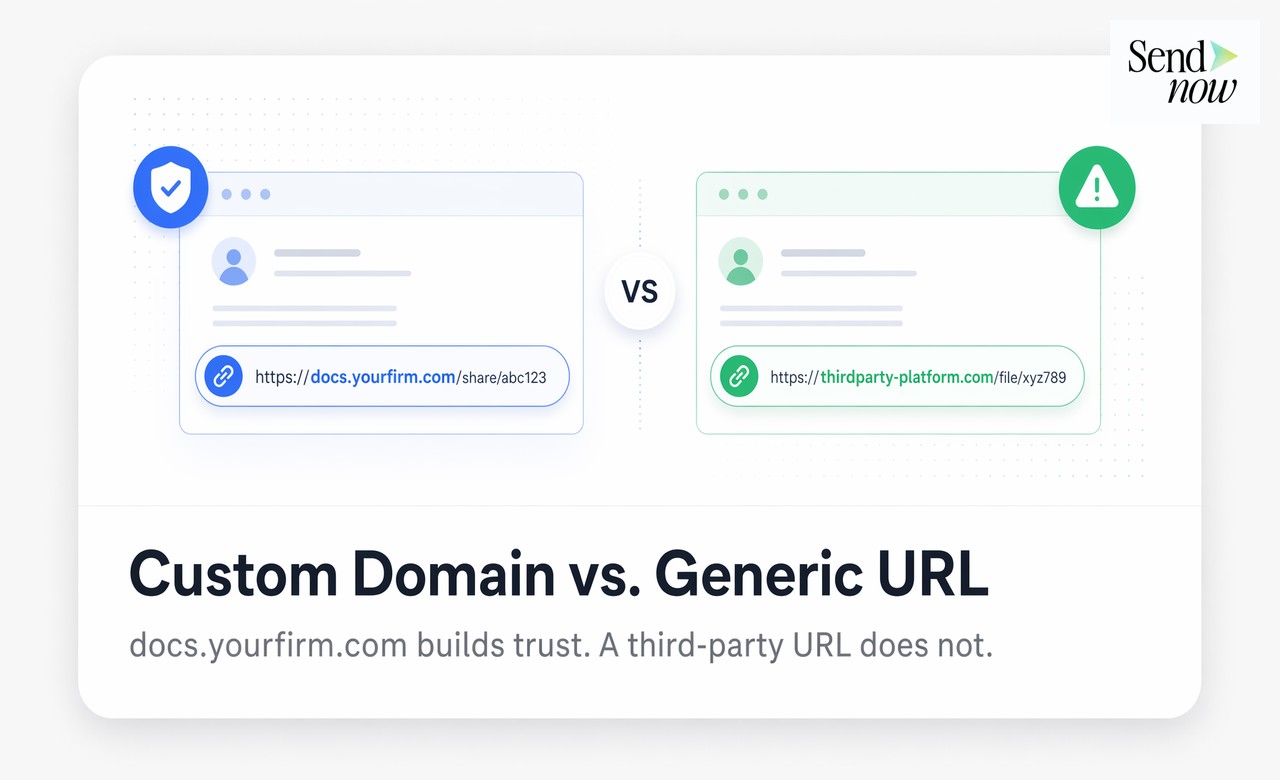
The link a client receives when you share a document is a first impression before they even open it. A link from docs.apexfinancepartners.com signals a professional organization with end-to-end control over its client experience. A link from a generic SaaS platform URL signals that you are using a third-party tool, and that the firm on the other end of the link is not yours.
In financial services, trust is the primary variable in every client relationship. The details that communicate professionalism, brand consistency, and operational sophistication matter disproportionately. A generic document link is a small detail that accumulates with other small details to form an overall impression.
There is also a practical dimension. Clients are increasingly cautious about clicking links they do not recognize. A link from a domain they know and trust — your domain — is less likely to trigger hesitation than a link from a vendor subdomain they have never seen before. In regulated industries where phishing awareness is high, recognizable branded links reduce friction at the moment of document delivery.
Custom domain document sharing solves both the perception problem and the trust problem with a single configuration.
How Custom Domain Setup Works {#setup-works}
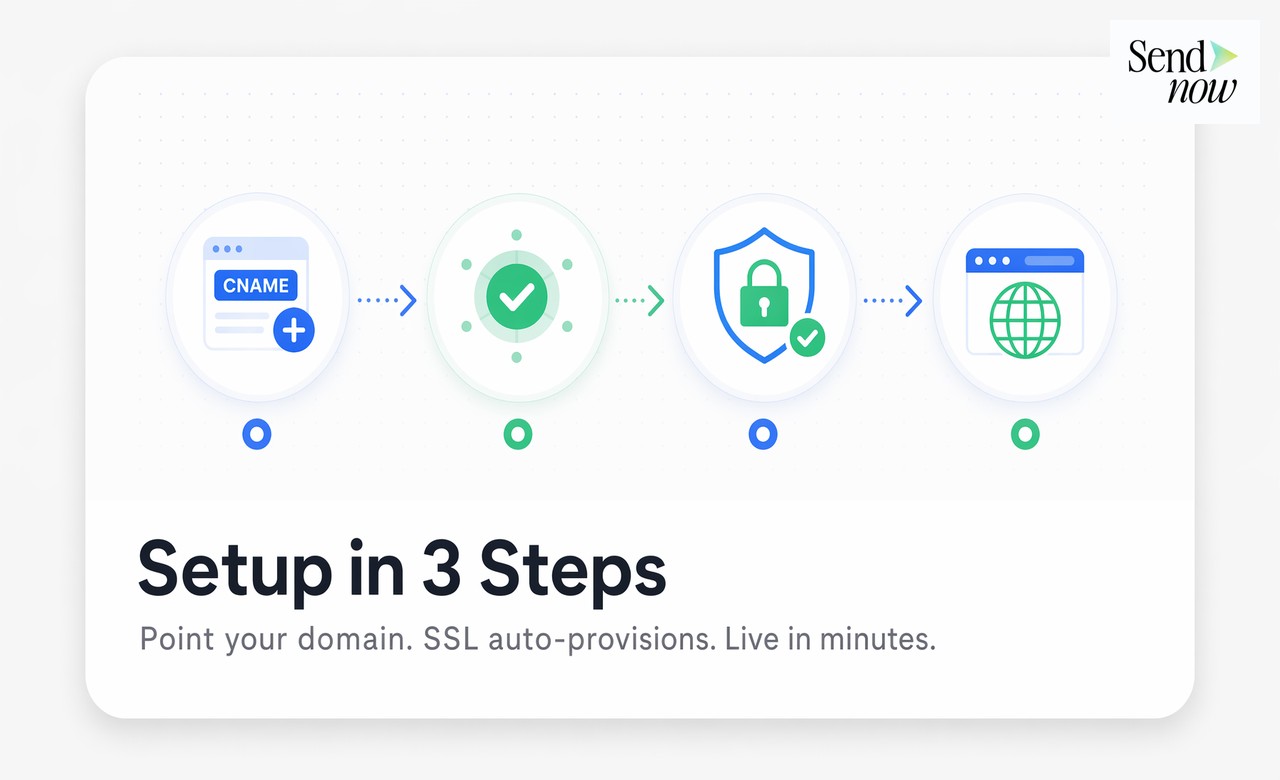
Custom domain setup works through a standard DNS configuration process. You do not need engineering resources or complex technical infrastructure. The setup involves three steps:
Step 1: Add a CNAME record to your DNS In your domain registrar or DNS management panel, create a CNAME record pointing your chosen subdomain (for example, docs.yourfirm.com) to the platform's hosting address. Your SendNow setup guide provides the exact target value.
Step 2: Platform verification Once the CNAME record is in place, SendNow's system detects it automatically. Verification typically completes within minutes. DNS propagation globally can take up to 48 hours in rare cases, but most configurations are live within the hour.
Step 3: SSL auto-provisioning SendNow provisions an SSL certificate for your custom domain automatically. No manual certificate management is required. The green padlock appears in your clients' browsers without any additional action on your part.
The result is a fully branded, SSL-secured document sharing subdomain operating under your firm's domain, backed by SendNow's infrastructure.
What Clients See at Every Touchpoint {#client-touchpoints}
Custom domain document sharing affects what clients see at every point in the document delivery experience:
The email link When you share a document via SendNow, the link in the email or message reads docs.yourfirm.com/[document-id], not a platform subdomain. The client's email security tools see a link from a domain they recognize.
The browser address bar When the client opens the link, their browser shows docs.yourfirm.com with a green SSL padlock. The URL carries your brand throughout the viewing session.
The document viewer Combined with SendNow's white labeling options, the viewer itself can carry your logo, your color palette, and your firm name. The platform powering the viewer is invisible.
The link sharing behavior If the client forwards the link to a colleague, the colleague receives a docs.yourfirm.com link. Every instance of the document in circulation reflects your brand, not your vendor's.
This end-to-end brand consistency is what separates custom domain document sharing from cosmetic white labeling that only changes a logo in one location.
SSL and Security on Custom Domains {#ssl-security}
A common concern with custom domains is whether the security posture changes when you route document delivery through a branded subdomain. The answer is that security is maintained at the same level as on the platform's native domain.
SendNow provisions TLS 1.3 SSL certificates for all custom domains automatically. The certificate covers the subdomain you configure and is renewed automatically before expiry. You do not manage certificate lifecycle at all.
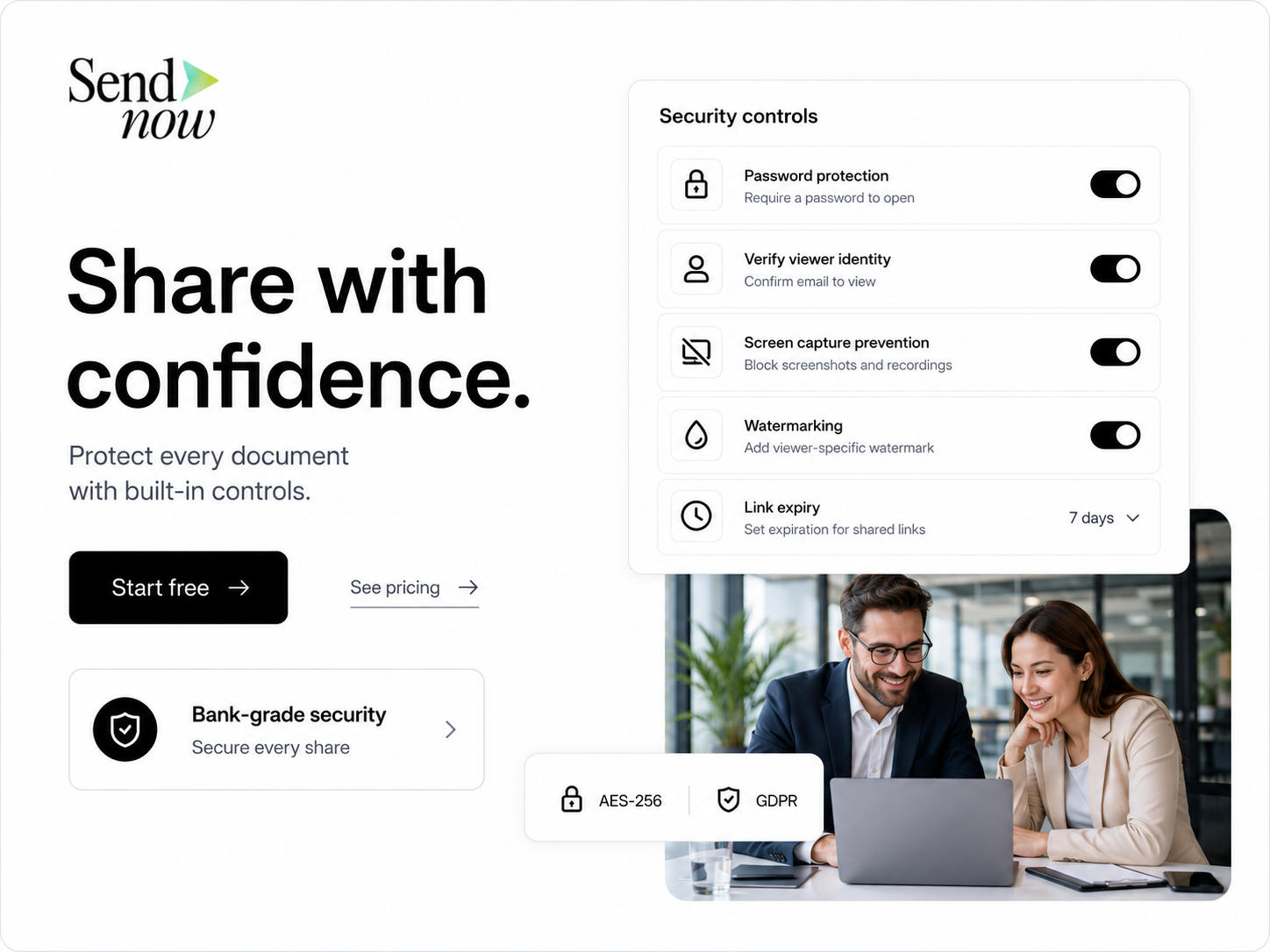
Critically, the document storage and access control infrastructure does not change when you use a custom domain. Your documents remain on SendNow's AES-256 encrypted infrastructure. Access controls, link expiry, password protection, email verification, revocation, and download blocking all work identically on a custom domain as on the platform's default domain.
The custom domain is a branding layer over the same security infrastructure. Clients get the trust signal of your domain and the security of enterprise document infrastructure simultaneously.
Combining with White Labeling for the Complete Brand Experience {#white-labeling}
Custom domain configuration is the first layer of a complete white-label document experience. SendNow's white labeling options extend brand control into the viewer interface itself.
With white labeling enabled alongside a custom domain:
- Your logo appears in the document viewer header
- The viewer color scheme matches your firm's brand colors
- Your custom domain, logo, and brand colors are showcased across the client-facing experience
- Email notifications from the platform carry your firm's name
- The NDA or consent screens that may appear before document access reflect your branding
For financial firms that compete on sophistication and client experience, this level of brand control signals that your operations match the quality of your investment work. Every client touchpoint, from the initial link to the document viewer to the follow-up notification, reflects a single coherent brand.
Step-by-Step Setup Guide {#setup-guide}
Here is the complete setup process for custom domain document sharing on SendNow:
1. Choose your subdomain Decide on the subdomain you want clients to see. Common choices: docs.yourfirm.com, share.yourfirm.com, or portal.yourfirm.com. The subdomain should be intuitive and recognizable to clients.
2. Access your DNS panel Log in to your domain registrar (GoDaddy, Namecheap, Cloudflare, or wherever your DNS is managed) and navigate to the DNS management section for your domain.
3. Create the CNAME record Add a new CNAME record with:
- Name/Host: your chosen subdomain prefix (e.g., docs)
- Value/Points to: the CNAME target provided in your SendNow settings
- TTL: 3600 (or default)
4. Enter the subdomain in SendNow In your SendNow account settings under Custom Domain, enter your full subdomain (docs.yourfirm.com). Save the setting.
5. Wait for verification SendNow checks for the CNAME record and verifies your domain. This completes within minutes in most cases. You will see a confirmation status in your settings.
6. SSL certificate auto-provisions Once verified, SendNow provisions your SSL certificate automatically. Your custom domain is now active and all new document shares will use docs.yourfirm.com.
7. Enable white labeling (optional) If you want to add your custom domain and branding from the viewer interface, enable white labeling in the same settings section and upload your logo and brand colors.
Platform Comparison {#comparison}
| Feature | SendNow | Generic File Sharing | Basic Document Tools |
|---|---|---|---|
| Custom domain support | Yes | No | Rarely |
| SSL auto-provisioning | Yes | N/A | No |
| No engineering setup required | Yes | N/A | No |
| White label viewer | Yes | No | No |
| All access controls on custom domain | Yes | N/A | No |
| Custom domain on all plans | Included | N/A | No |
FAQs {#faqs}
Q: Do I need to be a developer to set up a custom domain? A: No. The setup requires adding a single CNAME record to your DNS panel, which takes about two minutes. No code is written and no servers are configured. Your IT administrator or anyone with DNS panel access can complete it.
Q: How long does it take for the custom domain to go live? A: Most configurations go live within minutes of adding the CNAME record. In rare cases, DNS propagation can take up to 48 hours globally, but the domain typically resolves correctly for most users within an hour.
Q: Will my existing document links break when I switch to a custom domain? A: Links shared before you activated the custom domain will continue to work on the platform's original domain. Only new shares after activation will use your custom domain.
Q: Can I use multiple custom domains? A: Contact the SendNow team at sendnow.live to discuss multi-domain configurations for firms with multiple brands or regional requirements.
Q: Does the custom domain affect document security? A: No. All document access controls, encryption, and security features operate identically on a custom domain. The custom domain is a branding layer over the same secure infrastructure.
Q: What happens to the SSL certificate if I change my DNS settings? A: SendNow monitors your custom domain and will flag any configuration changes that affect SSL. Certificate renewal is handled automatically and does not require any action on your part.
Q: Can clients tell that a third-party platform is powering the document viewer? A: With white labeling enabled alongside your custom domain, there is no visible indication of the underlying platform. The viewer carries your branding entirely.
Q: Is custom domain setup available on all SendNow plans? A: Custom domain is available on SendNow's business plans. Visit sendnow.live to review current plan details and get started.
Your brand on every link you send. SendNow custom domain setup takes minutes, SSL provisions automatically, and every client touchpoint reflects your firm, not a vendor. Try SendNow at sendnow.live
Written by Alex Carter. Alex covers branding, white labeling, and client experience design for financial services firms.