
Business plan
Verify a custom domain via DNS
After you add your domain's DNS records, SendNow checks them automatically — here's what each status means and what to do about the ones that need attention.
1
Let the automatic check run
Every domain on this page is checked once each time you visit it — no need to click anything for the first pass.
2
Fix what it asks for
If a record is missing or conflicting, the card names the exact record type, name, and value to add, with a copy button next to the value.
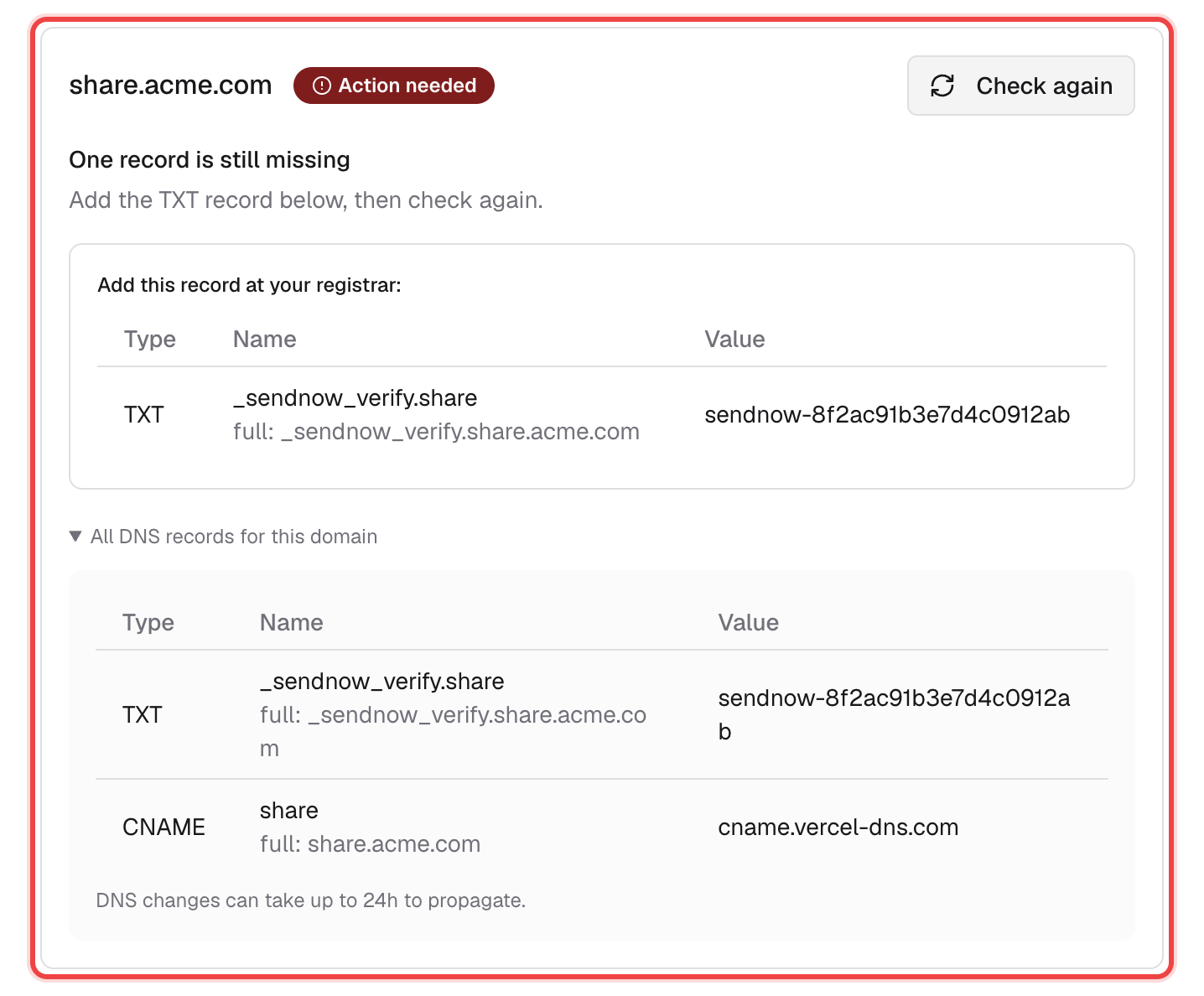
3
Click "Check again"
Run the check any time — most useful right after you've updated a record at your registrar.
4
Wait for "Connected"
Once every record is correct and the certificate has issued, the badge switches to Connected and the domain starts serving links.

Good to know
- Pending means we're still waiting to see your DNS records at all.
- Action needed covers a few distinct problems: a CNAME and an A record both set on the same name (not allowed), a Cloudflare proxy switched on (turn the orange cloud to grey / DNS-only), a CAA record blocking our certificate provider, or the routing record simply missing.
- One step left means your routing record is already correct and only the certificate is left to issue — usually a minute or two, then check again.
- DNS changes can take up to 24 hours to propagate, even once entered correctly.
- Most registrars want the short "Name" shown on the card, not the full hostname — use the "full:" value only if yours specifically asks for the complete domain.