
Delete a link
Deleting a link removes its address and its visitor history for good. The document behind it, and any other links pointing to it, are left alone.
Find the link
Go to Links in the sidebar (or a document's Links tab) and locate the one you want to remove.

Click the trash icon
A confirmation dialog opens before anything happens — nothing is deleted by this click alone.
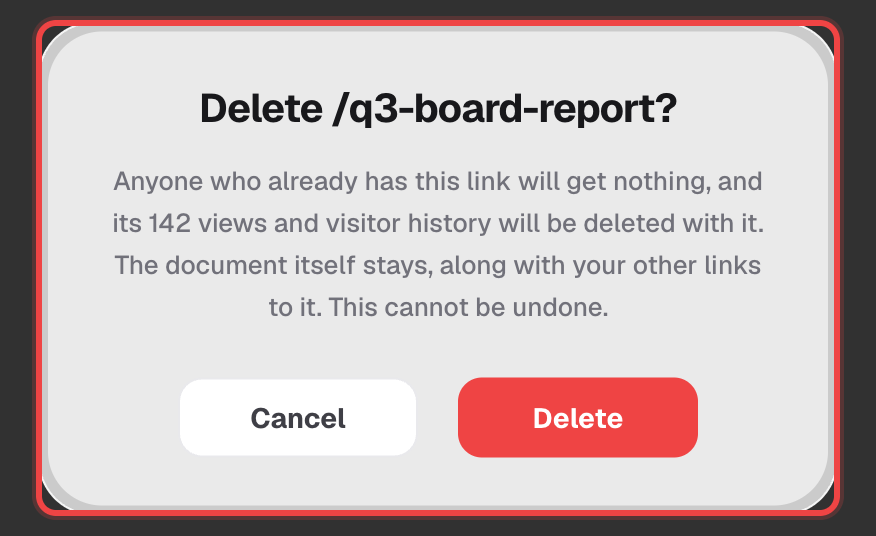
Confirm the delete
Click Delete to finish. This cannot be undone.
What actually gets deleted
Deleting a link only removes that one address — everything it pointed to stays exactly where it was.
Anyone who already has the URL gets nothing from the moment you confirm. Its view count and visitor history are deleted with it.
The document itself stays in your account, and any other links you've created to it keep working exactly as before.
Good to know
- Deleting a MicroSite works from this same list, but it's more destructive — it removes every file inside the MicroSite too, not just its address.
- There's no bulk delete. Links are removed one row at a time.
- This action is available on every plan.