
All plans
View and search your links
Every link you've created lives in one place, sorted newest first — search by its address or the document behind it to find the one you need.
1
Open the Links page
Click Links in the sidebar to see every link across your account.
2
Search by address or document
Type into the search box — it matches the link's address and the document (or MicroSite) it points to.

3
Read the list
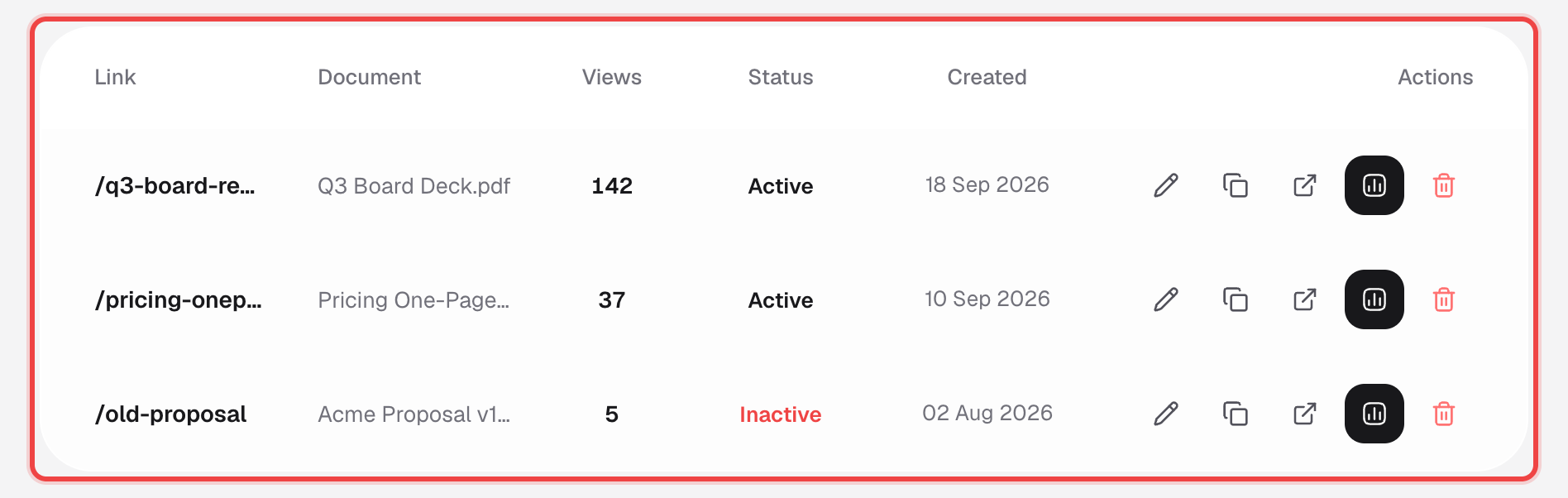
Each row shows the link's address, its document, view count, whether it's Active or Inactive, and when it was created.
4
Or view links for just one document
Open a document from your dashboard and click its Links tab — the same search box and list, scoped to that document, with the Document column hidden since it's redundant there.
Good to know
- Team members see the links of every account owner they've joined, not only their own.
- MicroSites appear in this same list, labeled "MicroSite - <name>", when you're viewing all links rather than one document's.
- The Active/Inactive status here reflects only whether the link itself has been switched off — an expired or view-capped link can still show Active in this list even though visitors can no longer get in.