
All plans
Edit a link's settings
Change any setting on a link after it's already live — access controls, expiry, branding — without breaking the address people already have.
1
Open the link
Go to Links in the sidebar, find the link, and click the pencil icon in the Actions column.

2
Change any setting
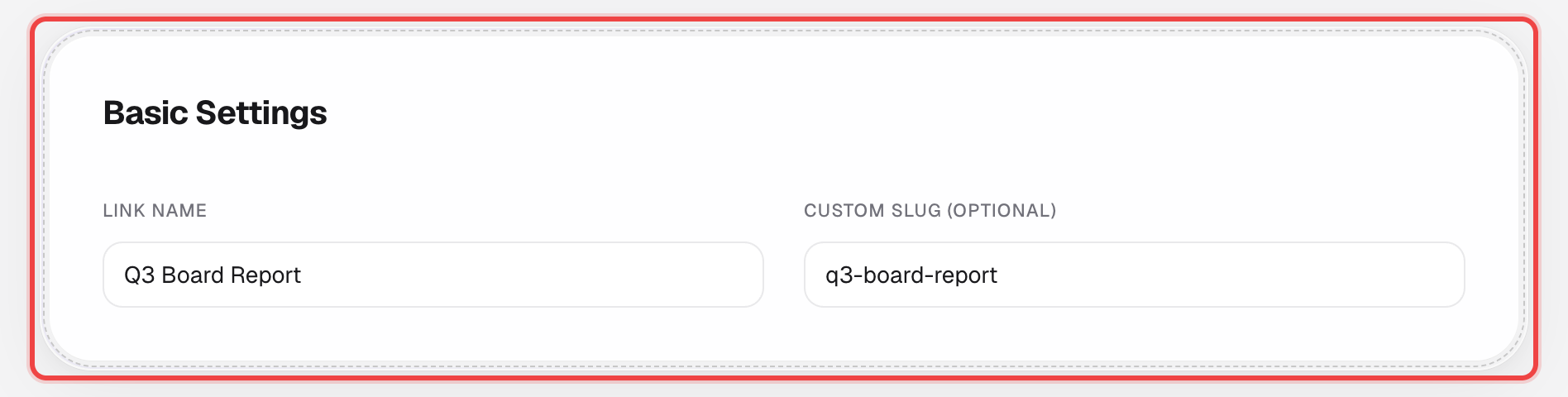
The page reopens as Edit Link, pre-filled with everything you set before — Basic Settings, Access Control, Branding & Watermark, Expiration & Limits, Notifications.
3
Save your changes
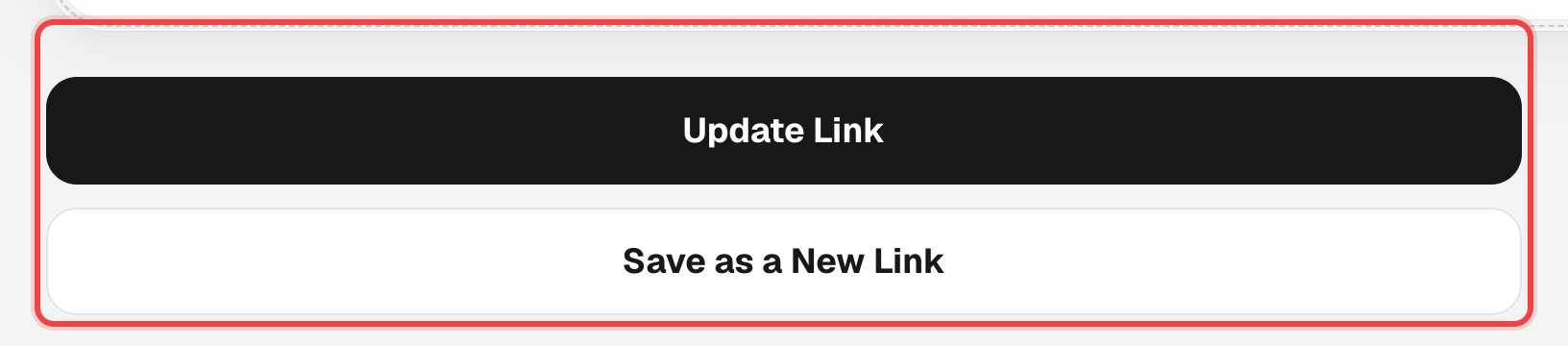
Click Update Link at the bottom. The address stays the same, so anyone who already has the link keeps working.
Good to know
- Changing the Custom Slug breaks the old address — a warning appears, and anyone with the previous link gets nothing. Use "Save as a New Link" instead if you want to keep both.
- In edit mode only, a "Replace File" card also appears further down the page — it swaps the file behind the link without changing the link's address. Plan limits apply to how many times you can replace it.
- Available on every plan.