
Business plan
Send link activity to a webhook
Pick exactly which events on this link fire a webhook call, so you can react to views, downloads, and NDA signatures in your own systems.
1
Set your webhook URL first
This card only chooses which events to send — the destination URL itself is set once under Settings → Integrations.
2
Open your link's settings
Go to your document, then click Create Link (or edit an existing link).
3
Turn on "Webhook Integration"
In the Notifications card, flip the switch.

4
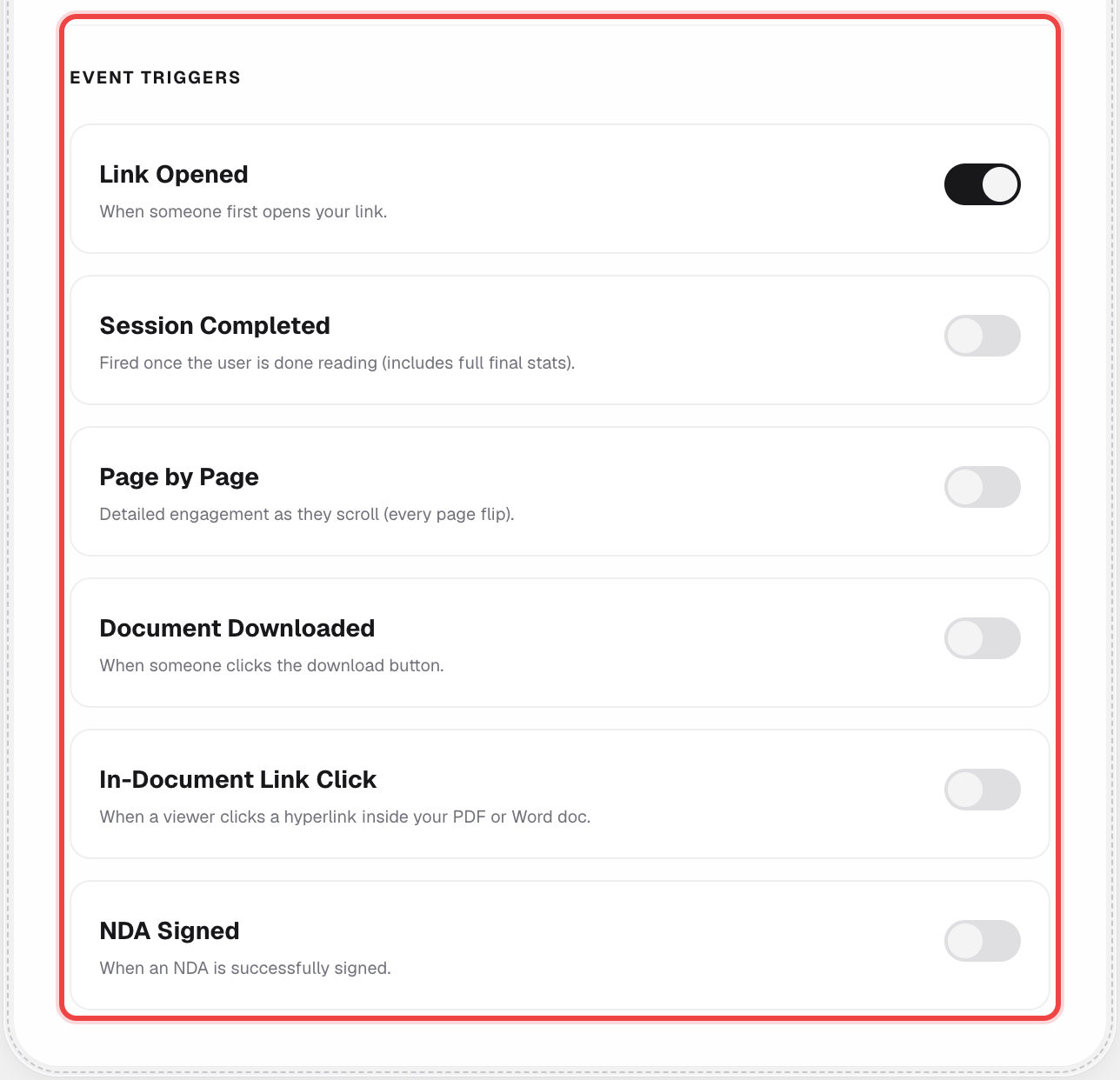
Choose which events to send
An "Event Triggers" list appears. Turn on only the events you actually want to react to — each one is its own switch.
5
Save your link
Click Create Link (or Save) at the bottom of the page like normal.
Good to know
- This panel also has an advanced "Data Payload Controls" section for including location, device, and lifetime-stats fields in the payload, plus a live JSON preview of exactly what gets sent.
- Event selection is per link, so different links on the same document can notify different systems for different events.
- Available on the Business plan.