
All plans
Set your default security options
Turn on Require Email, Password Protection, or Screenshot Blocker once here, and every new standalone document link starts with them already on.
1
Go to Settings → Security
These are account-wide defaults, separate from the per-link switches covered in the Links & Sharing articles.
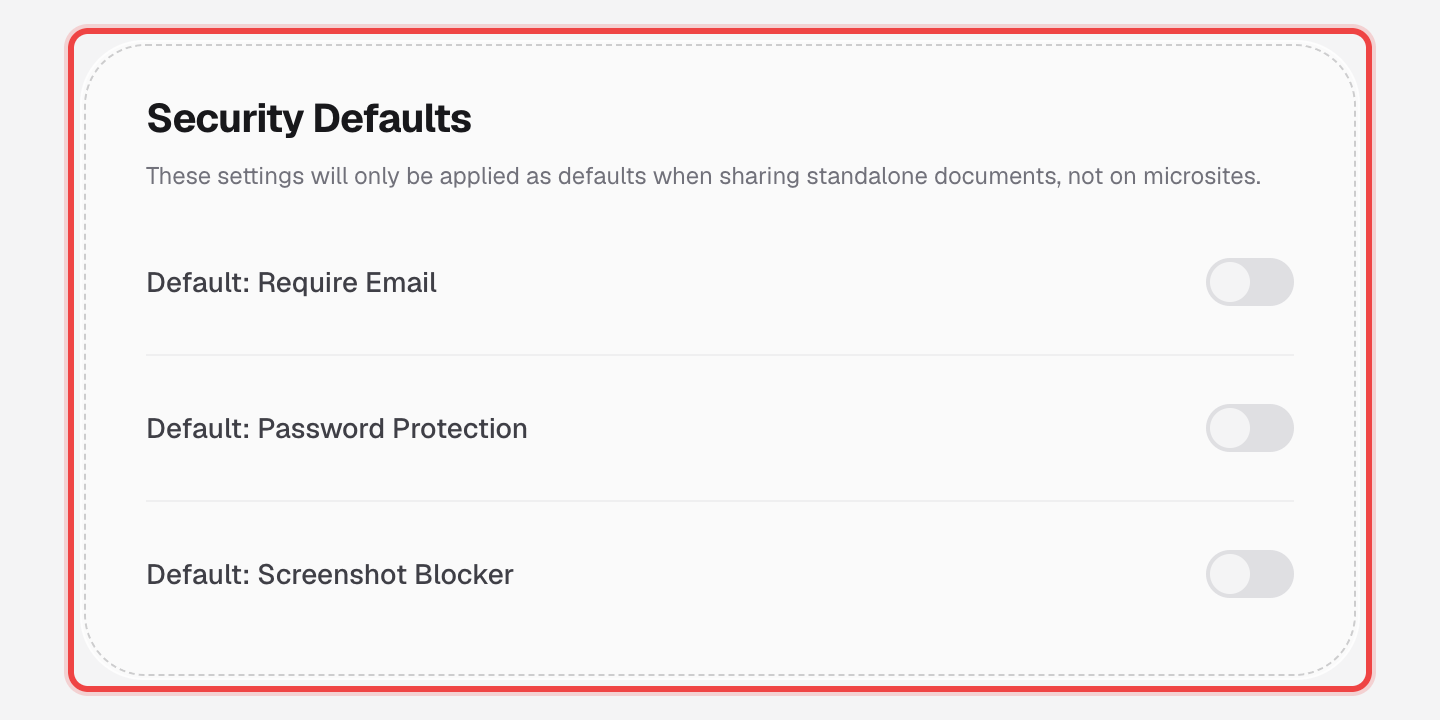
2
Turn on the defaults you want
Each toggle mirrors one of the per-link Access Control switches: Require Email, Password Protection, and Screenshot Blocker.
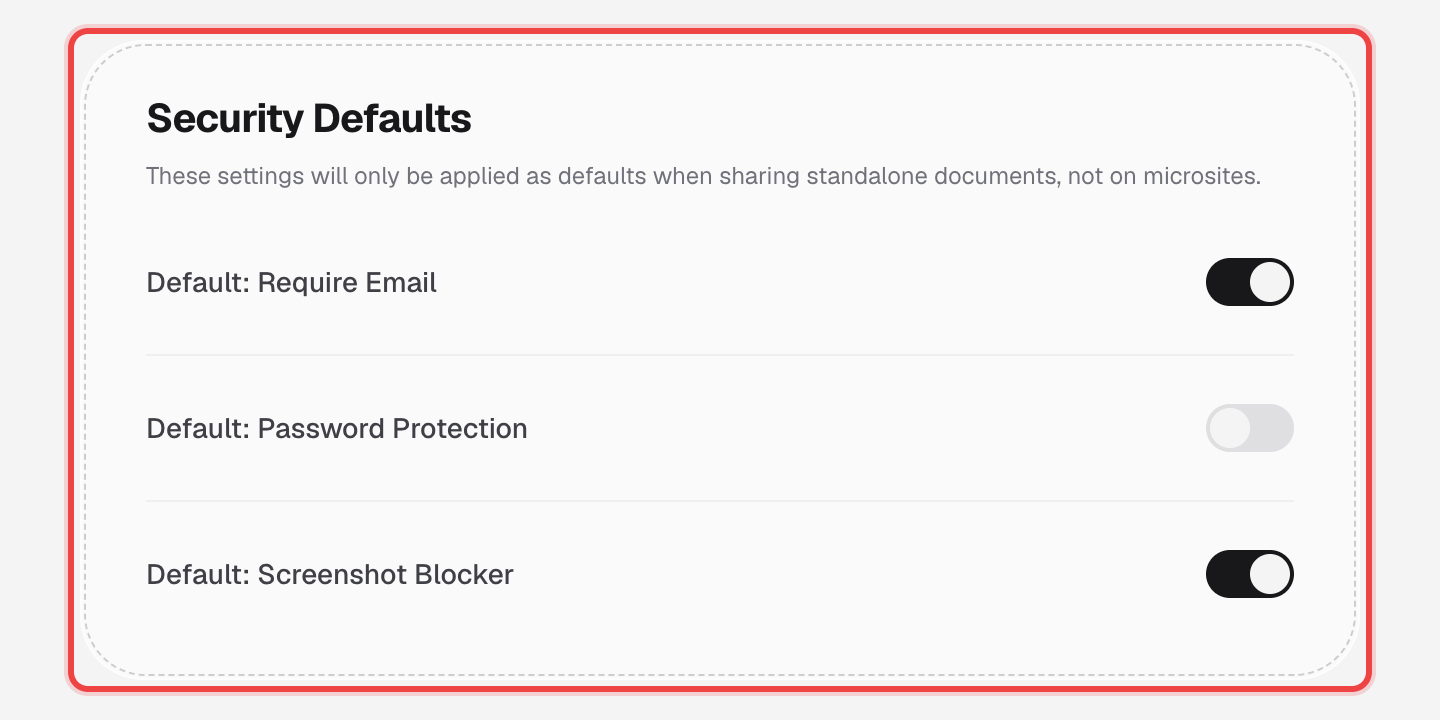
3
Changes save automatically
There's no separate save button — each toggle updates your account as soon as you flip it.
Good to know
- These defaults only apply when you create a new standalone document link — they do not apply to microsites, and they do not change links you've already created.
- You can still turn any of these off (or on) for one specific link when creating it — the default just decides the starting position of the switch.
- Password Protection still requires you to type an actual password on each link when it's time to set one; turning on the default doesn't set a password for you.
- Available on every plan.