
Only let specific people open your link
Turn this on and only the exact email addresses you list can open the document. Anyone else who gets the link is blocked, even with the URL in hand.
Open your link's settings
Go to your document, then click Create Link (or edit an existing link).
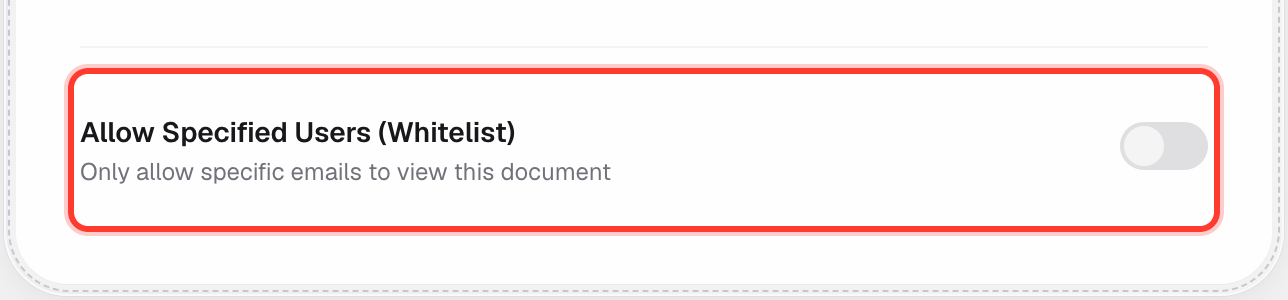
Turn on "Allow Specified Users (Whitelist)"
In the Access Control section, flip the switch.
Add each email address
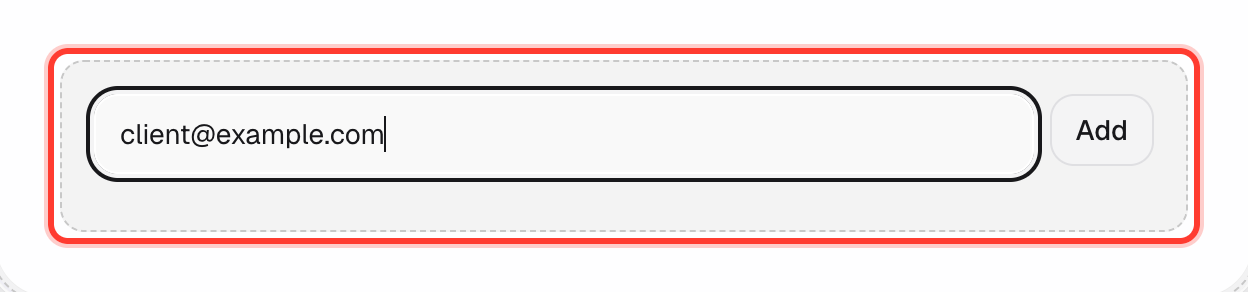
Type an email and press Add (or hit Enter). Repeat for everyone who should have access.
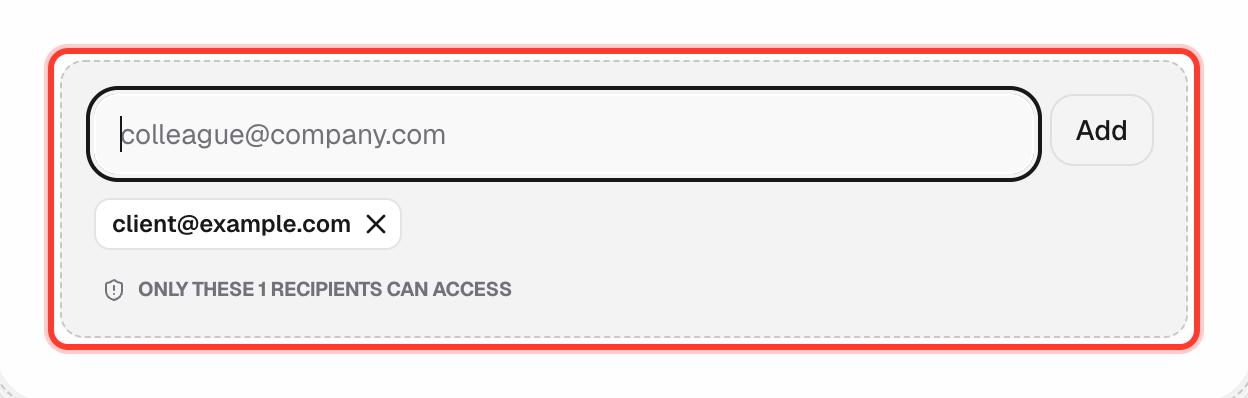
Each one appears as a chip. Click the on a chip to remove that person later.
Save your link
Click Create Link (or Save) at the bottom of the page like normal.
What happens next
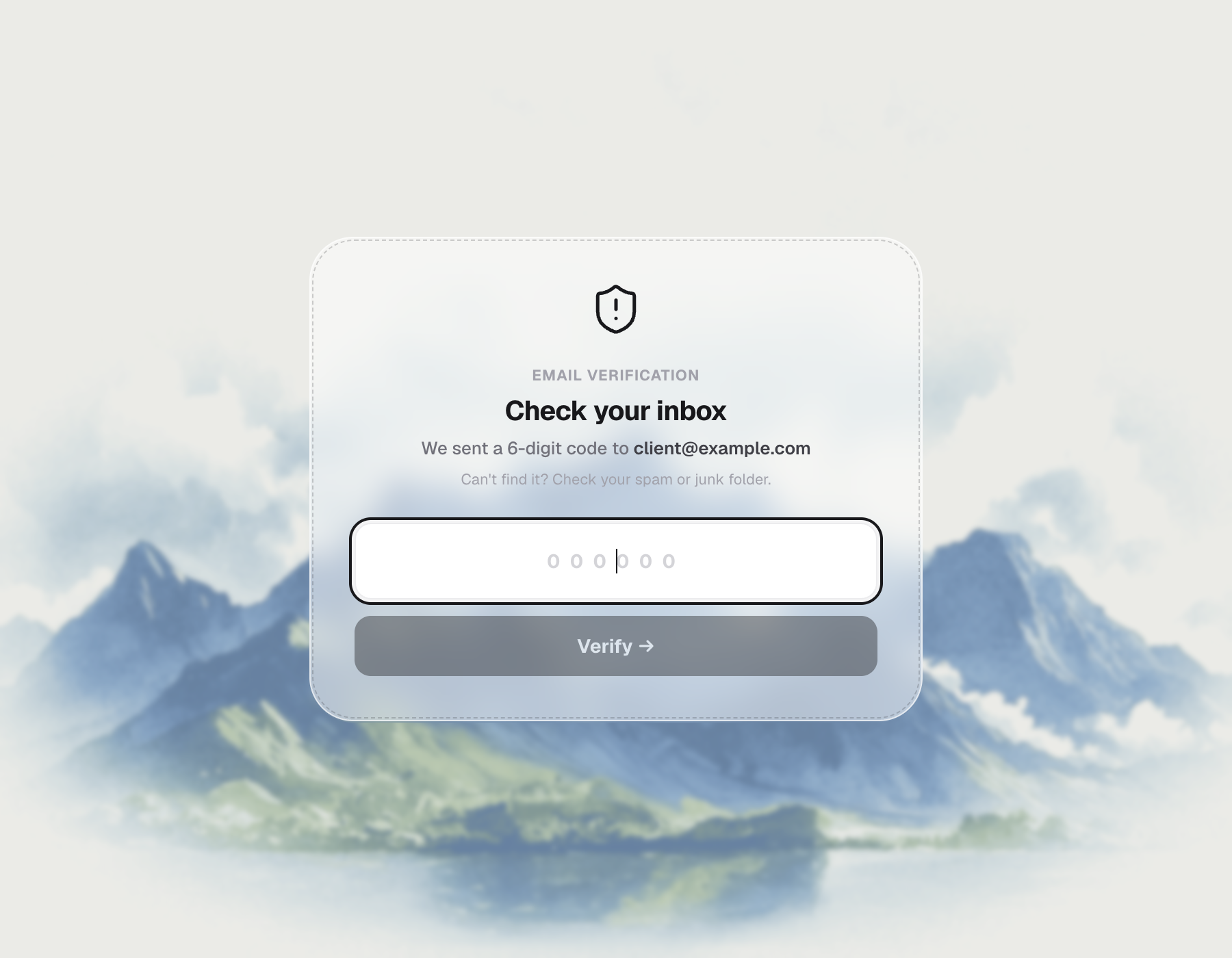
When someone opens the link, they're asked to enter their email first.
We send a 6-digit code to that inbox — they type it in to continue.
They're blocked. No code is sent, no access, no exceptions.
Good to know
- You can combine this with Password Protection or the NDA gate for extra layers.
- Removing an email from the list blocks that person immediately on their next visit.
- This is a Business plan feature — on Lite/Pro the toggle is disabled with an upgrade prompt.