
Protect your link with a password
Anyone with the link still needs a password to open the document. Good for a quick layer of protection when you don't need to track exactly who's viewing.
Open your link's settings
Go to your document, then click Create Link (or edit an existing link).
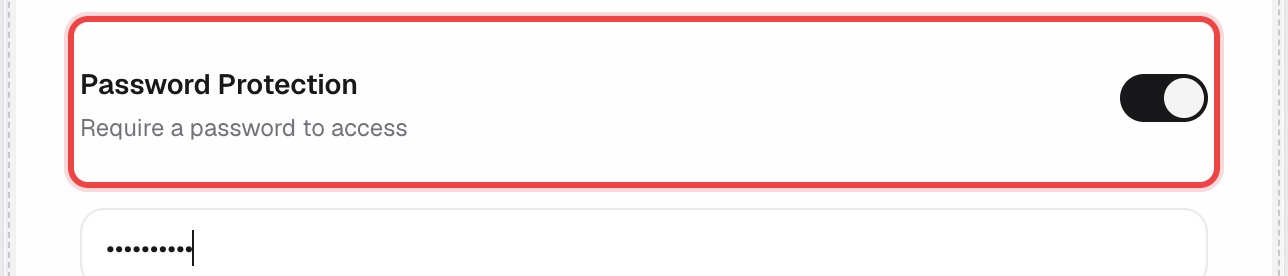
Turn on "Password Protection"
In the Access Control section, flip the switch.

Set your password
A field appears right below the toggle. Type the password your recipients will need.
Save your link, then share the password separately
Click Create Link (or Save). Send the password through a different channel than the link itself — a text message, a call, or a separate email.
What happens next
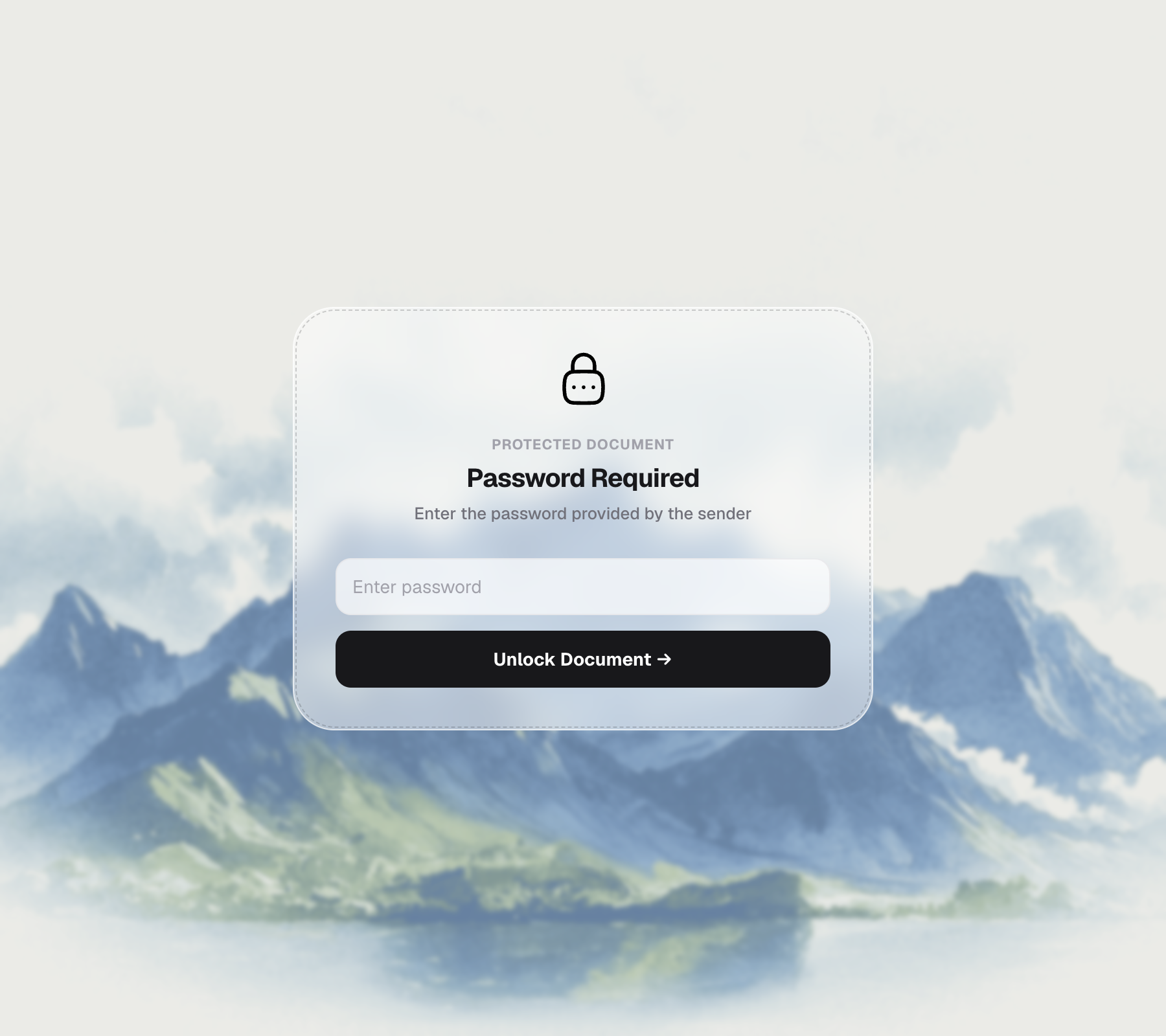
Anyone who opens the link sees a lock screen before the document.
The document unlocks immediately — no email or code needed.
They stay on the lock screen with an error, and can try again.
Good to know
- The password is never shown back to you in plain text after saving — reset it on the link if you forget it.
- Combine this with Require Email to View to also know who opened the file.
- Available on every plan, including Lite.