
Pro & Business
Customize how your link looks when shared
Control the thumbnail image and title that show up when your link is pasted into Slack, iMessage, or social media.
1
Open your link's settings
Go to your document, then click Create Link (or edit an existing link).
2
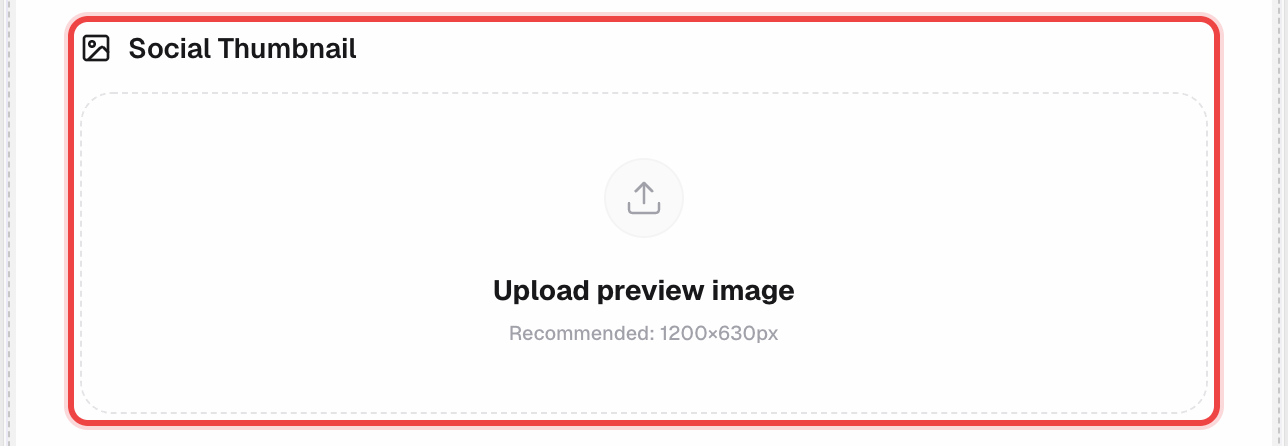
Upload a thumbnail (optional)
In Link Preview Styling, drop in an image sized 1200×630px. Without one, we fall back to a plain placeholder.
3
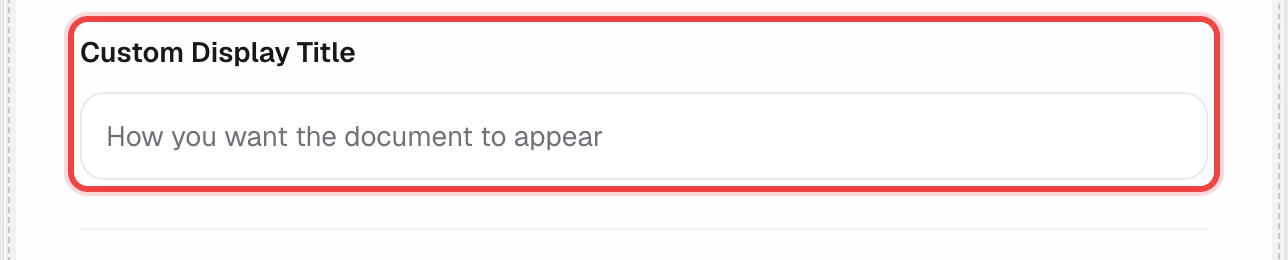
Set a custom display title (optional)
By default the preview shows your file name. Override it with something more readable to recipients.
4
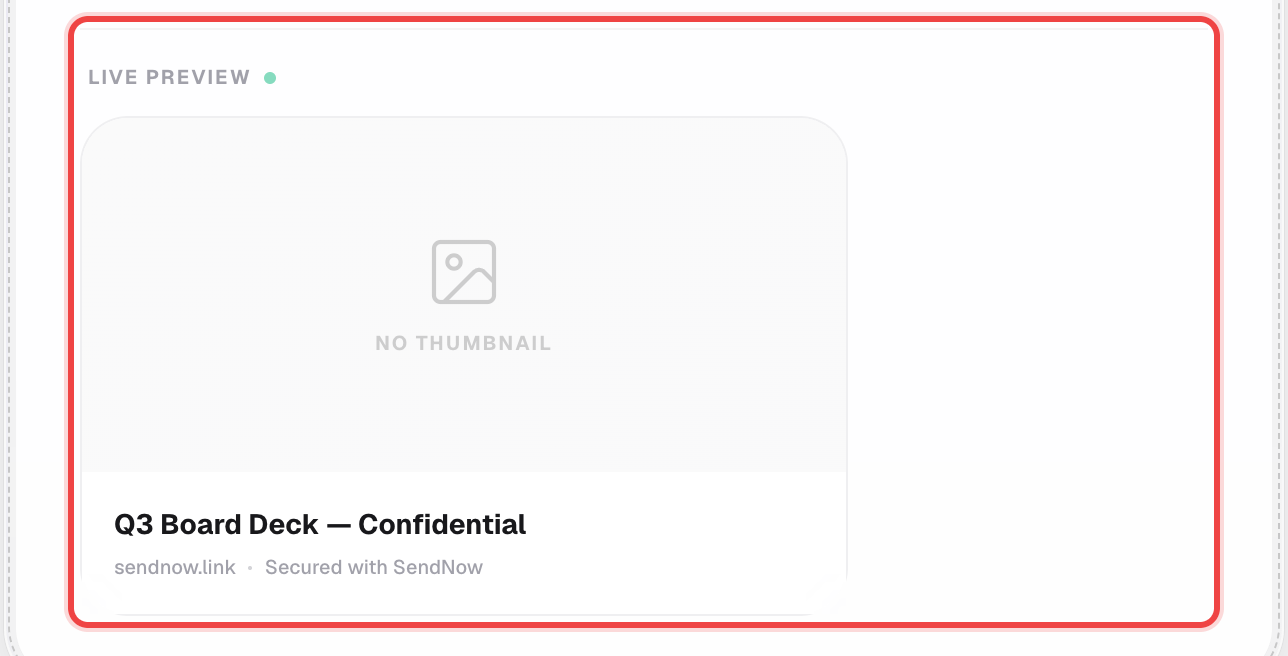
Check the live preview
The card below updates as you type, so you see exactly what recipients will see before you save.
5
Save your link
Click Create Link (or Save) at the bottom of the page like normal.
Good to know
- This only changes how the link looks when shared — it has no effect on the document itself or on access controls.
- Some apps cache link previews, so a change may take a little while to show up somewhere you've already pasted the link.
- Available on Pro and Business plans.