
Business plan
Share a link from your own domain
Once you've verified a domain, any link can go out under it instead of the default sendnow.link address.
1
Verify a domain first
This card only lets you pick a domain for this link — you add and verify the domain itself once, under Settings → Domains.
2
Open your link's settings
Go to your document, then click Create Link (or edit an existing link).
3
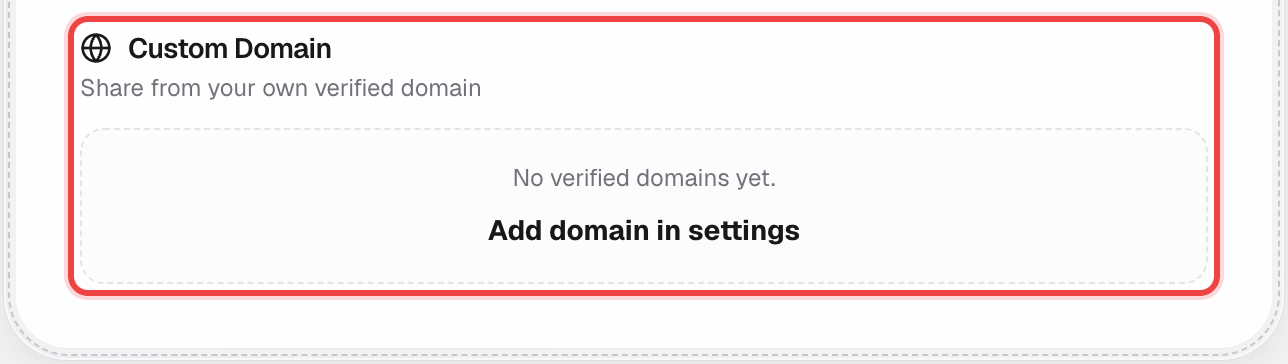
Find "Custom Domain" in Branding & Watermark
With no verified domain yet, you'll see a prompt instead of a picker.
4
Once verified, pick it from the dropdown
The field becomes a real selector — choose your domain, or leave it on the default SendNow address.

5
Save your link
Click Create Link (or Save) at the bottom of the page like normal.
Good to know
- Domain verification is DNS-based and happens once per domain, not per link.
- Every link on the account can independently use the default domain or any of your verified domains.
- Available on the Business plan.