
Organize a MicroSite with folders
Group related files into folders, then optionally lock any single folder behind its own email gate, password, whitelist, or NDA — independent of the MicroSite's own access control.
Create a folder
Click Create folder in the builder toolbar. It's added to the top of your content as "New Folder" — double-click the name to rename it.

Drag files and links into it
Use the grip handle on the left of any row to drag it into the folder. An empty, expanded folder shows a dashed drop target until something lands inside.
Open the folder's security settings
Hover the folder and click the shield icon next to its name to open Gating & Security for that folder.
Turn on the gates you need
Independently switch on an Email Gate, Allow Specific Users (exact emails or whole @domains), Password Protection, a folder-specific NDA, and Allow Download — all scoped to this one folder.
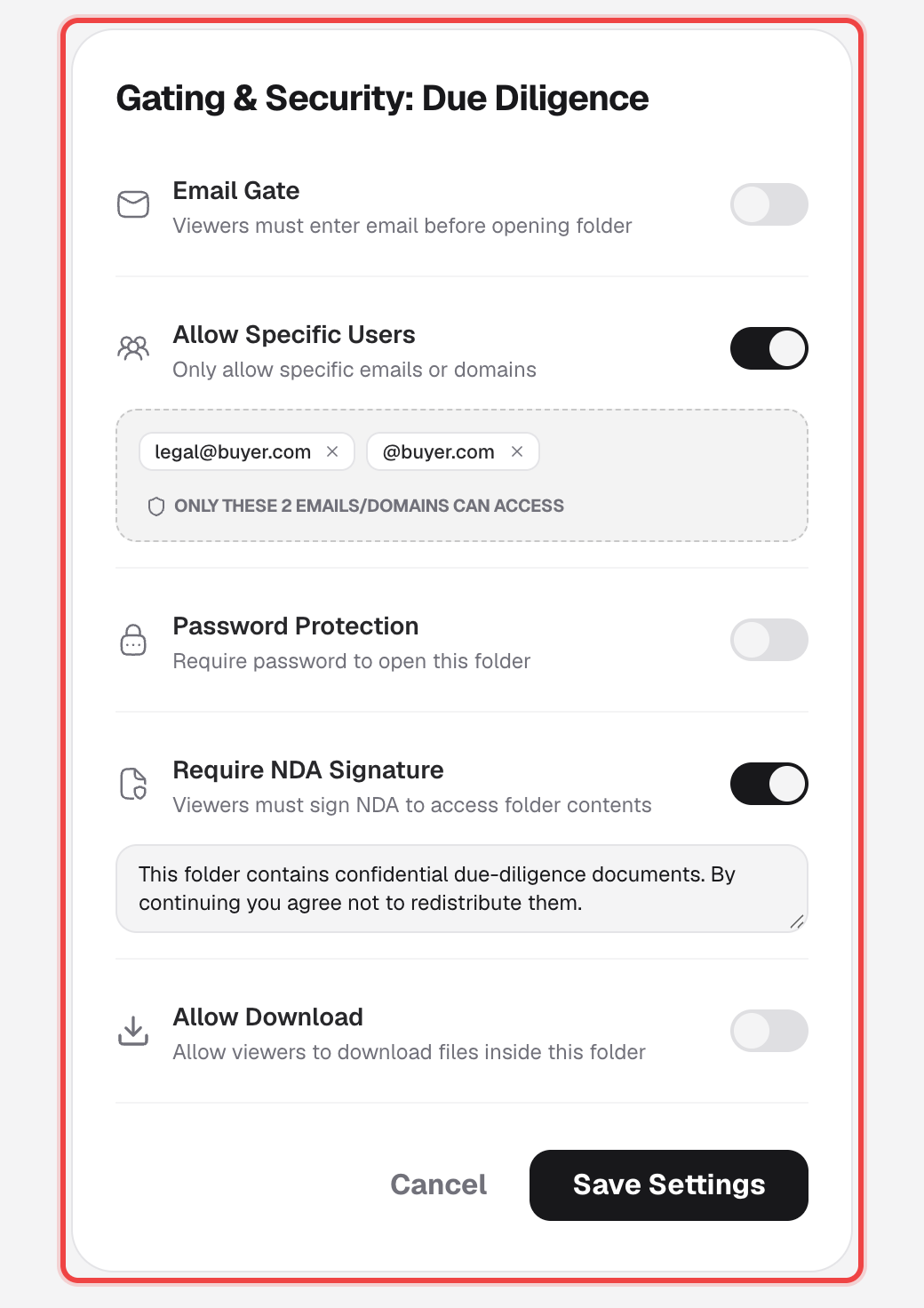
Save Settings
Click Save Settings to apply. A small dot appears next to the shield icon on any folder that has a gate turned on, so you can spot secured folders at a glance.
What visitors see
Folder gates apply only when someone opens that specific folder — the rest of the MicroSite behaves as configured elsewhere.
Visitors are asked for their email, a password, or to sign the NDA — whichever gates you enabled — before the folder's contents open.
Files inside can be viewed but not downloaded, even if downloading is allowed elsewhere on the MicroSite.
Good to know
- Folder security is separate from the MicroSite-level Access Control — you can gate the whole MicroSite, individual folders, both, or neither.
- Collapsing a folder (the chevron next to its name) is a builder convenience only — it doesn't change what visitors see.
- A folder with no gates turned on is only as protected as the MicroSite around it.