
Business plan
Swap the file behind a link
Upload a new version without breaking the link you already shared — the URL, analytics, and settings all stay put.
1
Open the link's edit page
From your dashboard, click a document's pencil Edit icon, or open View analytics-adjacent link and click its edit icon.
2
Find the Replace File panel
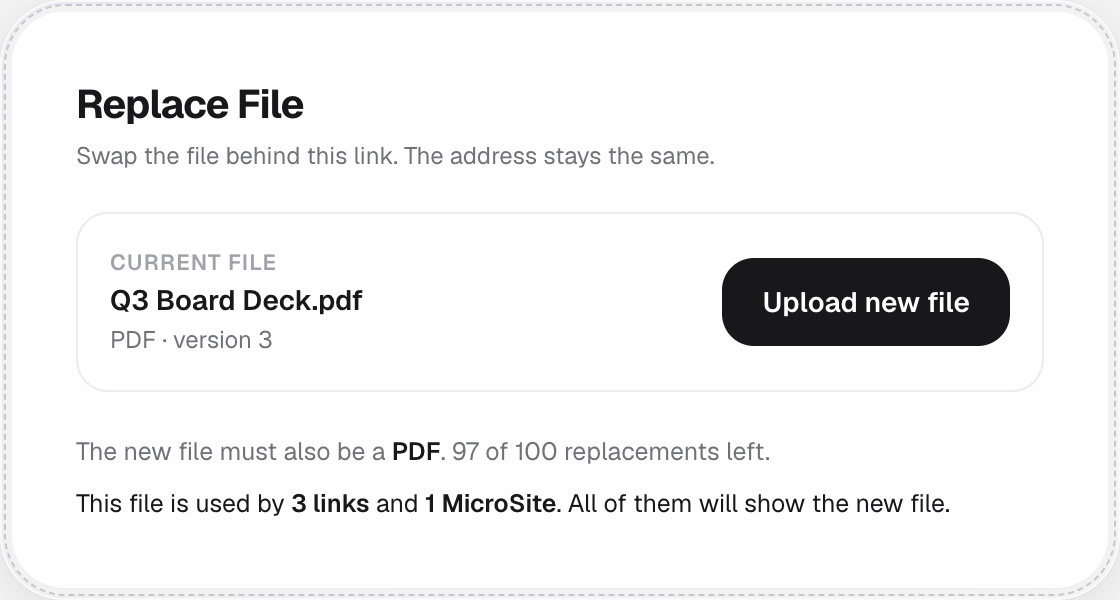
Scroll down to Replace File and click Upload new file.
3
Pick a file of the same type
The new file must match the original format — a PDF can only be replaced with another PDF.
Why the button might be disabled
Any one of these three turns it off.
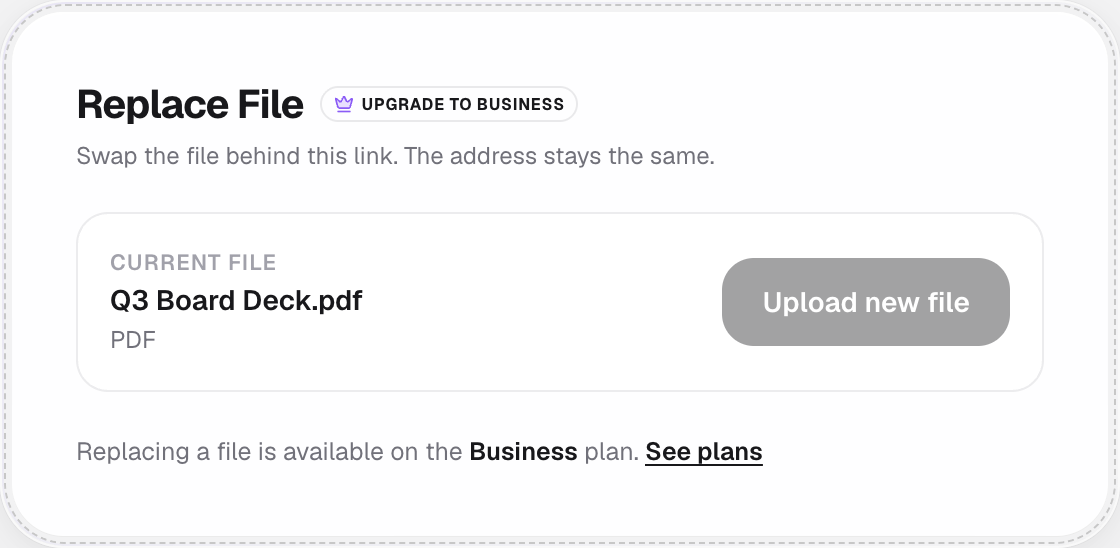
Not on the Business plan
Replacing a file is a Business-plan feature — an upgrade badge appears next to the heading.
An NDA has been signed
A signature has to keep pointing at the exact file that was signed, so replacement is blocked for good.
100 replacements already used
That's the limit for one file. Create a new link instead.
Good to know
- Every link and MicroSite pointing at this file switches to the new version at once — nobody's link breaks.
- You get 100 replacements per file, plenty for normal version updates.
- View counts and analytics from before the swap are kept — they just now sit against the new file.