How to Restrict a Document to Specific Email Addresses Only

How to Restrict a Document to Specific Email Addresses Only
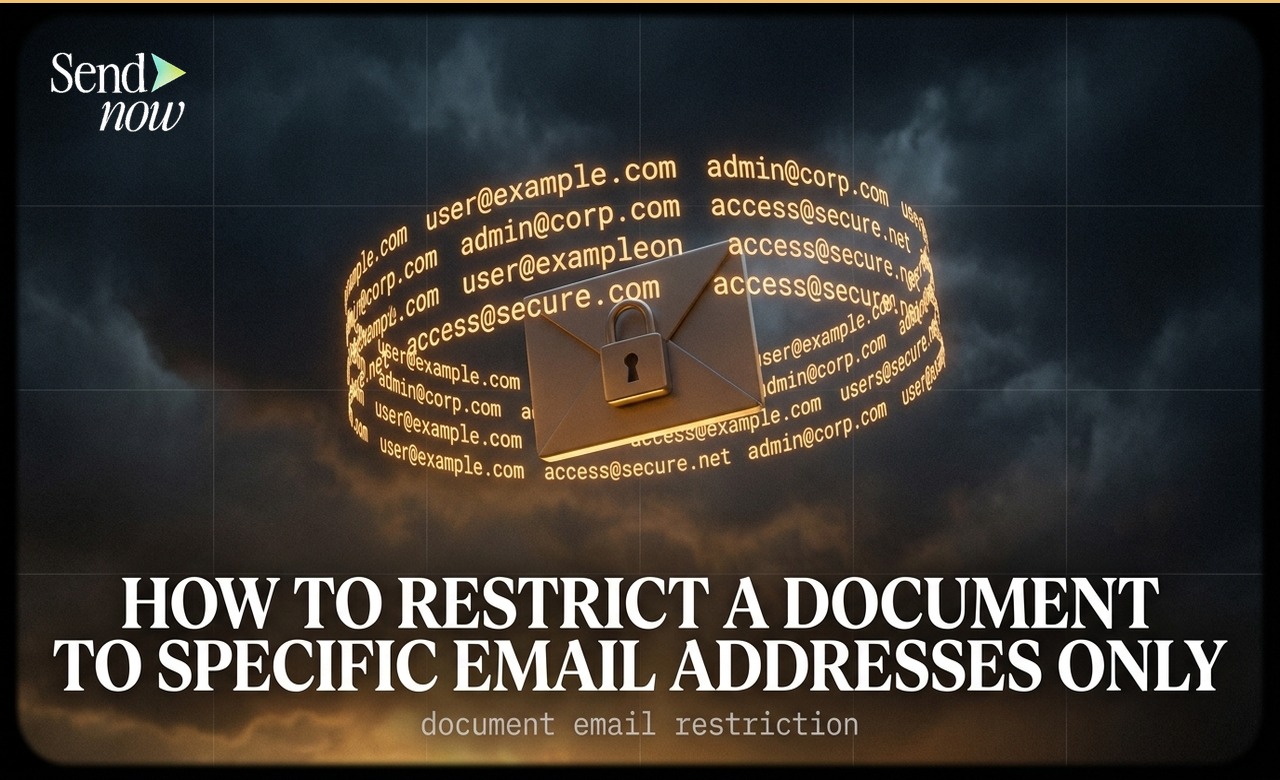
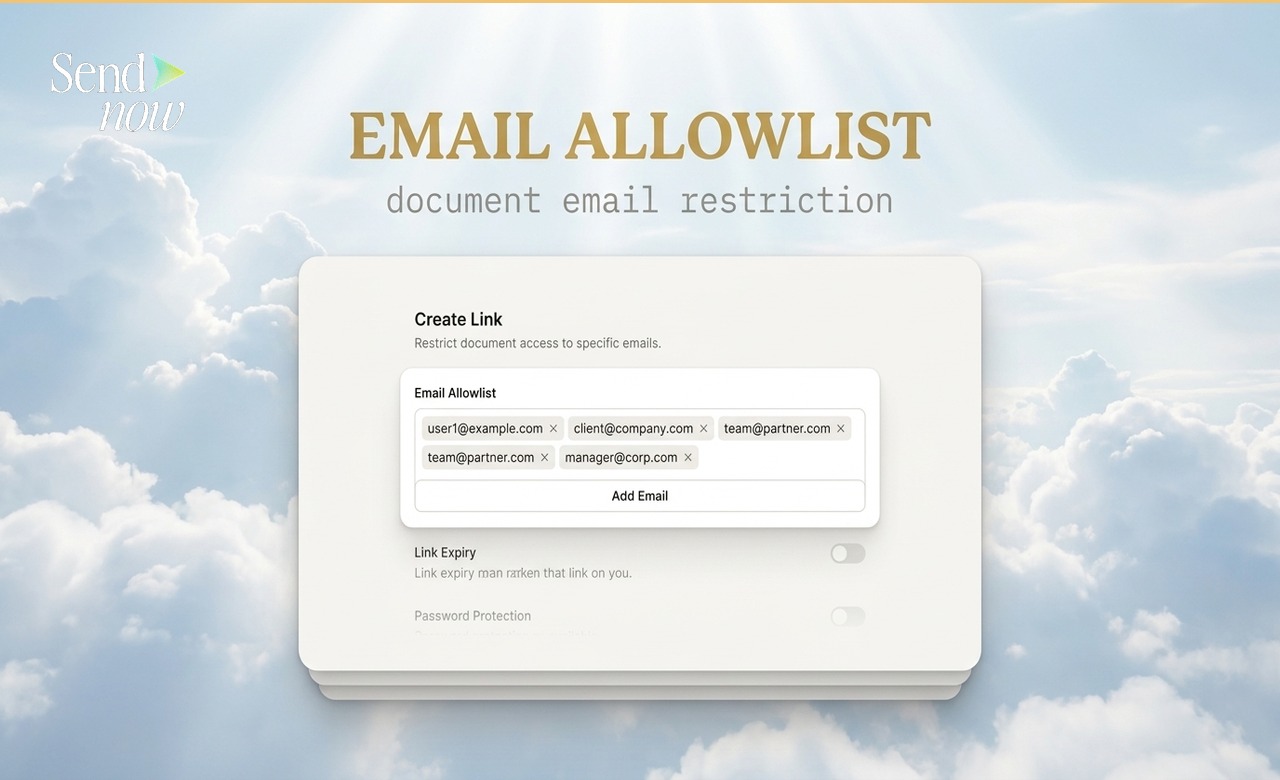
You can restrict a shared document to specific email addresses by adding an allowlist in the Create Link settings in SendNow. Only viewers whose email address is on your approved list can open the link — everyone else is blocked before they see any content, regardless of how they obtained the link.
Why Email Restriction Is the Strongest Access Control
A password protects a document from casual interception, but it does not verify identity. Anyone who obtains the password can access the document. An email allowlist changes this: access is tied to a specific identity. Even if the link and the password are both forwarded, only the named people on your list can open the document.
This is the access control model used by law firms, investment banks, and regulated financial services firms for their most sensitive documents, because it creates a verifiable, named audit trail of every access event.
How to Set Up an Email Allowlist in SendNow
- Log in to your SendNow account
- Upload the document or open an existing one
- Click Create Link
- Find the Email Restriction or Allowed Emails field in the link settings
- Enter the email addresses of all approved viewers, one per line or comma-separated
- Click Save and share the link
When a viewer attempts to open the link, they are prompted to enter their email address. SendNow checks it against your allowlist. If the email matches, they are admitted. If it does not, access is denied.
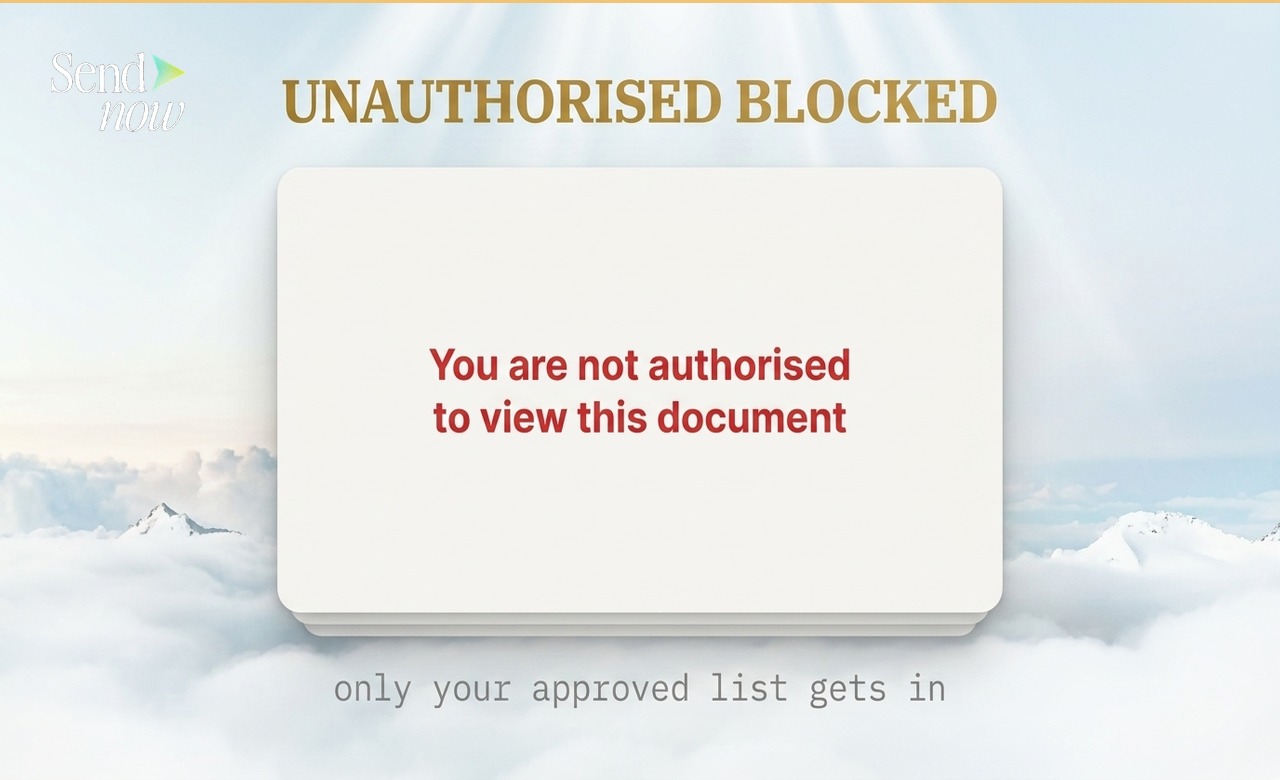
What the Unauthorised Viewer Sees
If someone attempts to open an email-restricted link with an email address that is not on the allowlist, they are shown a clean blocked-access screen. The document content does not load. No information about the document is revealed.
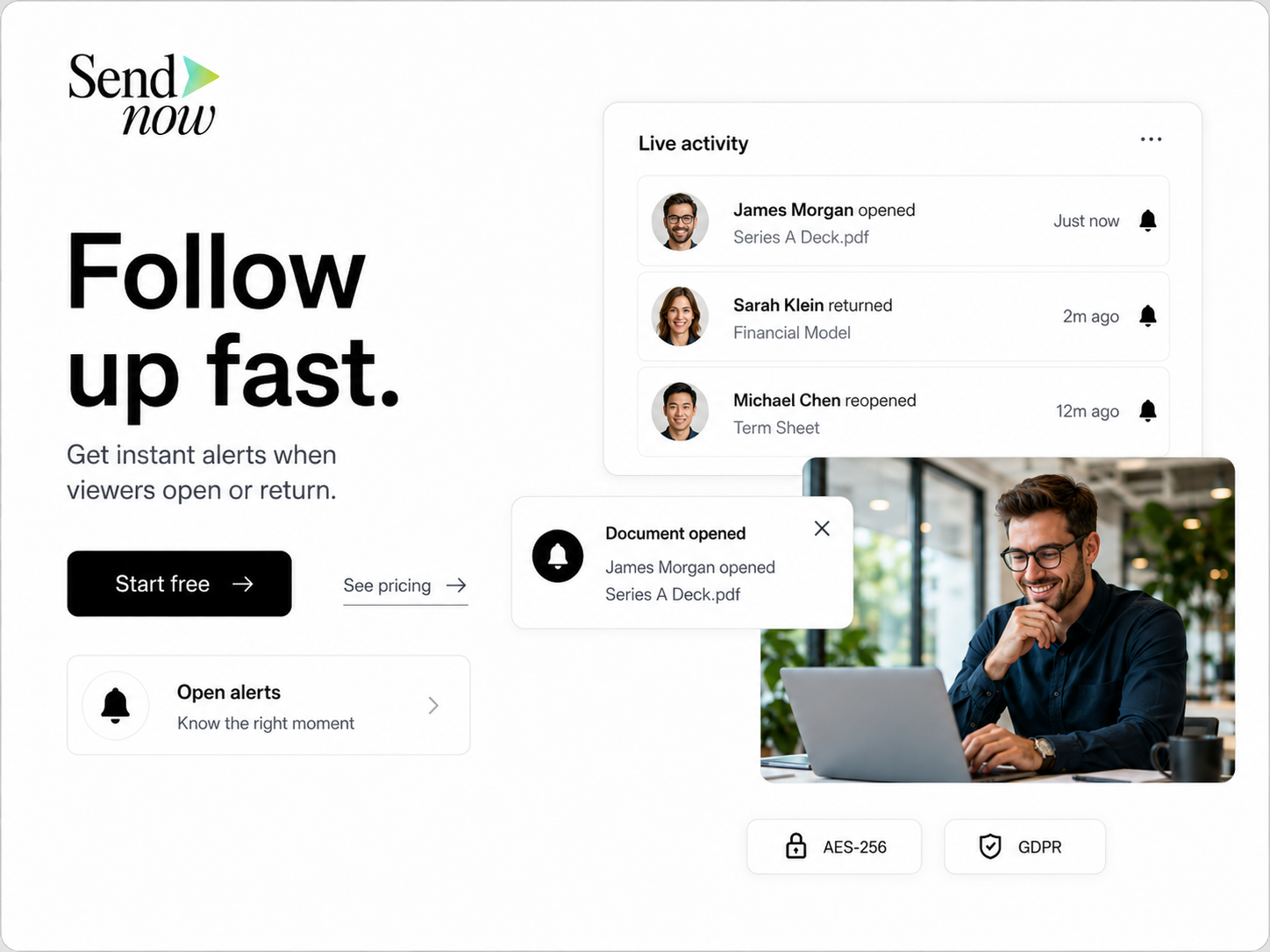
The blocked access attempt is logged in your dashboard. You can see the email address used, the timestamp, and the location of the access attempt — useful intelligence if you suspect a link has been forwarded without your knowledge.
Named Audit Trail: The Compliance Benefit
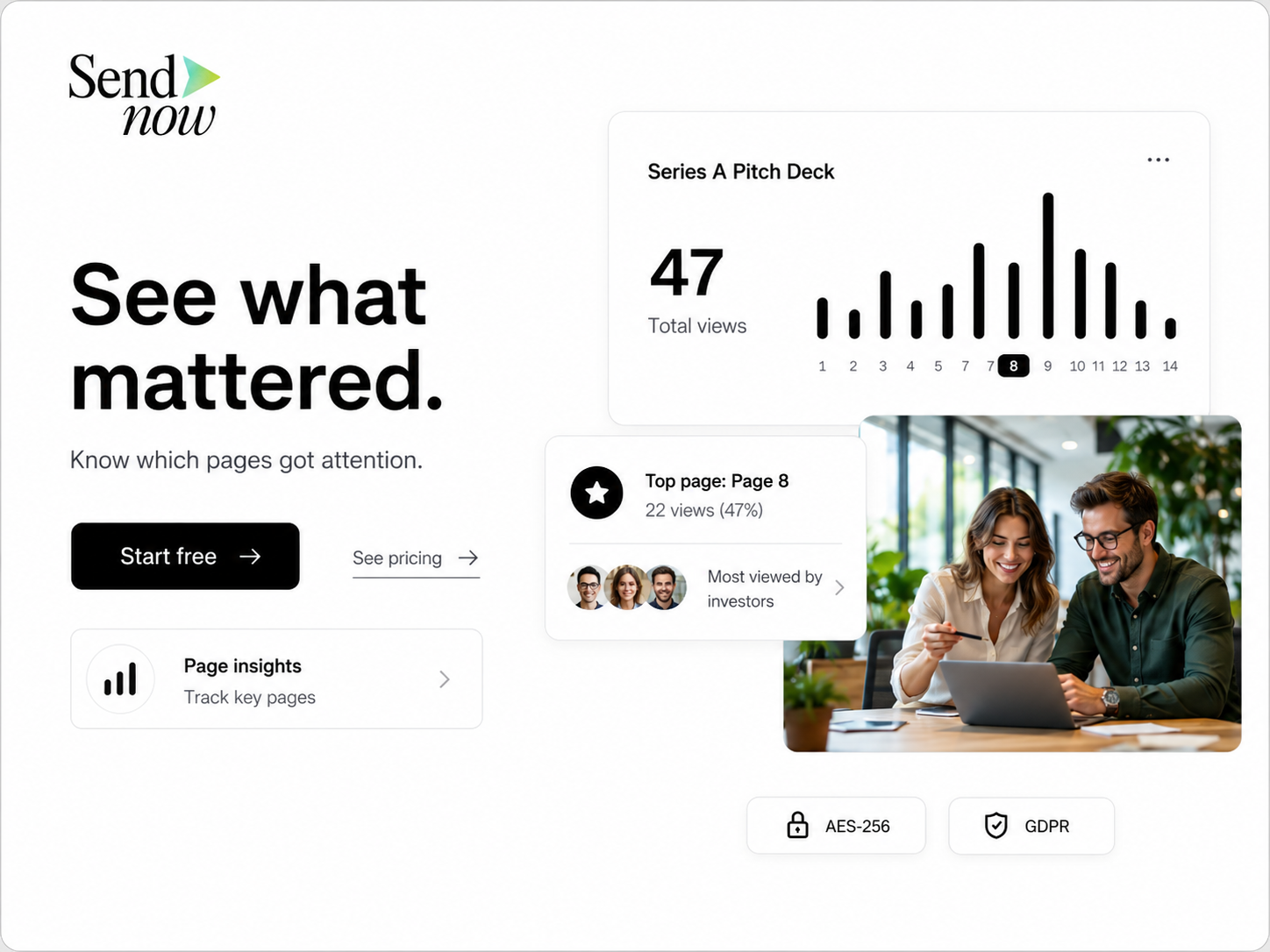
Every successful access through an email-restricted link is tied to a named, verified identity. Your analytics show not just "someone opened this document" but "john.smith@firmname.com opened this document at 14:23 GMT on 15 April from a London IP address, read 87% of the document, and spent the most time on pages 4 and 7."
For regulated financial firms, this named audit trail satisfies record-keeping requirements that anonymous link sharing cannot. Under EU GDPR, access to personal data should be limited to authorised individuals — an email allowlist makes this technically enforceable rather than reliant on policy alone.
Managing Your Email Allowlist
| Action | How to Do It |
|---|---|
| Add new emails | Edit the link and add to the allowlist |
| Remove a specific email | Edit the link and delete the email from the list |
| Block all current viewers | Deactivate or revoke the link entirely |
| Transfer access to a new contact | Replace the old email with the new one |
| Add a new counterparty | Create a new link or add to the existing allowlist |
Changes to the allowlist take effect immediately. A viewer you remove from the list loses access on their next open attempt. A viewer you add gains immediate access.
Combining Email Restriction with Other Controls
Email restriction addresses the identity question. Other controls address what authorised viewers can do:
- Email restriction + Download prevention: Named viewers only, no local copies
- Email restriction + Expiry date: Named viewers only, for a defined window
- Email restriction + One-time view: Named viewer can only open the document once
- Email restriction + Password: Two-factor approach — must know the password and be on the list
For a full overview, see the Secure Document Sharing Guide. For single-use access, see How to Share a File That Can Only Be Opened Once.
Email Restriction for Large Groups
Email allowlists are most practical for small groups of named recipients. If you need to share with a large distribution list and want individual tracking, consider creating separate links per recipient — this gives you individual engagement analytics alongside the identity control that email restriction provides.
For a high-volume scenario, SendNow's team and workflow features support scaled document distribution with per-recipient tracking.
Frequently Asked Questions
Q1: How many email addresses can I add to an allowlist? SendNow supports allowlists for typical professional sharing scenarios. If you need to share with a very large group, contact the team to discuss the best approach for your use case.
Q2: Does the viewer need to create a SendNow account to access the document? No. The viewer simply enters their email address at the access prompt. No account creation is required.
Q3: Can I see which specific email addresses have accessed the document? Yes. Your analytics show the exact email address of every viewer who successfully passed the allowlist check, along with their activity data.
Q4: What happens if someone enters a different email address to try to bypass the restriction? They are blocked. The allowlist check is against the email address the viewer enters at the access prompt. If it is not on the list, access is denied and the attempt is logged.
Q5: Can blocked access attempts tell me anything useful? Yes. If you see blocked attempts from email addresses not on your list, it tells you that the link has been forwarded beyond your intended recipients. This is useful intelligence in a deal or due diligence context.
Q6: Can I add email addresses to the allowlist after the link has been sent? Yes. You can update the allowlist at any time. Changes take effect immediately.
Q7: Does email restriction comply with GDPR? Collecting and processing email addresses for access verification is a legitimate purpose under GDPR. SendNow processes this data in line with GDPR requirements. You should disclose this use in your privacy documentation when sharing documents with EU-based recipients.
Q8: Can I use email restriction alongside a password? Yes. Combining both means a viewer must both be on the approved list and know the password — a two-factor approach that is appropriate for the most sensitive documents.
For password-only protection without identity verification, see How to Password-Protect a PDF for Free. For the complete security controls reference, visit the Secure Document Sharing Guide.
SendNow offers a free trial — no credit card required. Start at sendnow.live
About the Author: Rifana Hameem
Rifana is the founder of SendNow. She leads the team in building secure, compliant, and analytics-rich document sharing tools for finance and professional teams worldwide.
Connect on LinkedIn