How to Share a Document That Expires Automatically

How to Share a Document That Expires Automatically
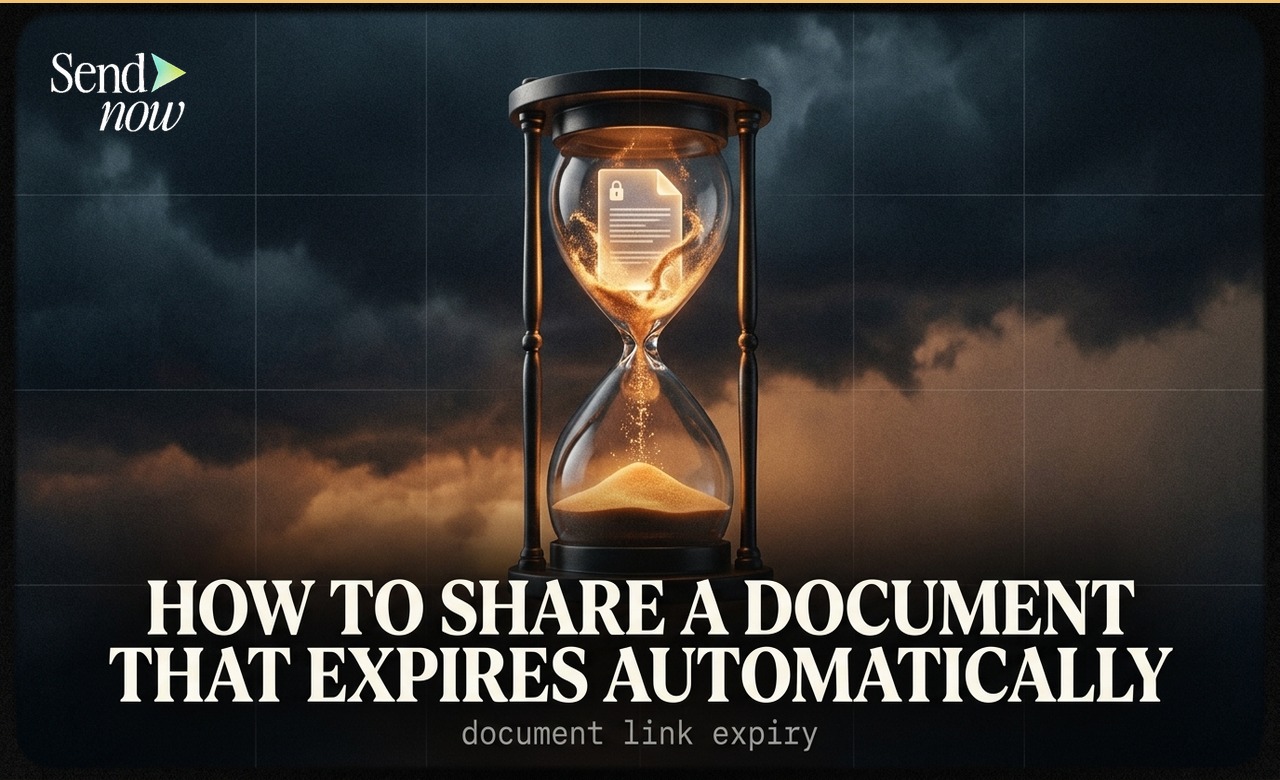
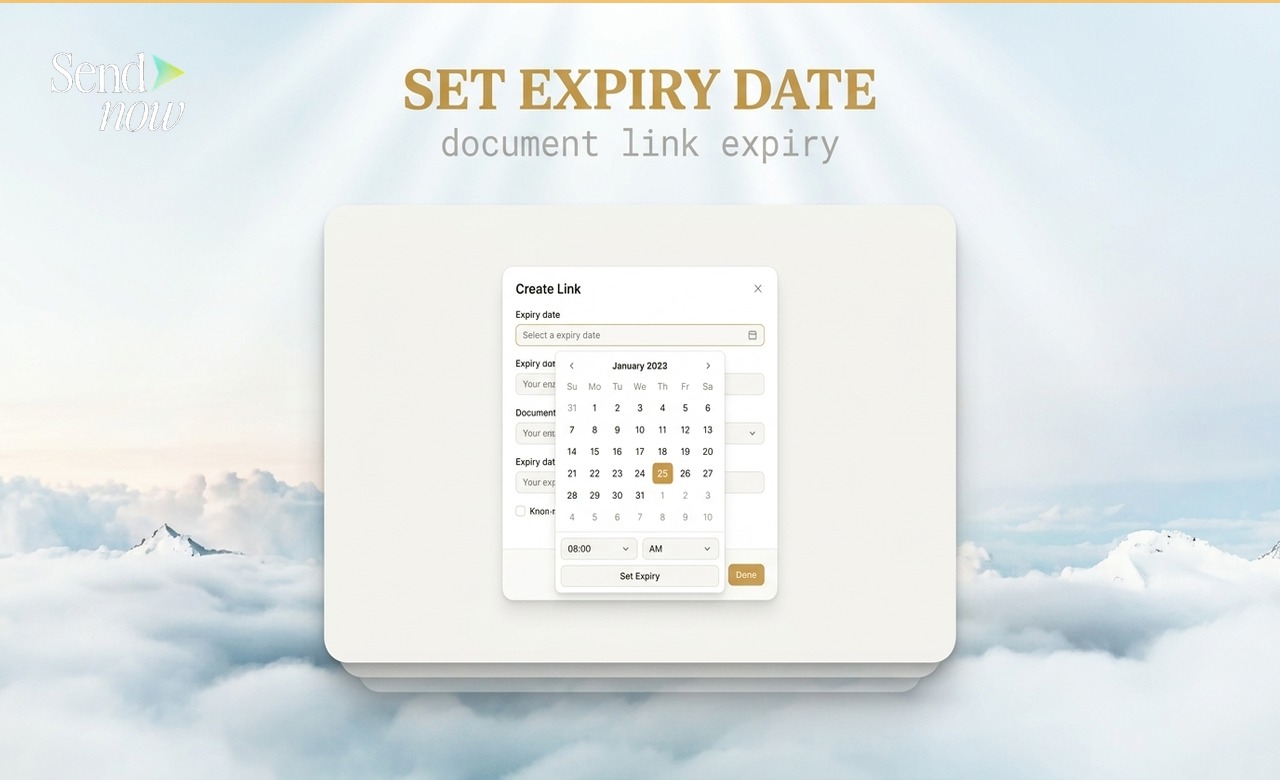
You can share a document with an automatic expiry date in SendNow by setting an expiry date and time in the Create Link settings before you send the link. When the expiry date passes, access is revoked instantly — the link stops working, and no manual action is needed on your part.
Why Automatic Expiry Is a Professional Standard
Most documents shared in professional contexts have a natural lifespan. A preliminary offer document is relevant for a few days. A quarterly fund report becomes outdated when the next one is published. A pitch deck shared ahead of a meeting is most relevant before that meeting — and arguably should not remain accessible indefinitely afterwards.
Without expiry controls, links persist indefinitely unless someone remembers to revoke them manually. That rarely happens. The result is a trail of live links to sensitive documents that accumulate over time, each representing a residual access risk.
Automatic expiry removes this risk at the point of creation. You define the window, the platform enforces it.
How to Set an Expiry Date in SendNow
- Log in to your SendNow account
- Upload your document or open an existing one
- Click Create Link
- In the link settings, find the Expiry Date field
- Select the date and optionally the time at which access should end
- Click Save and share the link
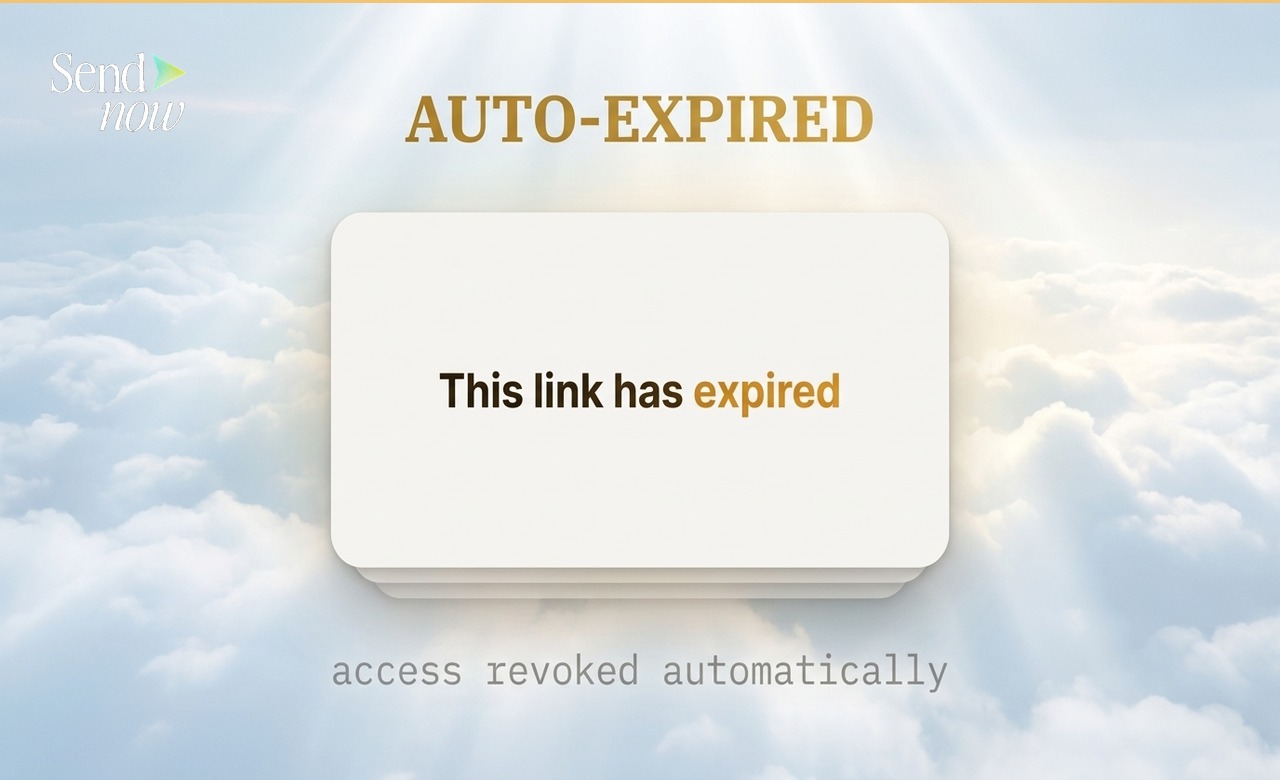
The link works normally until the expiry date and time. After that point, any attempt to open the link displays an expiry notice and the document is not rendered.
What Happens When a Link Expires
When a viewer attempts to open an expired link, they are shown a clean notice indicating that the link is no longer active. The document content does not load, and no information about the document is revealed beyond the expiry notice itself.

In your SendNow dashboard, the link is marked as expired and remains in your records along with its full engagement history. You can review who accessed it, when, and how much they read during the active period.
Choosing the Right Expiry Window
The appropriate expiry window depends on the nature of the document and the context of the share:
| Document Type | Suggested Expiry Window |
|---|---|
| Preliminary offer / term sheet | 3-5 business days |
| Pitch deck for specific meeting | Day of meeting plus 48 hours |
| Quarterly report | 90 days from publication |
| Due diligence pack | Duration of the due diligence process |
| NDA-protected materials | Aligned with NDA term |
| General marketing document | 6-12 months |
If you are unsure, erring on the shorter side and extending if needed is better practice than leaving links open indefinitely.
Can I Extend an Expiry Date After Sending?
Yes. You can update the expiry date on any link at any time from your SendNow dashboard. This is useful if a deal process takes longer than anticipated or a recipient needs more time to review a document. The updated expiry takes effect immediately.
You can also revoke access before the expiry date if circumstances change — for example, if a deal falls through and you want to immediately close off document access.
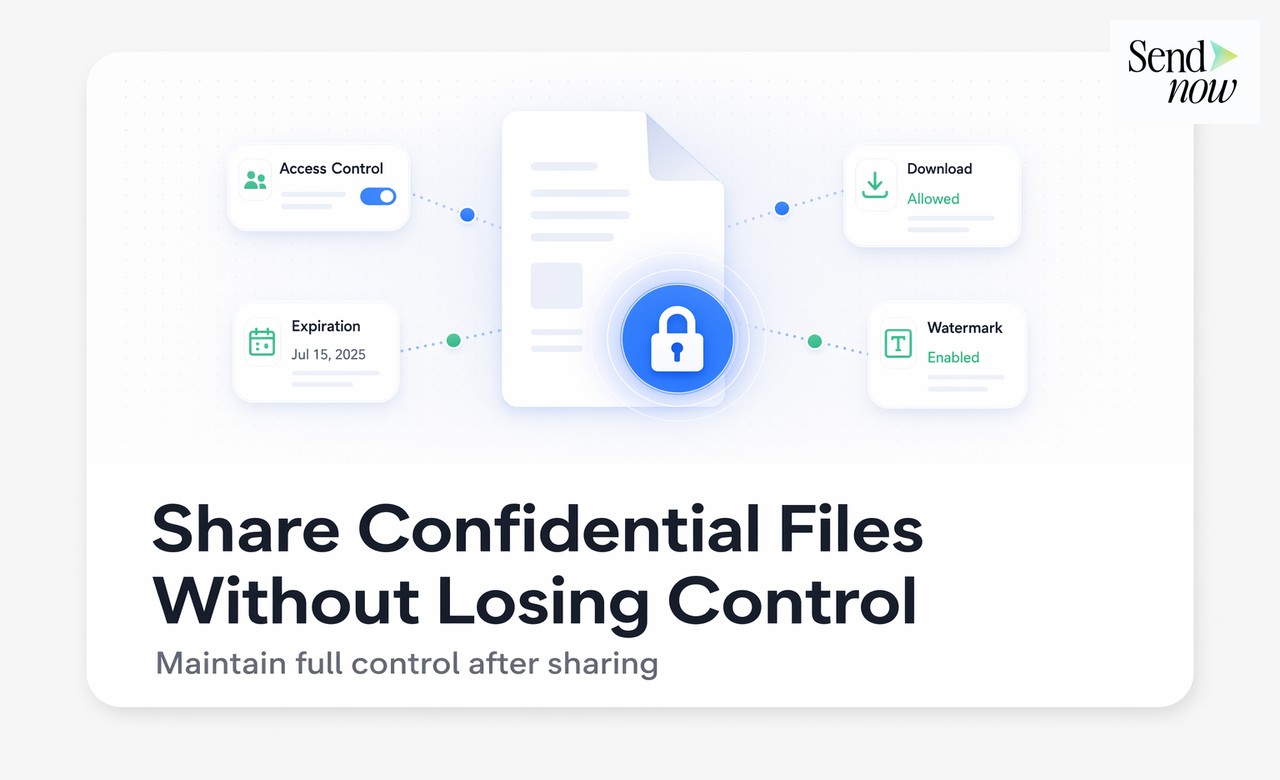
Combining Expiry with Other Security Controls
Expiry dates work well in combination with other access controls:
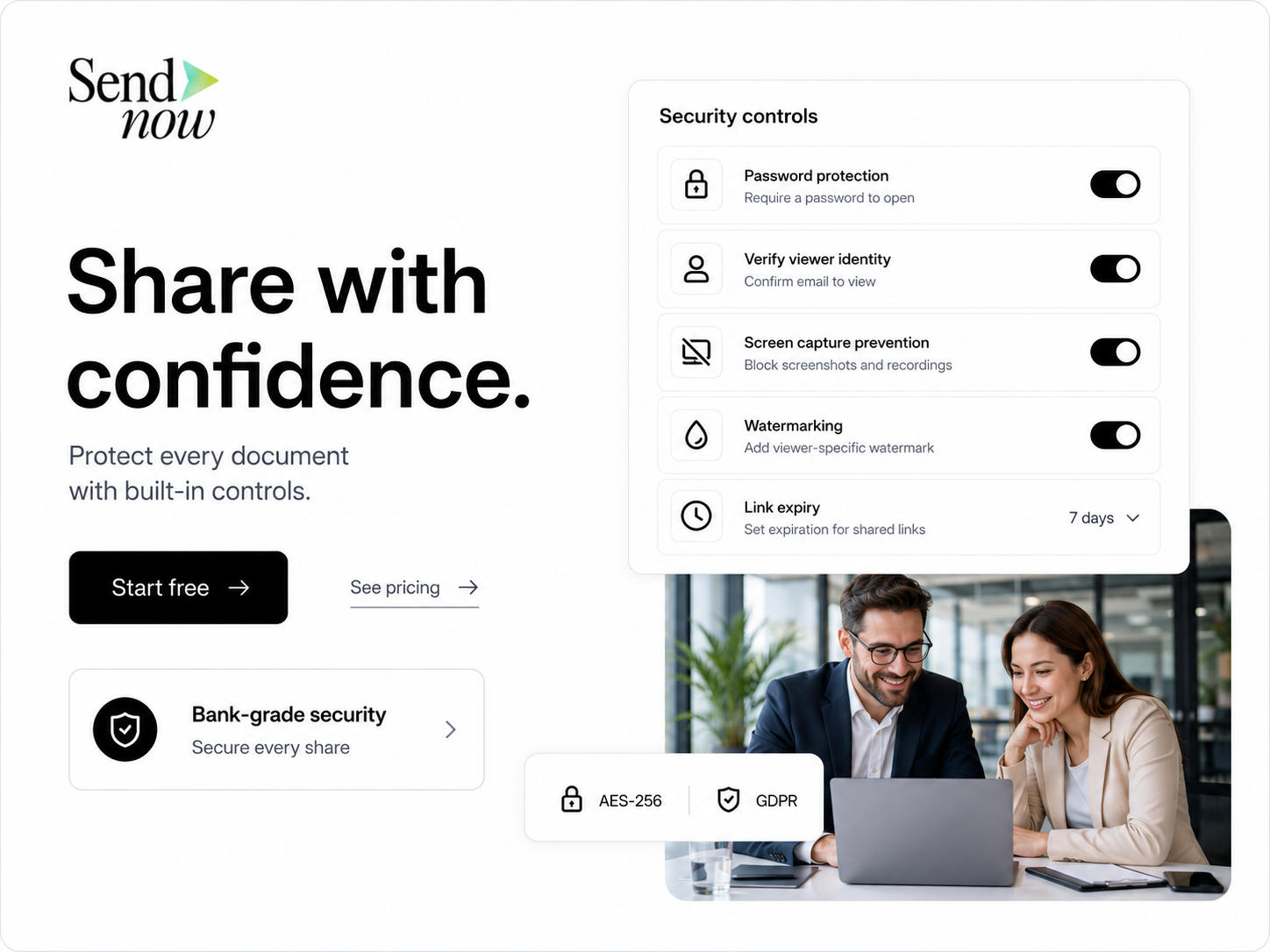
- Password + Expiry: Viewer must know the password, and access ends at a set date
- Email allowlist + Expiry: Only named recipients can access, for a defined window
- Download prevention + Expiry: No local copy can persist beyond the expiry date
- Single-use + Expiry: Document can only be opened once and also expires on a set date
For a full overview of all available security controls, read the Secure Document Sharing Guide. For sharing documents that are limited by number of opens rather than time, see How to Share a File That Can Only Be Opened Once.
Expiry Dates and GDPR Compliance
Under EU GDPR, limiting the duration of personal data access is consistent with the principle of storage limitation. If documents you share contain personal data, configuring automatic expiry helps ensure that access does not persist beyond what is necessary for the purpose of the share.
This is particularly relevant for EU-based financial firms that are subject to GDPR and the data protection requirements of their national regulators. SendNow processes document access data in line with GDPR, and automatic expiry is a practical technical control supporting your compliance posture.
Automatic Expiry Versus Manual Revocation
Both automatic expiry and manual revocation result in the same end state: a link that no longer works. The difference is operational. Automatic expiry requires no ongoing attention; you configure it once and it executes reliably. Manual revocation requires someone to remember to take action, which introduces a dependency on human follow-through.
For high-volume document sharing — for example, a fund manager sending materials to hundreds of investors — automatic expiry scales in a way that manual revocation does not.
Frequently Asked Questions
Q1: Can I set both a date and a specific time for expiry? Yes. SendNow allows you to set the exact date and time at which a link expires, giving you precise control over the access window.
Q2: What happens to my analytics data when a link expires? The full engagement history is retained in your dashboard. Expiry only affects future access attempts — it does not delete historical analytics data.
Q3: Can I reactivate an expired link? Yes. You can extend the expiry date on an expired link from your dashboard, which immediately reactivates access.
Q4: Can I set a default expiry for all my documents? Yes. SendNow's Security Defaults allow you to set a default expiry window that applies to every new link unless overridden.
Q5: Does the viewer receive a warning before the link expires? Currently, expiry happens silently at the configured date and time. Viewers are shown the expiry notice when they next attempt to open the link.
Q6: Can I set different expiry dates for different recipients of the same document? Yes. By creating separate links for each recipient, you can assign different expiry dates to each.
Q7: Is the expiry date visible to the viewer before the link expires? Not by default. The expiry operates in the background. You can include the expiry information in your email message to the recipient if you want to communicate the access window.
Q8: What timezone does the expiry date use? SendNow applies expiry based on the timezone set in your account. Confirm your timezone in account settings before setting time-sensitive expiry dates.
For guidance on restricting access by number of opens rather than time, see How to Share a File That Can Only Be Opened Once. For password protection guidance, see How to Password-Protect a PDF for Free.
SendNow offers a free trial — no credit card required. Start at sendnow.live
About the Author: Rifana Hameem
Rifana is the founder of SendNow. She leads the team in building secure, compliant, and analytics-rich document sharing tools for finance and professional teams worldwide.
Connect on LinkedIn