How to Stop Anyone From Downloading Your Shared Documents

How to Stop Anyone From Downloading Your Shared Documents
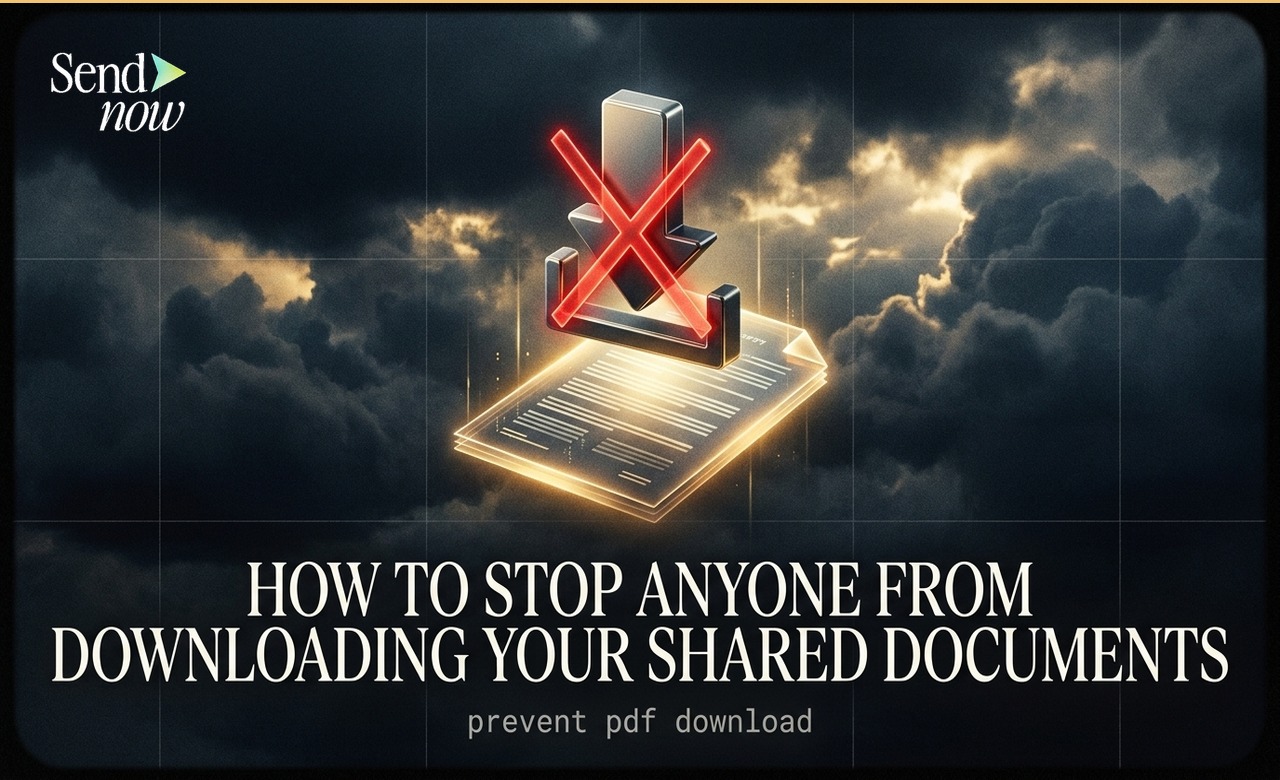
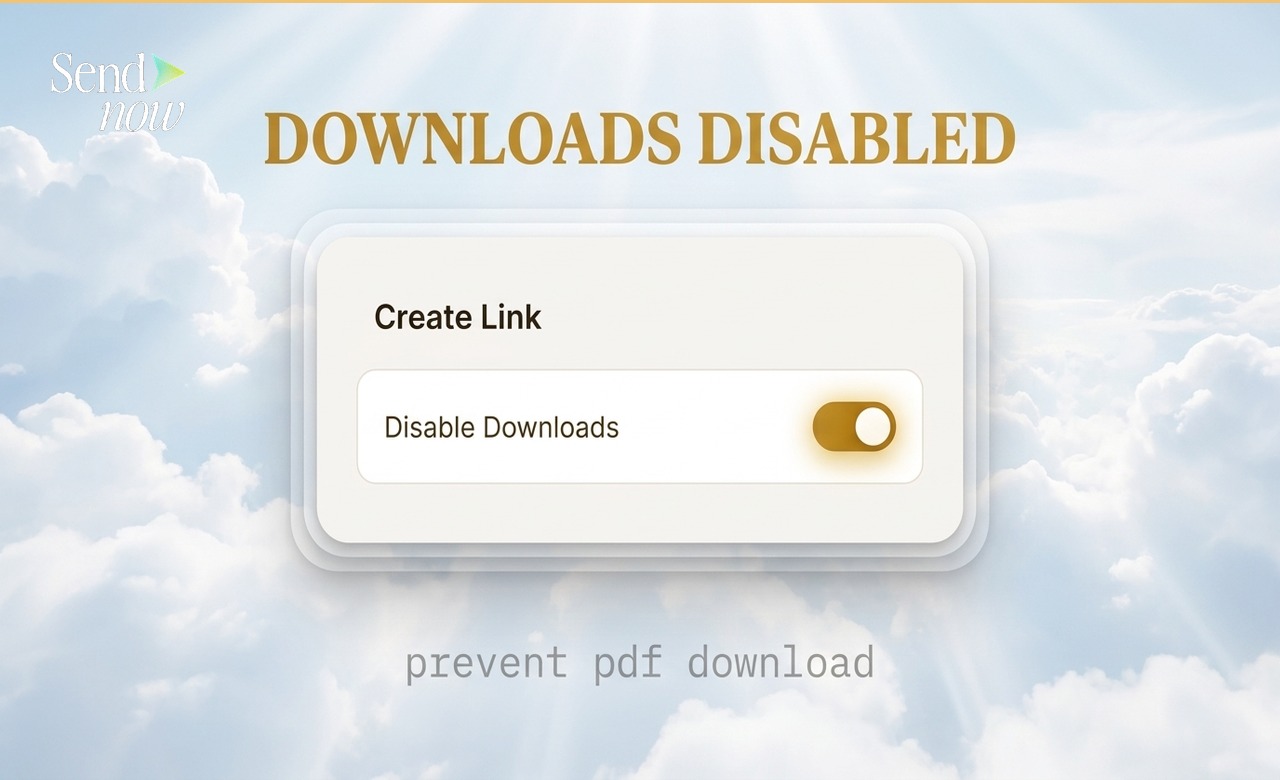
You can stop recipients from downloading a document you share by toggling the "Disable Downloads" setting in SendNow's Create Link panel. Once enabled, the viewer can read the document in the browser but the download button is hidden from the interface, and no local copy of the file can be saved. The change takes effect immediately with no technical setup required.
Why Download Prevention Matters
When you share a PDF as an email attachment, you lose control of it the moment you hit send. The recipient can save it, forward it, print it, upload it to their own systems, or share it indefinitely. For a financial professional sharing a pitch deck, a term sheet, or a fund report, that lack of control carries real commercial and compliance risk.
Link-based sharing with download prevention addresses this. The document lives on your servers, rendered in a secure viewer. The recipient can read every page, but they cannot capture a local copy of the file. If they forward the link, you see the additional open in your analytics. If you revoke the link, the document becomes inaccessible to everyone who received it.
How to Disable Downloads in SendNow
- Log in to your SendNow account
- Upload the document you want to share (or open an existing document)
- Click Create Link
- In the link settings, find the Disable Downloads toggle
- Switch the toggle to ON
- Click Save and copy your link
That is all that is required. The link you share will open the document in a viewer with no download option present.
What the Recipient Sees
When a recipient opens a download-disabled link, they see a clean document viewer with navigation controls but no download, save, or export button. The toolbar contains only the tools needed to read the document — page navigation, zoom, and (if enabled) a full-screen view.
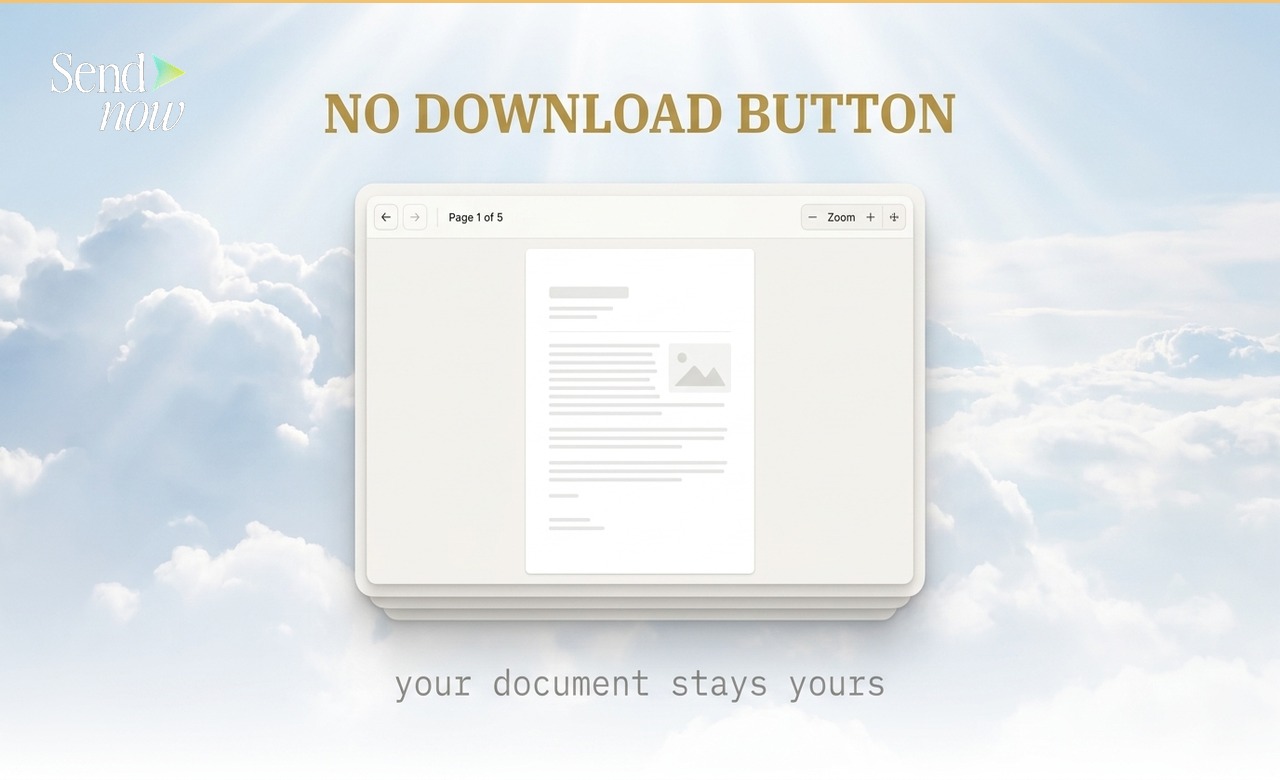
The absence of a download button is not labelled or called out. The viewer simply does not exist in the interface. This keeps the experience clean and professional.
What Download Prevention Does and Does Not Do
Download prevention removes the download pathway within the SendNow viewer. It does not:
- Prevent browser-level "print to PDF" functions (though screenshot blocking adds a further barrier)
- Stop a determined user from using developer tools in a browser
- Block screen recording software
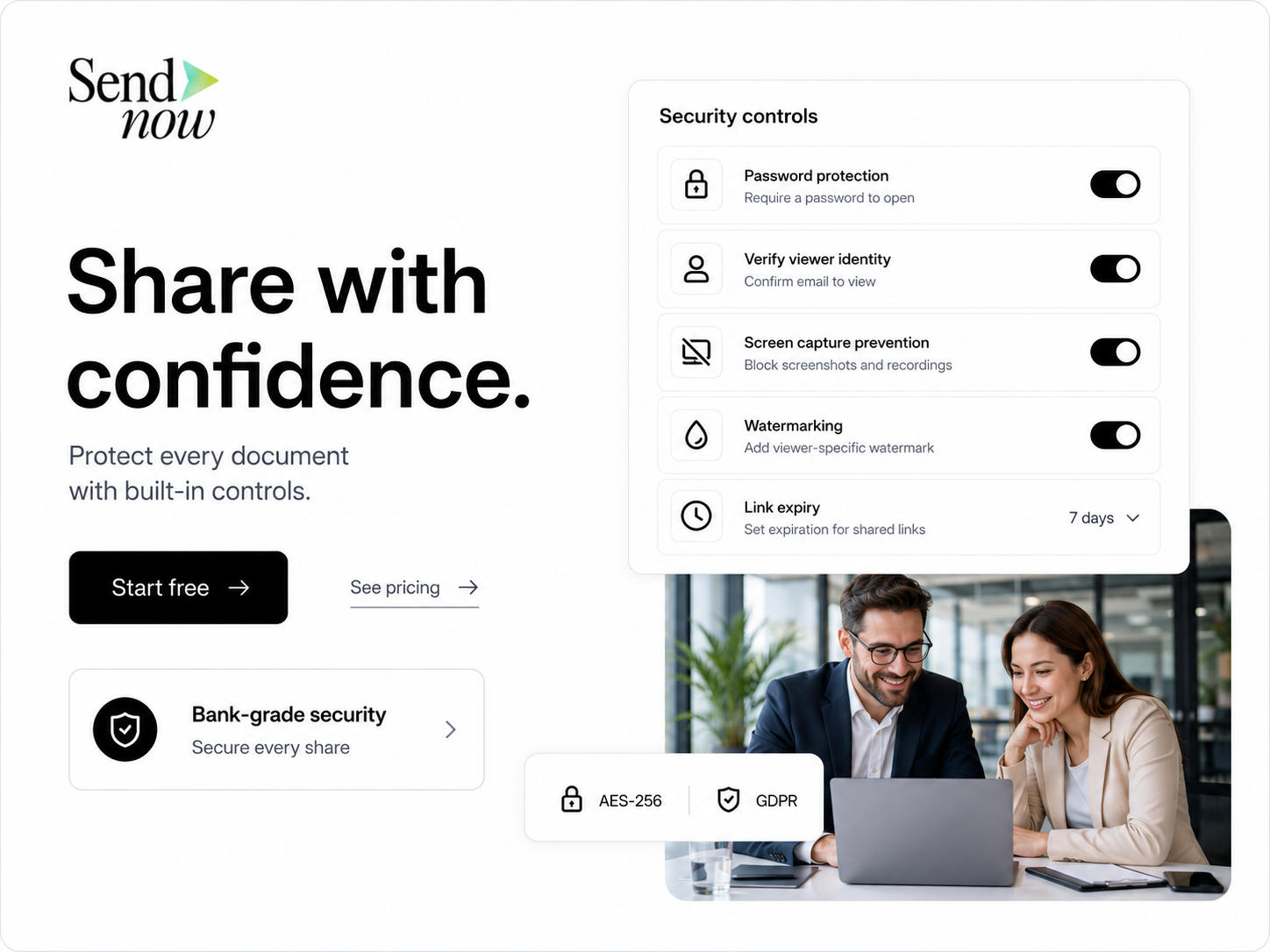
For documents where even partial capture is a concern, combining download prevention with SendNow's screenshot blocker provides a stronger deterrent. For the most sensitive material, adding a watermark displaying the viewer's email address acts as a further disincentive to redistribution.
Combining Download Prevention with Other Controls
Download prevention works best as part of a layered security approach. Typical combinations used by finance professionals:
| Control | Adds Protection Against |
|---|---|
| Disable downloads | Local file copies and email forwarding |
| Screenshot blocker | Screen captures and partial captures |
| Email allowlist | Unauthorised viewers who obtained the link |
| Expiry date | Documents persisting beyond their intended window |
| Password protection | Casual link interception |
For a complete walkthrough of all available controls, read the Secure Document Sharing Guide.
Can I Enable Downloads for Some Recipients but Not Others?
Yes. In SendNow you can create multiple links for the same document with different settings. You might create one link with download prevention for a broad distribution, and a separate download-enabled link for a specific counterparty who needs a local copy for their own records.
Each link tracks engagement independently, so you retain full visibility regardless of which link each recipient uses.
Download Prevention and GDPR
Under EU GDPR, controlling the persistence of personal data is an important compliance consideration. If documents you share contain personal data — as many financial documents do — download prevention helps limit how widely that data can be distributed beyond your intended recipients. Combined with an expiry date, you can further ensure that access (and therefore data availability) ends at a defined point.
This is not a substitute for your firm's broader GDPR documentation and consent framework, but it is a practical technical measure that supports data minimisation principles.
Frequently Asked Questions
Q1: Can I disable downloads for all my documents by default? Yes. Use SendNow's Security Defaults to set download prevention as the default for every new link you create.
Q2: Can I re-enable downloads on a link after disabling them? Yes. You can update link settings at any time from your dashboard. The change takes effect immediately.
Q3: Does disabling downloads affect the viewing experience? No. The document renders in full in the viewer. Only the download button is removed from the interface.
Q4: Can a viewer print the document? Browser-based printing is a system-level function that operates independently of the viewer interface. If print-to-PDF is a concern, combining download prevention with the screenshot blocker provides additional coverage.
Q5: Does download prevention work on mobile devices? Yes. The SendNow viewer works on mobile, and the download option is absent regardless of device type.
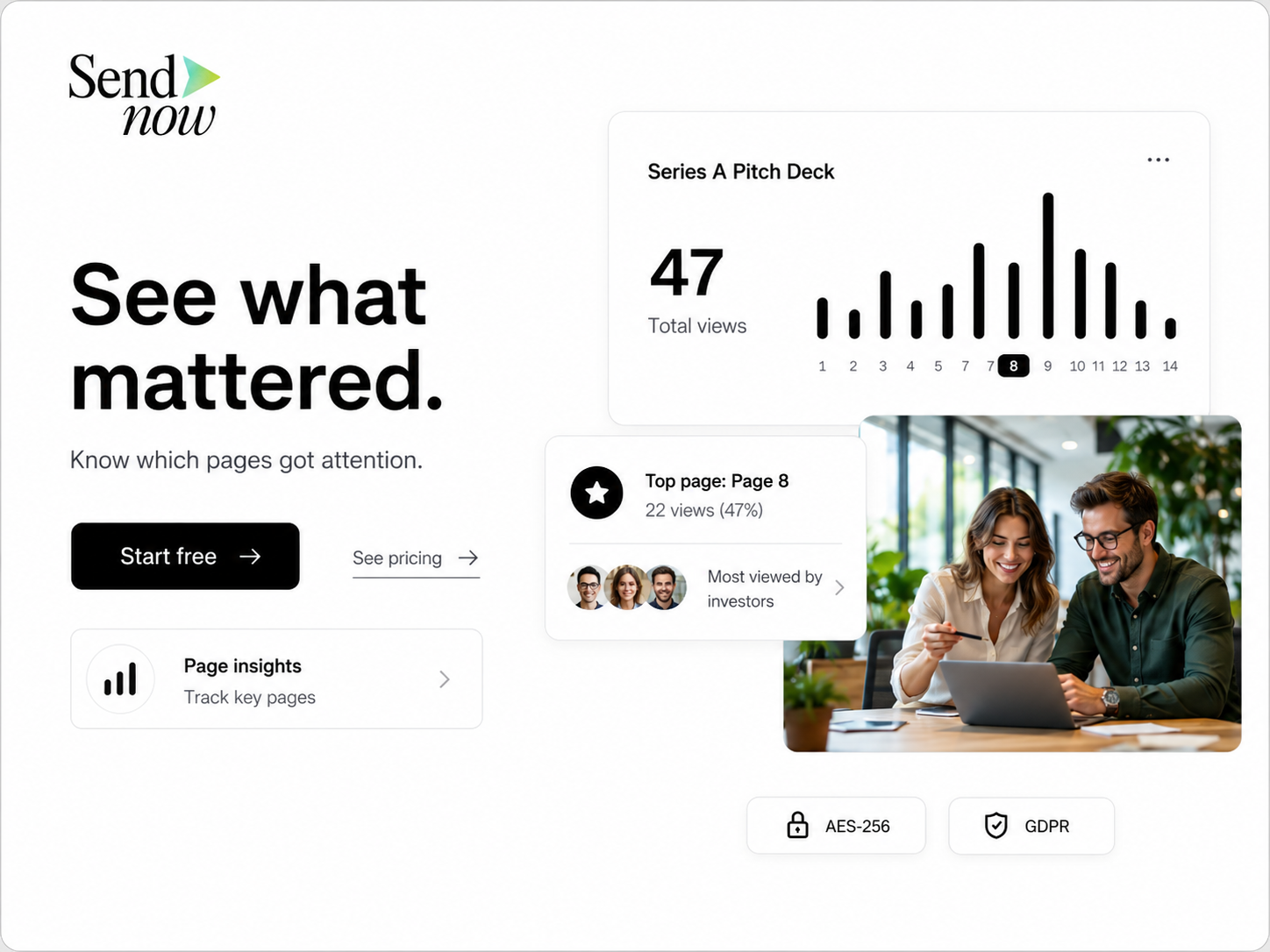
Q6: Can I tell if someone tried to download the document? Since the download option is not present in the viewer, there is no button to attempt to click. Access events are logged as normal viewer activity.
Q7: Does disabling downloads affect how the document looks? No. The document appears identically to a download-enabled version. The only difference is the absence of the download control.
Q8: What is the difference between disabling downloads and revoking access? Disabling downloads prevents a viewer from saving a local copy but allows them to keep reading. Revoking access (deactivating the link) prevents any further reading entirely.
For more on screenshot protection, see How to Block Screenshots of a Shared Document. For the full range of security controls, visit the Secure Document Sharing Guide.
SendNow offers a free trial — no credit card required. Start at sendnow.live
About the Author: Rifana Hameem
Rifana is the founder of SendNow. She leads the team in building secure, compliant, and analytics-rich document sharing tools for finance and professional teams worldwide.
Connect on LinkedIn