How to Automate Sales Follow-Ups With Document Tracking and Zapier

How to Automate Sales Follow-Ups With Document Tracking and Zapier
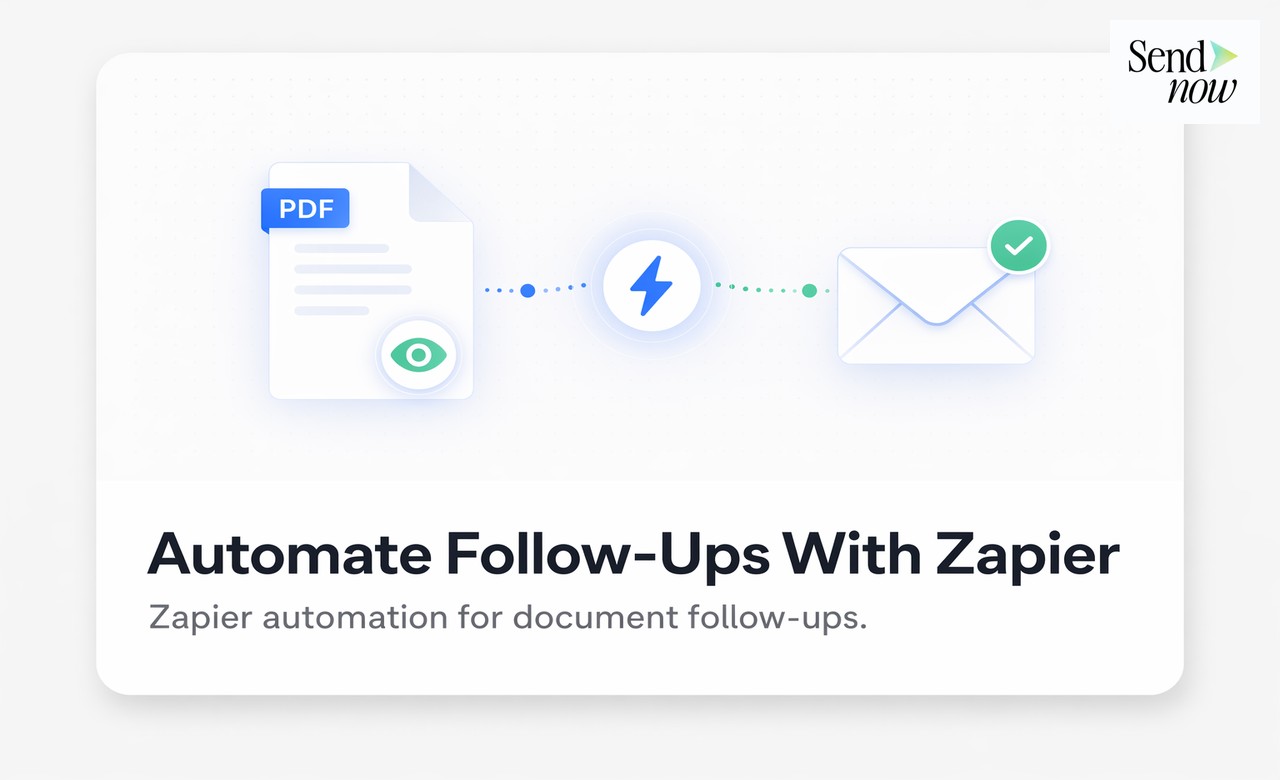
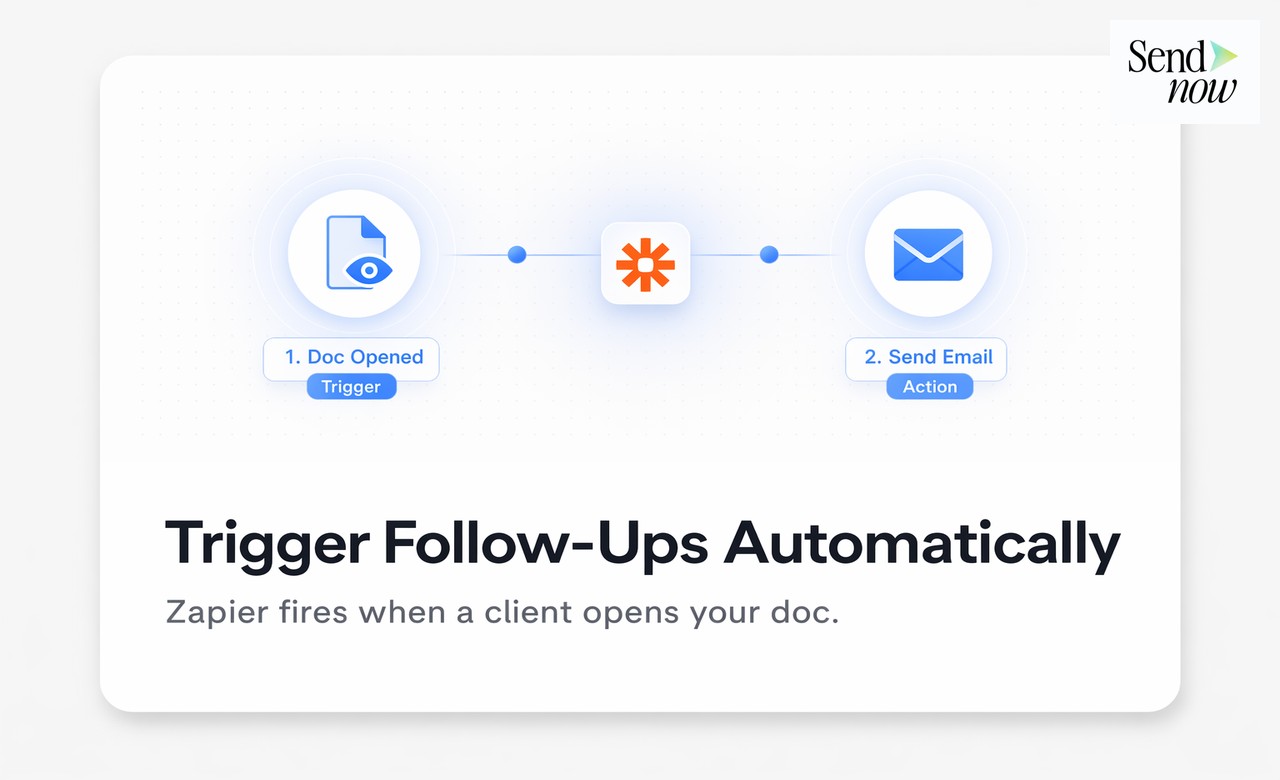
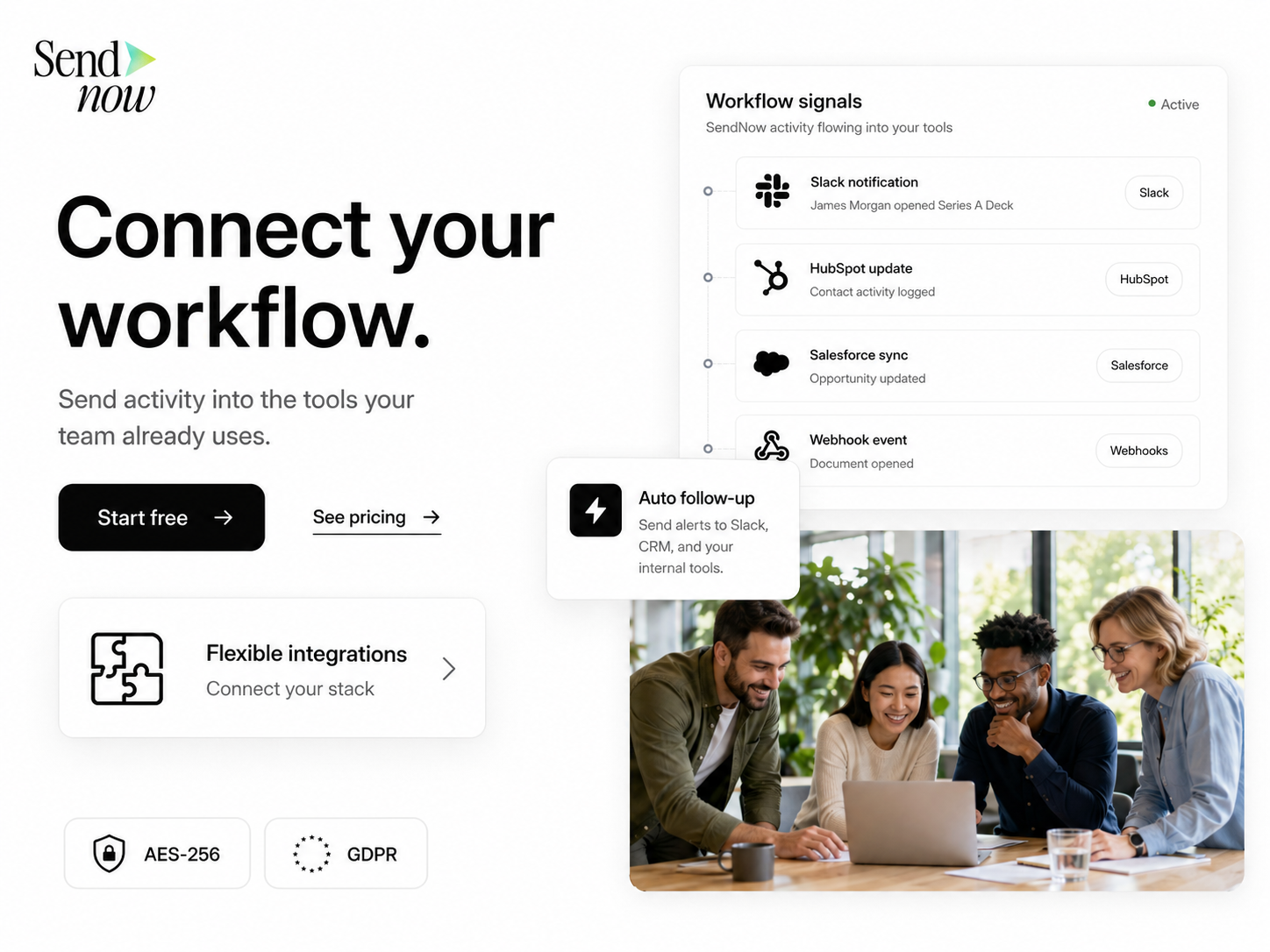
SendNow's webhook output connects directly to Zapier, letting you trigger automated email follow-ups, CRM updates, and task creation the moment a prospect opens your document. This guide explains how to build the automation, what triggers to use, and how to design follow-up sequences that feel timely rather than intrusive.
Why Timing Is Everything in Document Follow-Up
The traditional approach to following up after sending a proposal or report is to wait a day or two and send a generic "just checking in" email. This approach has two problems. First, you often follow up when the prospect has moved on to other matters. Second, you wait when the prospect has actually engaged but you do not know it yet.
Document tracking changes the equation. When SendNow registers a document.viewed event, you know precisely when the prospect has the document open. A follow-up sent within minutes of that event is welcomed because it is relevant. The same follow-up sent two days later, when the prospect no longer remembers the document, is noise.
Zapier bridges SendNow and your email or CRM platform, making it possible to automate this timing without requiring a developer or custom code.
What You Need Before Starting
- A SendNow account with webhook access (professional plan)
- A Zapier account (free tier supports basic automations)
- Access to your email sending platform (Gmail, Outlook, or a CRM with email automation such as HubSpot or Mailchimp)
- A document already shared via a SendNow link
How to Build the Automation in Zapier
Step 1: Create a webhook trigger in Zapier
In Zapier, create a new Zap and select Webhooks by Zapier as the trigger. Choose Catch Hook as the event type. Zapier will provide a unique webhook URL.
Step 2: Connect the webhook in SendNow
Go to Settings, then Integrations, then Webhooks in SendNow. Add a new endpoint and paste the Zapier webhook URL. Select document.viewed as the trigger event. Save the endpoint.
Step 3: Test the trigger
Open the test document link yourself (or use SendNow's test payload feature) to fire a sample event to Zapier. Confirm that Zapier receives the payload and identifies the correct fields: document name, recipient identifier, timestamp, and link ID.
Step 4: Set up the action
Choose your email or CRM platform as the action app. Common configurations include:
- Gmail or Outlook: Send a personalised follow-up email to the recipient's address (mapped from the webhook payload)
- HubSpot: Create a follow-up task assigned to the deal owner and log the document open as an activity
- Mailchimp: Add the recipient to a follow-up sequence triggered by document engagement
Step 5: Add a delay (optional but recommended)
Insert a Delay by Zapier step between the trigger and the action. A 5 to 10-minute delay after the document open event gives the prospect time to read before your follow-up arrives.
Step 6: Activate the Zap
Turn on the Zap. From this point, every time a recipient opens your SendNow document, the automation fires automatically.
Comparing Manual Follow-Up vs Zapier Automation
| Approach | Manual Follow-Up | Zapier + SendNow Automation |
|---|---|---|
| Know when to follow up | No | Yes, triggered by open event |
| Follow-up timing | Arbitrary | Precise, minutes after open |
| Consistency across all deals | Low | High |
| Effort per follow-up | Manual email each time | Zero after setup |
| CRM updated with event | Rarely | Always |
| Missed engagement windows | Common | Eliminated |
Follow-Up Copy That Works After a Document Open
The automated follow-up email should acknowledge that you are reaching out at a relevant moment without directly stating that you know they just opened the document (which can feel intrusive for some recipients). Effective subject lines include:
- "Happy to walk you through the proposal"
- "Thoughts on the report?"
- "A few things worth highlighting from the document I sent"
The body should be brief: two to three sentences acknowledging the document, offering to answer questions, and proposing a specific next step such as a 20-minute call.
For more on webhook integration with your CRM, see how to connect document tracking to your CRM via webhooks. For the complete picture of document-driven sales intelligence, read the document intelligence and sales guide.
Advanced Automation Ideas
Multi-document sequence. Share a data room with three documents. Trigger a different follow-up for each one based on which link is opened first.
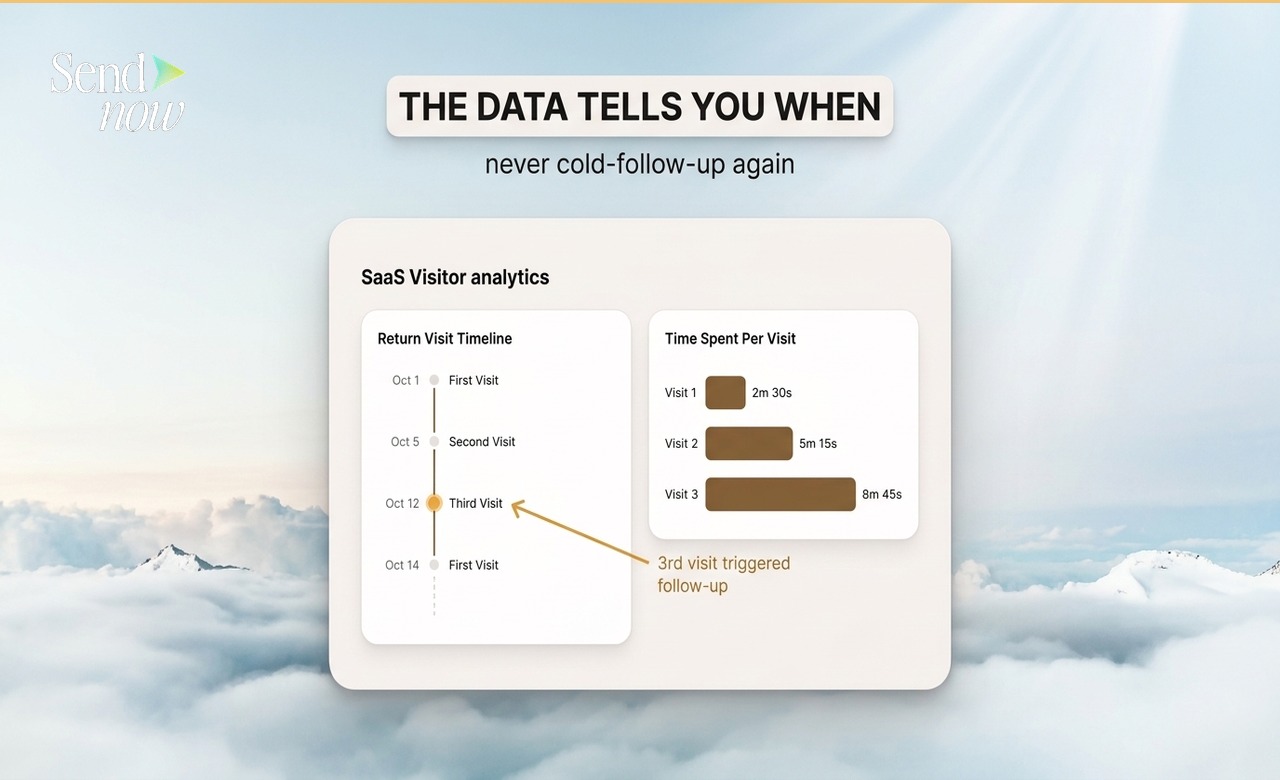
Re-engagement trigger. If a recipient opens a proposal on a second occasion (days after the first), send a more direct follow-up noting renewed interest.
Deal stage update. When a document is opened for the first time, move the associated deal to "Proposal Reviewed" in your CRM automatically, without any manual input from the sales rep.
Unread document reminder. Use SendNow's expiry data combined with Zapier to send a reminder email if a document has not been opened within 48 hours of sharing.
Automate Your Sales Follow-Ups Today
Every minute you spend manually tracking whether a prospect has opened your document is time that could be spent on the conversation that follows. Set up SendNow with Zapier and replace guesswork with precision.
Get started at sendnow.live.
Frequently Asked Questions
Q: Does Zapier work with SendNow's webhooks natively? A: SendNow sends standard JSON webhooks via HTTP POST, which Zapier's "Catch Hook" trigger supports out of the box. No native connector is required.
Q: How long does the Zapier automation take to fire after a document is opened? A: The webhook fires within seconds of the open event. If you add a Zapier delay step, that delay is the only additional latency.
Q: Can I trigger different actions for different documents? A: Yes. Use the document name or link ID from the webhook payload to route different documents to different Zap paths using Zapier's filter or router steps.
Q: What if the same person opens the document multiple times? A: Each open event fires a separate webhook. Add a filter in Zapier to trigger the follow-up only on the first open, or deliberately trigger on repeat opens for re-engagement scenarios.
Q: Is the recipient's email address included in the webhook payload? A: If you have enabled email-based access control on the SendNow link, yes. Without access control, the payload includes device and session metadata.
Q: Can I use Make (formerly Integromat) instead of Zapier? A: Yes. Make supports webhook triggers in the same way as Zapier. The configuration steps are similar.
Q: Do I need coding skills to set this up? A: No. The entire setup is done through SendNow's settings panel and Zapier's no-code interface.
Q: Can the automation send SMS notifications as well as emails? A: Yes. Through Zapier, you can connect to SMS platforms such as Twilio and trigger a text message alongside or instead of an email follow-up.
About the Author: Rifana Hameem
Rifana is the founder of SendNow. She leads the team in building secure, compliant, and analytics-rich document sharing tools for finance and professional teams worldwide.
Connect on LinkedIn