How to Set Up Roles and Permissions for a Finance Team Document Workspace

How to Set Up Roles and Permissions for a Finance Team Document Workspace
SendNow's team roles give workspace administrators control over who can share documents, adjust security settings, and access analytics across the team. This guide explains how to configure Owner and Member roles in SendNow, when to use each level of access, and how a structured permission model supports GDPR compliance for finance teams.
Why Role-Based Permissions Matter for Finance Teams
Finance teams handle confidential data daily: client portfolios, financial models, due diligence materials, regulatory submissions, and investor communications. When multiple people share documents through the same workspace, an uncontrolled permission model creates meaningful risks.
Without defined roles, any team member can change security settings, disable download restrictions, or share sensitive documents without appropriate controls in place. In a regulated environment, this is both a data governance problem and a potential GDPR compliance issue.
Defining clear roles ensures that only the right people can change how documents are shared, while the broader team retains the ability to share documents within those guardrails. It is the difference between a controlled professional environment and a shared folder where anyone can do anything.
The Two Core Roles in SendNow
Owner
The Owner role has full administrative access to the workspace, including:
- Changing branding and security default settings
- Inviting and removing team members
- Viewing all document analytics across the workspace
- Managing integrations (Slack, webhooks, CRM connections)
- Setting workspace-wide access control defaults
Owners are typically the firm's IT administrator, operations lead, or senior partner responsible for the document sharing platform. A workspace should have at least one Owner at all times.
Member
The Member role allows a team member to share documents and view analytics for their own links, but restricts access to workspace-level settings. Members cannot:
- Change branding or security defaults
- Invite or remove other team members
- Access other members' document analytics
- Configure integrations
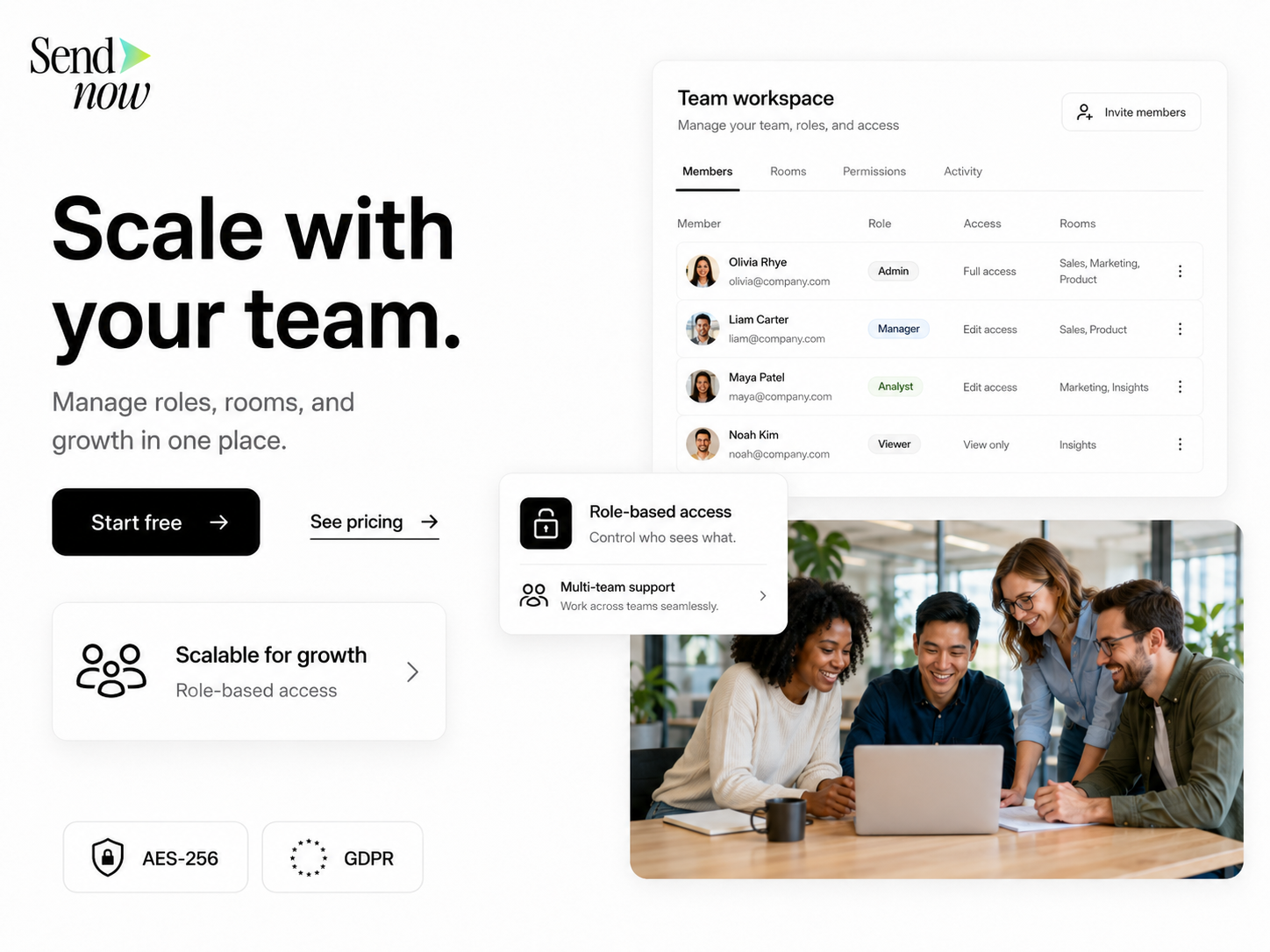
Members are the typical day-to-day users: analysts, associates, client managers, and others who share documents regularly but do not need to administer the platform.

How to Invite Team Members With the Right Role
- In your SendNow workspace, go to Settings, then Team.
- Click Invite Member and enter the team member's email address.
- Select their role: Owner or Member.
- Click Send Invitation. The invitee receives an email with a link to join the workspace.
- Once they accept, their role is applied immediately.
You can change a member's role at any time from the Team settings panel. To remove a member, click their name and select Remove from Workspace.
Role Assignment by Job Function
| Role | Suggested for |
|---|---|
| Owner | IT administrator, operations director, senior partner |
| Owner | Compliance officer (if integration auditing is needed) |
| Member | Analyst, associate, client manager |
| Member | Business development manager |
| Member | Administrative staff who share standard documents |
GDPR Implications of Document Workspace Roles
Under GDPR, organisations processing personal data must implement appropriate technical and organisational measures to limit access to that data. Role-based permissions in SendNow directly support this requirement by ensuring that:
- Only authorised individuals can configure how personal data in documents is protected
- Access to analytics (which may include personal data such as recipient email addresses and IP addresses) is limited to those with a legitimate need
- Workspace security defaults cannot be altered by users without appropriate authorisation
For finance teams operating under GDPR, maintaining an audit trail of who was granted Owner access and when is good practice. Document this in your organisation's data processing register.
For more on building a secure team document environment, see the guide on how to manage a shared document workspace for a growing team and the complete secure document sharing guide.
Best Practices for Finance Team Role Management

- Keep the number of Owners small. Two to three Owners is sufficient for most teams. More Owners means a wider attack surface for accidental or unauthorised setting changes.
- Review team access quarterly. Remove team members who have left the firm or changed roles promptly. Former employees should not retain access to the workspace.
- Use separate workspaces for separate business lines. If your firm has a private equity team and an M&A advisory team, consider separate workspaces with their own Owner designations. This limits cross-team data exposure.
- Document your role assignment rationale. Keep a brief internal record of why each person holds Owner access. This supports GDPR accountability requirements.
- Set workspace-wide security defaults before inviting Members. Configure download restrictions, watermarking, and access control at the Owner level first, so that Member-created links inherit appropriate defaults automatically.
Build a Controlled Document Sharing Environment
A clear role structure is the foundation of a professional document workspace for a finance team. Set up roles in SendNow today and ensure that every document shared from your workspace meets your firm's security and governance standards.
Get started at sendnow.live.
Frequently Asked Questions
Q: How many Owners can a SendNow workspace have? A: There is no hard limit on the number of Owners. Practically, keeping the count to two or three is recommended for security reasons.
Q: Can a Member be upgraded to Owner? A: Yes. An existing Owner can change any Member's role to Owner from the Team settings panel at any time.
Q: Can I restrict a Member to sharing only specific document types? A: SendNow's current role model is Owner versus Member at the workspace level. Fine-grained document-type restrictions are managed through workspace security defaults that apply to all Members.
Q: What happens to a former team member's shared links when they are removed? A: Documents shared by a removed Member remain accessible via their links until you manually expire or delete those links. Review and expire any links associated with former team members as part of your offboarding process.
Q: Does SendNow log who changed workspace settings? A: SendNow maintains activity records within the workspace. Check the audit log in your Settings panel for a history of configuration changes.
Q: Can Members see each other's document analytics? A: No. Members can only see analytics for links they have created. Only Owners have workspace-wide analytics access.
Q: Is there a way to require two-factor authentication for Owner accounts? A: This depends on your SendNow plan and SSO configuration. Contact SendNow support to discuss enterprise authentication options.
Q: Can we have a guest or external collaborator role? A: Currently SendNow supports Owner and Member roles for internal team members. External recipients access documents via secure links and do not require a workspace account.
About the Author: Rifana Hameem
Rifana is the founder of SendNow. She leads the team in building secure, compliant, and analytics-rich document sharing tools for finance and professional teams worldwide.
Connect on LinkedIn