How to Manage a Shared Document Workspace for a Growing Team

How to Manage a Shared Document Workspace for a Growing Team
SendNow's shared workspace gives your finance team a single environment for uploading, sharing, and tracking documents, with a consolidated activity feed that shows what each team member is sharing and with whom. This guide explains how to structure your workspace, onboard new team members efficiently, and maintain document governance as your team grows.
The Problem With Individual Document Sharing at Scale
When each person on a team shares documents independently using their own email attachments or personal file storage, several problems emerge quickly. There is no central visibility into what has been shared externally. Security settings vary from person to person. When someone leaves the organisation, their shared documents continue to exist in a state that no one else can manage.
For finance teams working on client engagements, this creates compliance and reputational risks. A junior analyst sharing a sensitive model without download restrictions, or a former employee whose document links are still active, can both lead to material problems.
A shared document workspace solves this by centralising all document sharing under one governed environment with consistent settings, visible activity, and owner-level oversight.
What a SendNow Shared Workspace Includes
A SendNow workspace provides your team with:
- A single login environment for all team members
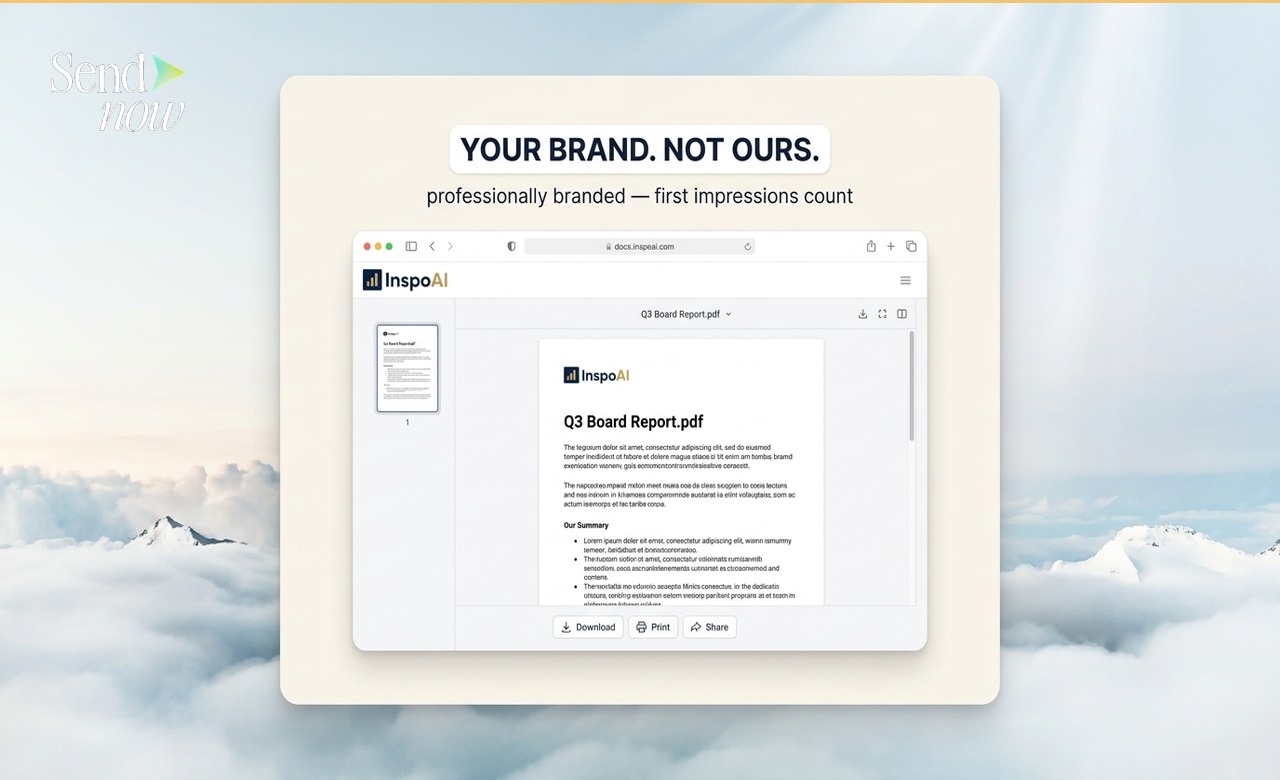
- Shared branding settings applied consistently to all document links
- Owner-level visibility of all document sharing activity across the team
- A consolidated activity feed showing uploads, link creations, and recipient engagement events
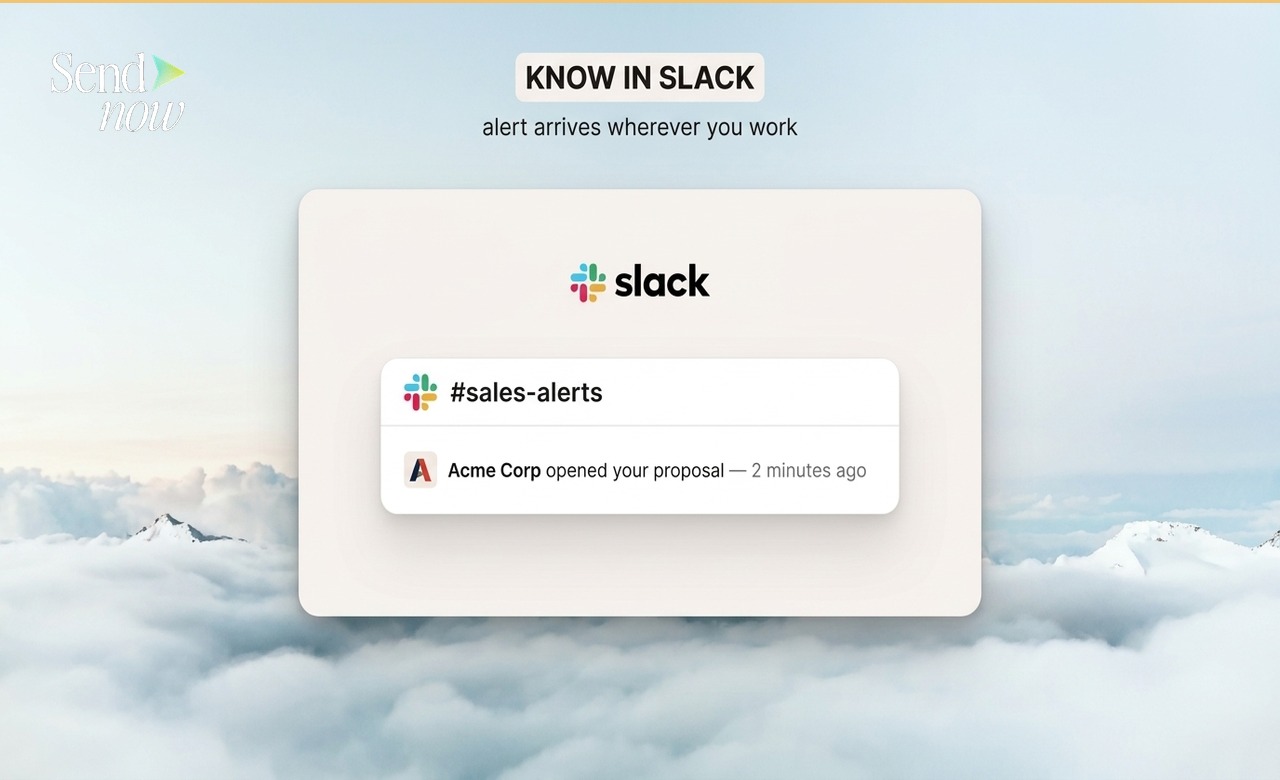
- Centralised integration settings (Slack, webhooks, CRM connections)
- Shared security defaults that apply to all links created by Members
Each team member retains their own document list and analytics view, while Owners can see the complete picture across the workspace.

How to Set Up and Structure a Team Workspace
Step 1: Configure workspace defaults before inviting the team
Before adding team members, configure the workspace-level settings that will apply to all:
- Upload your firm's logo and set brand colours under Branding
- Enable your standard security defaults: download restrictions, watermarking, and link expiry periods
- Connect any integrations (Slack, CRM) that the whole team will use
Step 2: Invite team members with the correct roles
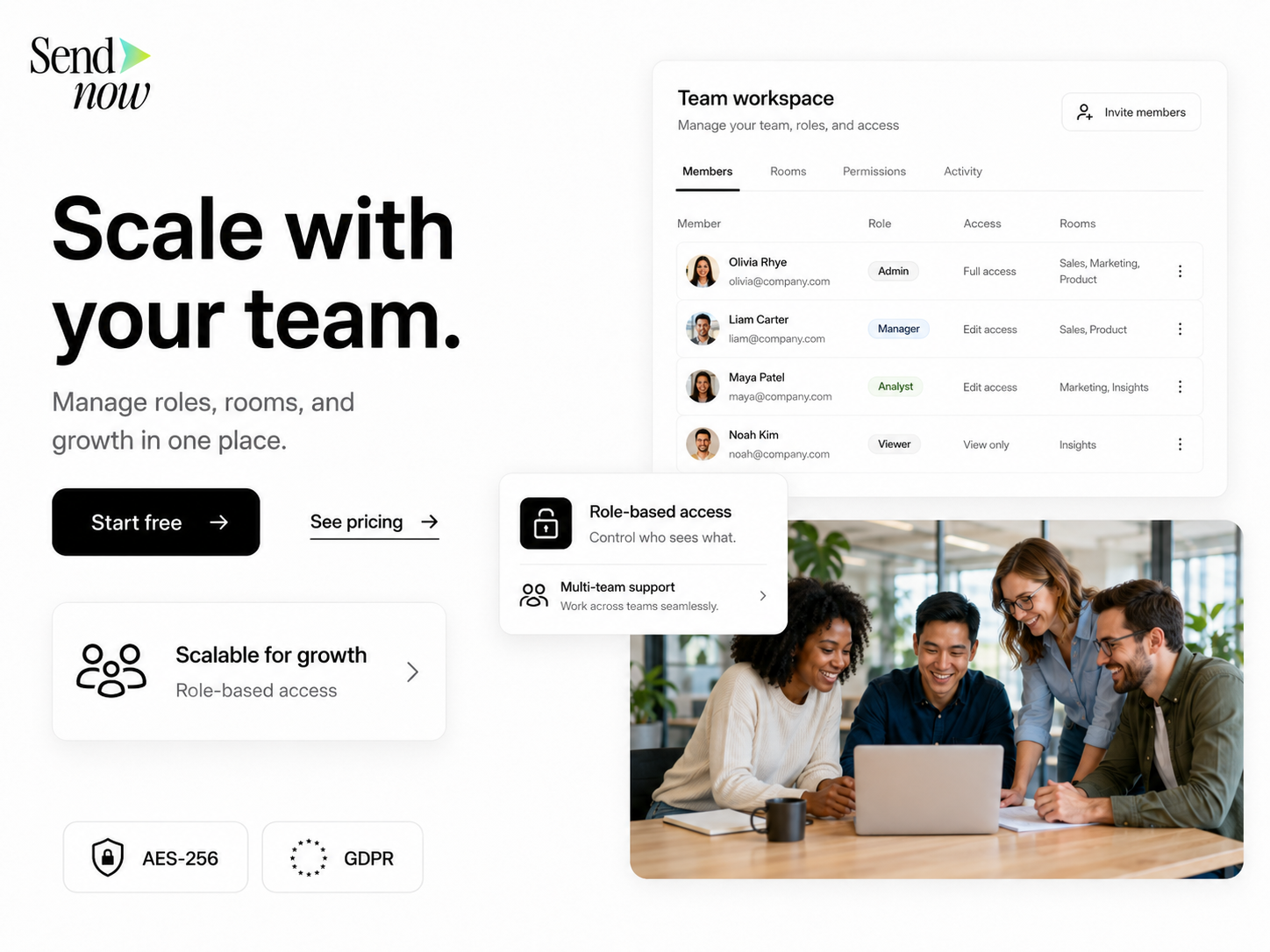
Invite team members via Settings, then Team. Assign Owner access to administrators and senior staff who need to manage settings. Assign Member access to day-to-day document sharers.
Step 3: Establish naming conventions
Agree on a document naming convention before the team starts uploading. A consistent format such as [ClientName]_[DocumentType]_[Date] makes the activity feed navigable as the document volume grows.
Step 4: Create a usage policy
Define expectations for your team around link expiry periods, download settings, and watermarking. Document this in your firm's internal procedures so that new team members are onboarded to the standard consistently.
Monitoring Team Activity
| Activity Type | Owner Visibility | Member Visibility |
|---|---|---|
| Documents shared by all team members | Yes | Own only |
| Recipient open events across team | Yes | Own only |
| Download events across team | Yes | Own only |
| Link expiry status (all members) | Yes | Own only |
| Integration connection status | Yes | No |
| Workspace branding settings | Yes | View only |
Using the Activity Feed for Oversight
The activity feed in SendNow's Owner view shows a chronological log of events across the entire workspace, including:
- Documents uploaded by each team member
- Links created, including recipient access settings applied
- Open and download events per link
- Links that have expired or been manually revoked
This feed is the primary oversight tool for workspace Owners. Review it weekly to identify any documents that were shared without appropriate access controls, or that have been open to recipients longer than necessary.
For guidance on setting the right roles for your team, read how to set up roles and permissions for a finance team document workspace. For information on building a dedicated client-facing environment, see the complete secure document sharing guide.
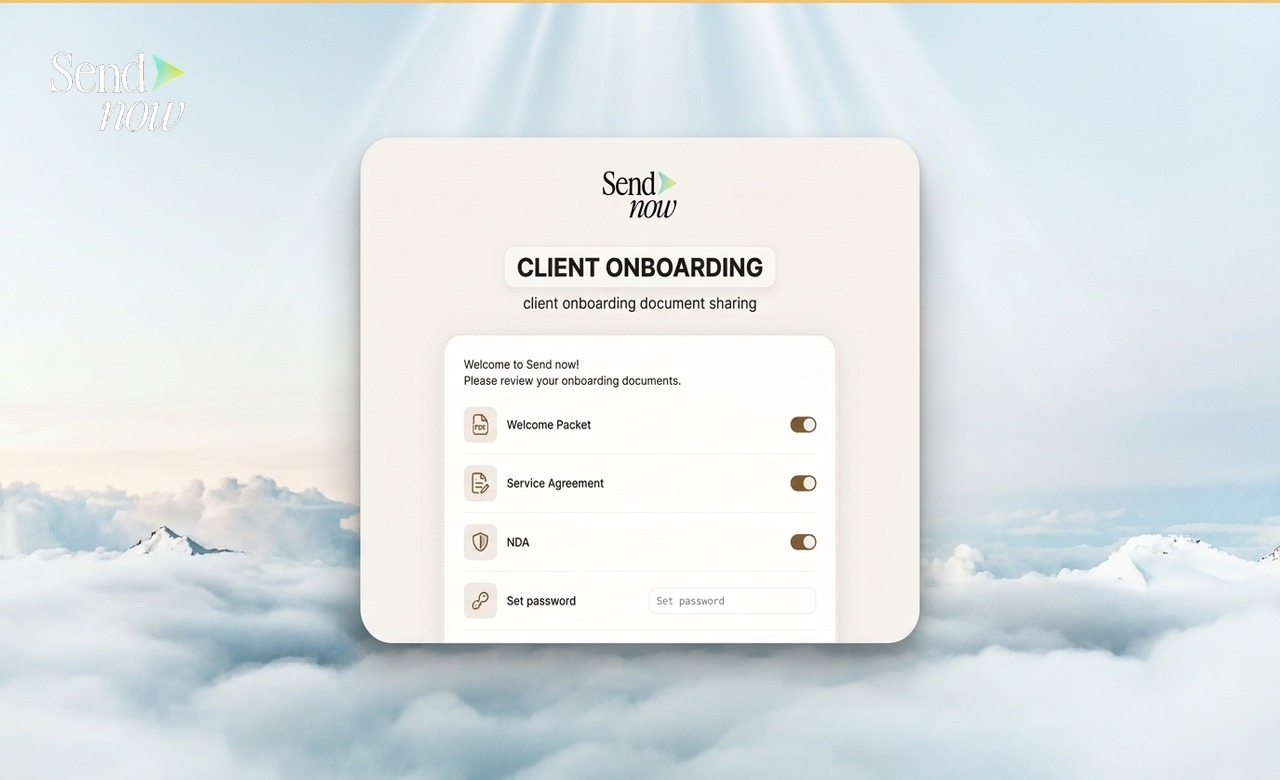
Managing the Workspace as Your Team Grows
As your team expands, workspace management requires more deliberate attention. Consider the following practices as headcount increases:
Offboard departing members promptly. When a team member leaves the firm, remove them from the workspace immediately and review their active links. Expire any links that should no longer be accessible.

Review security defaults periodically. As your client base and document types evolve, your workspace defaults may need updating. An annual review of your security settings is reasonable for most teams.
Separate workspaces for distinct teams. If your firm has business lines with different client bases or regulatory environments, separate SendNow workspaces keep data appropriately siloed and give each team its own Owner hierarchy.
Archive inactive documents. Documents that are no longer relevant to active client relationships should have their links expired or deleted to reduce the surface area of accessible sensitive content.
Build a Professional Document Sharing Operation
A managed shared workspace turns document sharing from an individual habit into a firm-wide professional capability. Set up your team workspace in SendNow and give your growing team a consistent, secure, and visible document sharing environment.
Get started at sendnow.live.
Frequently Asked Questions
Q: How many team members can join a SendNow workspace? A: The team size limit depends on your SendNow plan. Visit sendnow.live for current plan details.
Q: Can team members share documents independently without Owner approval? A: Yes. Members can create and share links independently within the security defaults set by the Owner. They do not need per-document approval.
Q: Can I see which documents a specific team member has shared? A: Yes. The Owner activity feed can be filtered by team member to show all document sharing activity associated with a specific person.
Q: What happens to documents shared by a removed team member? A: Their links remain active until manually expired or deleted by an Owner. Always review and expire former members' links as part of offboarding.
Q: Can I restrict team members from disabling download protection? A: Yes. Setting download restrictions as a workspace default prevents Members from overriding this setting when creating individual links.
Q: Does the workspace activity feed store data indefinitely? A: Activity data is retained according to SendNow's data retention policy. For GDPR compliance, review your retention settings and align them with your firm's data handling requirements.
Q: Can different teams within the same firm use separate workspaces? A: Yes. Multiple workspaces can be created for different business lines or teams, each with its own branding, settings, and member list.
Q: Is there an audit log I can export for compliance purposes? A: SendNow provides activity data within the workspace. For formal compliance reporting, use the analytics export feature or connect to your compliance tooling via webhooks.
About the Author: Rifana Hameem
Rifana is the founder of SendNow. She leads the team in building secure, compliant, and analytics-rich document sharing tools for finance and professional teams worldwide.
Connect on LinkedIn