How to Share Excel Files Securely Without Sending the Raw Spreadsheet

How to Share Excel Files Securely Without Sending the Raw Spreadsheet
SendNow converts your Excel file into a read-only browser-based viewer so that clients or investors can review the data without downloading, copying, or editing the original spreadsheet. This guide explains how to share Excel files securely using SendNow, which protection features apply to spreadsheets, and why finance professionals should avoid sending raw XLSX files to external parties.
The Problem With Sending Raw Excel Files
An Excel file attached to an email is immediately out of your control. The recipient can download it, copy it, edit it, forward it, or strip the formulas to reverse-engineer your model. For financial analysts, fund managers, and advisory firms, this is a significant problem. Financial models represent months of intellectual work and contain proprietary assumptions, client-specific projections, and sensitive business data.
Password-protecting an Excel file offers minimal protection. Recipients can remove Excel passwords with freely available tools. Sharing via Google Sheets introduces its own security and GDPR concerns. The only reliable approach is to share a view-only render of the spreadsheet, where the recipient sees the data but never receives the underlying file.
SendNow's Excel viewer achieves this by rendering the spreadsheet server-side and presenting it as an interactive but non-downloadable view in the recipient's browser.
What the SendNow Excel Viewer Supports
SendNow renders Excel files with the following features:
- Multi-sheet support: All tabs in the workbook are navigable in the viewer
- Formatted display: Cell formatting, colours, borders, and font styles are preserved
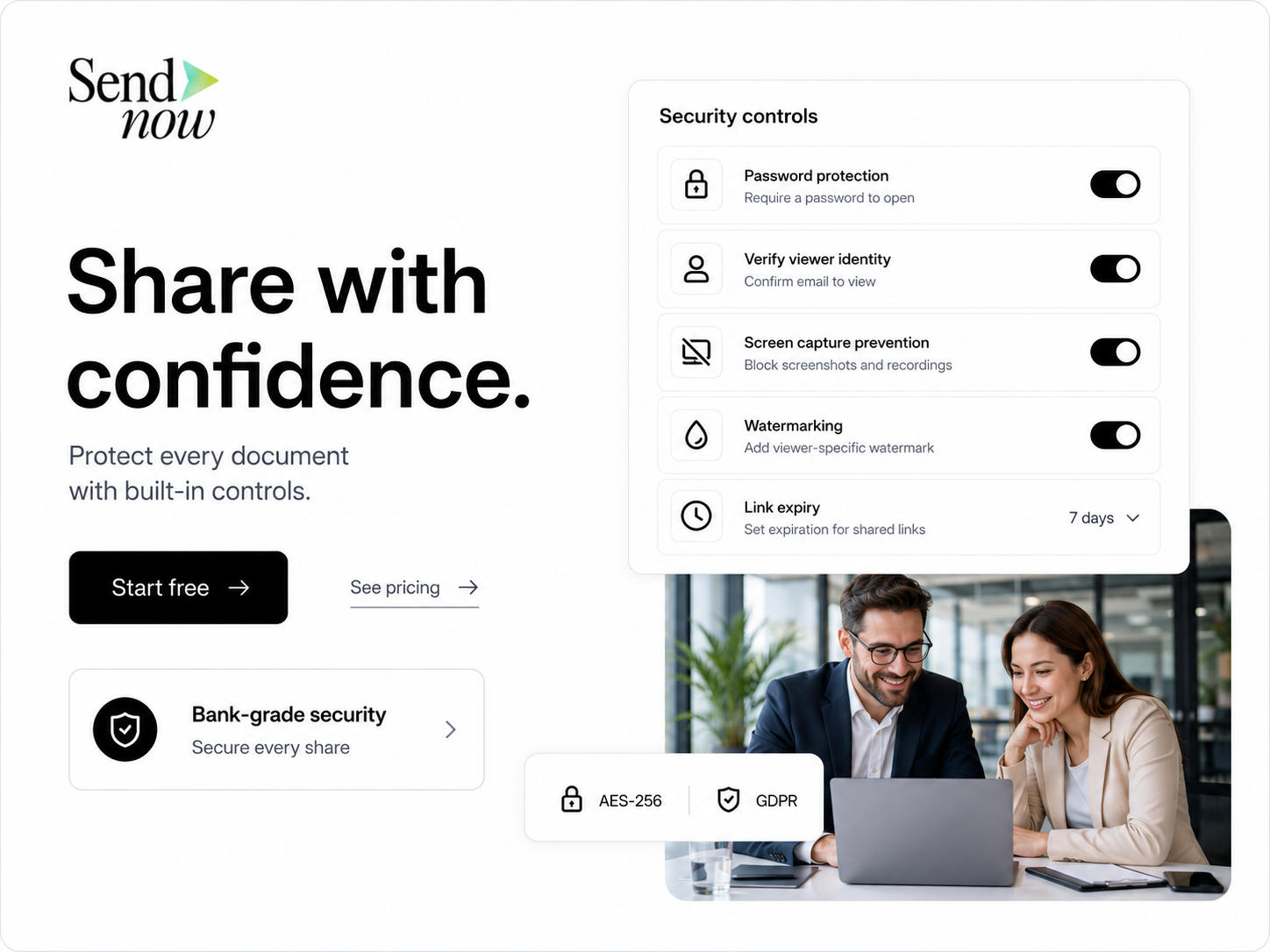
- Download disabled: Recipients cannot download the file unless you explicitly allow it
- Screenshot protection: Optional screenshot-blocking layer reduces casual screen capture
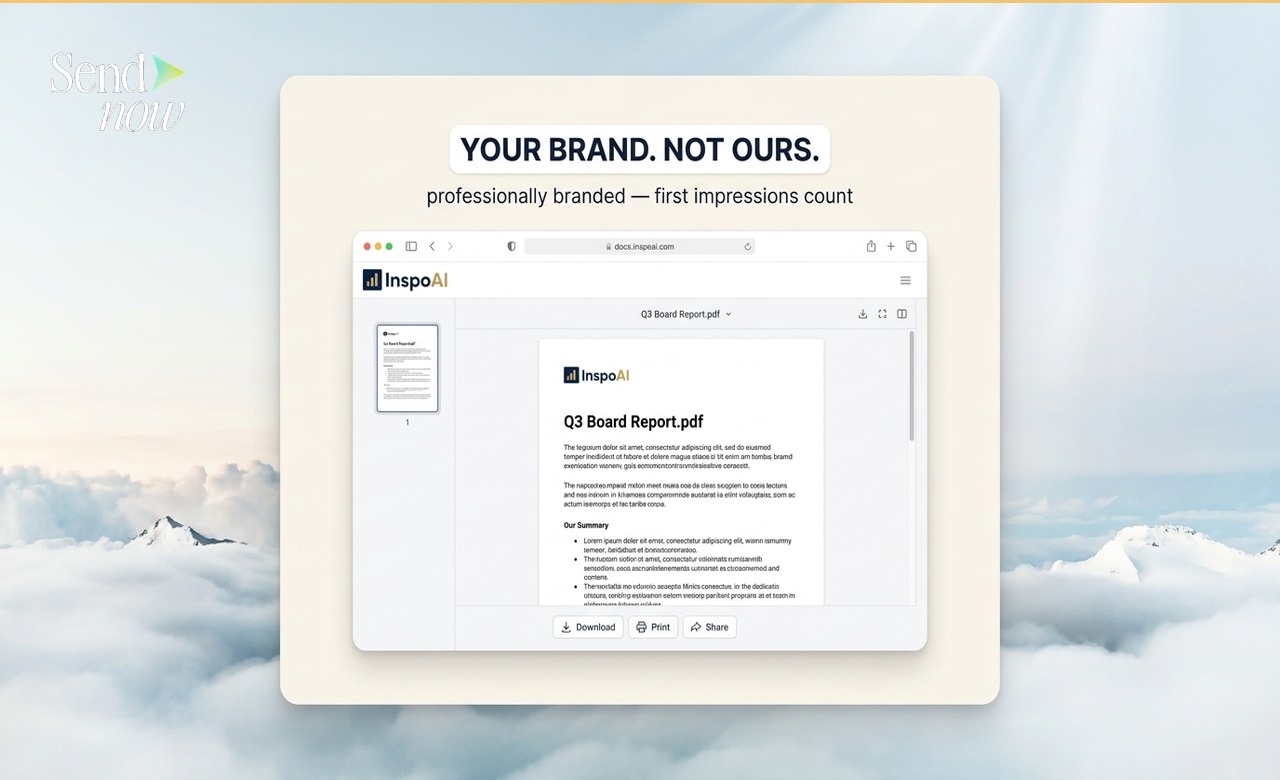
- Watermarking: The recipient's email address or a custom watermark is overlaid on the sheets
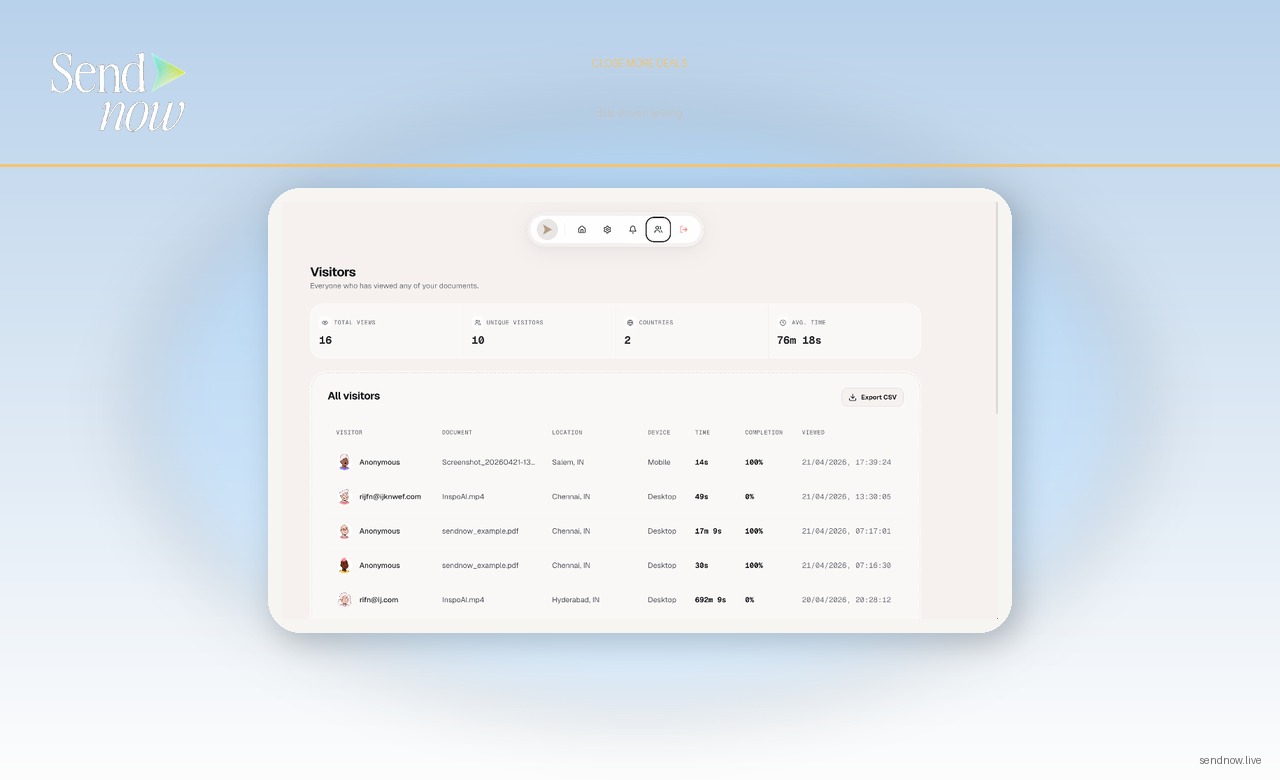
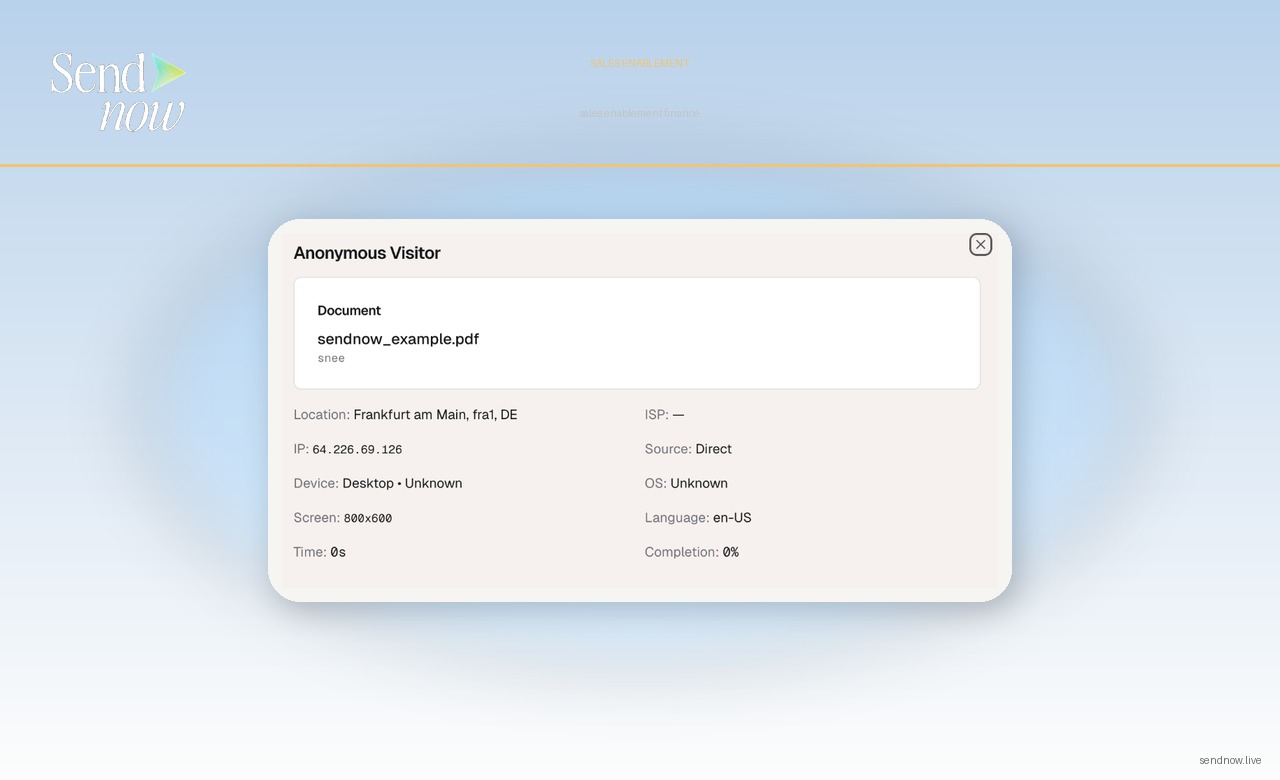
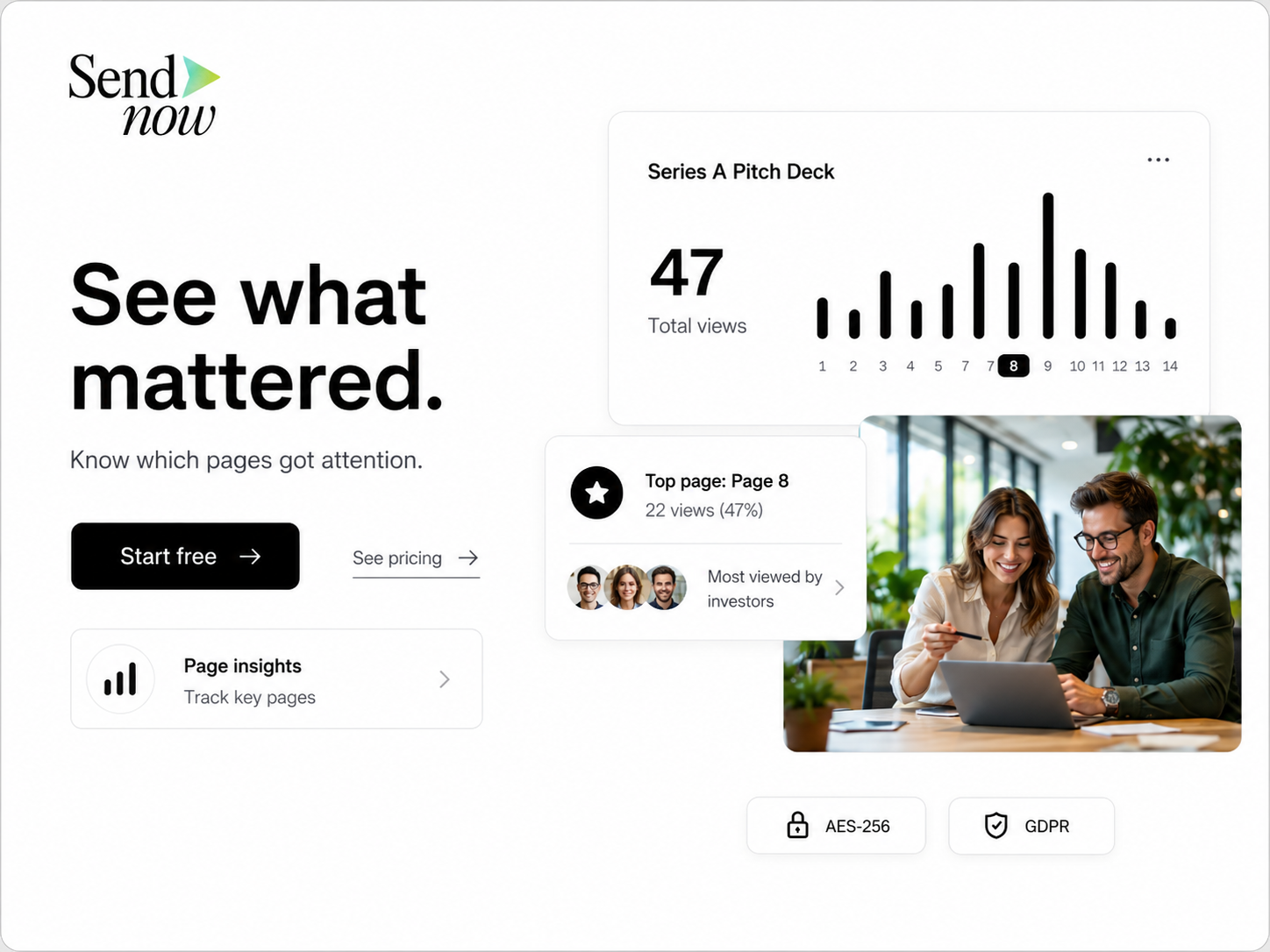
- Page-level analytics: You can see which sheets the recipient viewed and for how long
These features make the SendNow Excel viewer appropriate for sharing financial models, valuation analyses, budget templates, and data-heavy reports with external parties.
How to Share an Excel File Securely via SendNow
- Log in to your SendNow workspace and click Upload Document.
- Select your XLSX or XLS file. SendNow processes the file and generates a browser-based viewer.
- In the link settings, under Security, disable downloads.
- Enable watermarking if the spreadsheet contains sensitive data that should be attributable if captured.
- Optionally, enable screenshot protection.
- Set an expiry date. For proposals and pitches, a 14-day expiry is standard. For live client reporting, set a longer period or leave it open with access control.
- Enable access control by requiring the recipient's email address to open the link.
- Copy the link and share it with your recipient.
The recipient opens the Excel file in their browser, navigates between sheets, and reviews the data. They see only the view. They do not receive the file.
Comparing Raw Excel Attachment vs SendNow Secure Viewer
| Feature | Raw XLSX Attachment | SendNow Secure Viewer |
|---|---|---|
| Recipient can download | Yes, always | Only if you allow it |
| Recipient can edit | Yes | No |
| Recipient can copy formulas | Yes | No |
| Analytics on who viewed | No | Yes |
| Watermark on content | No | Yes |
| Link expiry control | No | Yes |
| GDPR data in transit protection | Limited | Yes |
Use Cases for Secure Excel Sharing in Finance
Financial model review. Share a DCF or LBO model with a counterparty during due diligence without handing over the working spreadsheet. They can review the outputs; you retain the model.
Budget presentation. Present a budget or forecast to a client with the confidence that they are seeing the approved version, not a version they have saved and could modify before presenting to their own stakeholders.
Valuation analysis. Share a comparable transaction analysis or peer benchmarking study with an investor, with watermarking that attributes any leak.
Data room materials. Include Excel data as part of a deal room, with per-sheet analytics showing which sections the counterparty reviewed most thoroughly.
For guidance on sharing other spreadsheet formats, see how to share CSV data as a clean interactive table. For document security more broadly, read the complete secure document sharing guide.
GDPR and Excel File Sharing
Excel files shared in finance contexts frequently contain personal data: client names, financial information, addresses, and identification details. Sending these files as email attachments creates GDPR risks because the file passes through email servers outside your control and is stored in the recipient's email client indefinitely.
Sharing via a SendNow link that expires on a defined date limits data exposure significantly. Once the link expires, the recipient can no longer access the data even if they saved the URL. Combined with access control requiring email verification, this provides a documentable data handling approach that supports your GDPR obligations as a data controller.
Share Your Financial Models With Confidence
Stop sending Excel files as attachments and start sharing them as secure, tracked, access-controlled viewer links. Your intellectual property stays yours, and you gain full visibility into who reviewed the data and when.
Get started at sendnow.live.
Frequently Asked Questions
Q: Does SendNow support all Excel file types? A: SendNow supports XLSX and XLS files. Macro-enabled workbooks (XLSM) may have macros disabled in the viewer, as the viewer renders the data rather than executing the file.
Q: Can recipients see formulas in the SendNow Excel viewer? A: No. The viewer displays calculated values, not the underlying formulas. This protects your model logic from being reverse-engineered.
Q: What happens if I need to update the spreadsheet after sharing the link? A: You can replace the document in SendNow and the existing link will serve the updated version, so you do not need to re-send the link.
Q: Can I allow some recipients to download and restrict others? A: You can create separate links with different download settings for different recipients. Each link is independently configured.
Q: Does watermarking prevent someone from taking a photo of their screen? A: Watermarking deters casual leaks and allows attribution if content is leaked. It is not a technical barrier to photography, but it creates accountability.
Q: Can I share only specific sheets within a workbook? A: Currently, SendNow displays all sheets in the workbook. To share a subset of sheets, create a separate Excel file containing only the sheets you wish to share.
Q: Is there a file size limit for Excel files in SendNow? A: File size limits depend on your SendNow plan. Contact sendnow.live for details on limits relevant to large financial models.
Q: Will the Excel viewer work on mobile devices? A: Yes. The SendNow viewer is browser-based and responsive, so recipients can view spreadsheets on mobile and tablet devices without installing any software.
About the Author: Rifana Hameem
Rifana is the founder of SendNow. She leads the team in building secure, compliant, and analytics-rich document sharing tools for finance and professional teams worldwide.
Connect on LinkedIn