How to Send Branded Document Notifications That Match Your Firm

How to Send Branded Document Notifications That Match Your Firm
When you share a document through SendNow, the notification email your client receives can display your firm's name, logo, and brand colours rather than a generic sending platform. This guide explains how to configure branded document notifications in SendNow, why consistent branding improves client trust, and what to consider for GDPR compliance.
The Problem With Generic Document Notifications
Most document sharing platforms send notifications that look like they come from the platform itself, not from your firm. Your client sees "Shared via [Platform Name]" in their inbox rather than your firm's name. This breaks the continuity of your brand at a critical touchpoint.
For finance professionals, this matters more than it does for other industries. Your clients are making decisions based on their confidence in your firm. Every communication, including the email telling them a new report or proposal has been shared, is an opportunity to reinforce that confidence. A notification that looks like it comes from an unknown platform introduces doubt rather than trust.
Branded document notifications solve this by presenting your firm's identity consistently, from the email sender name through to the document viewer itself.
What Branded Notifications Include in SendNow
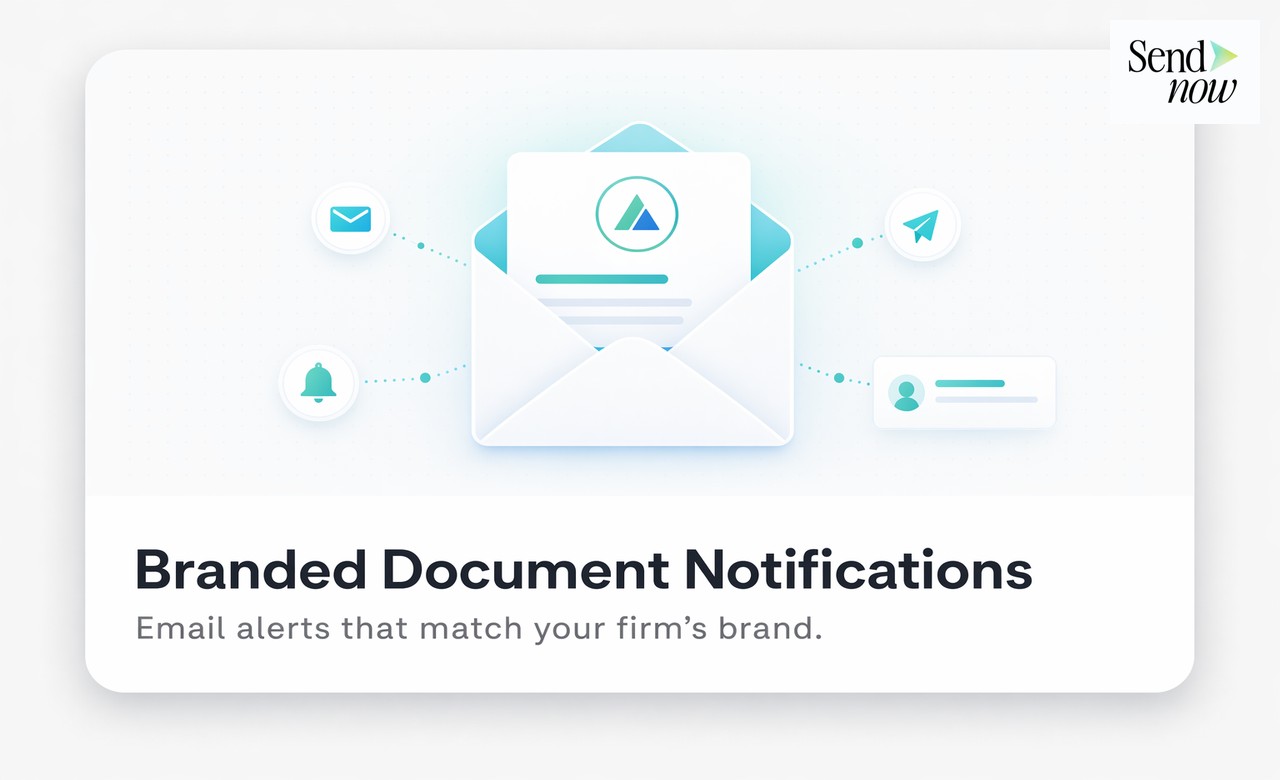
SendNow's branding settings let you control several elements of the client-facing notification experience:
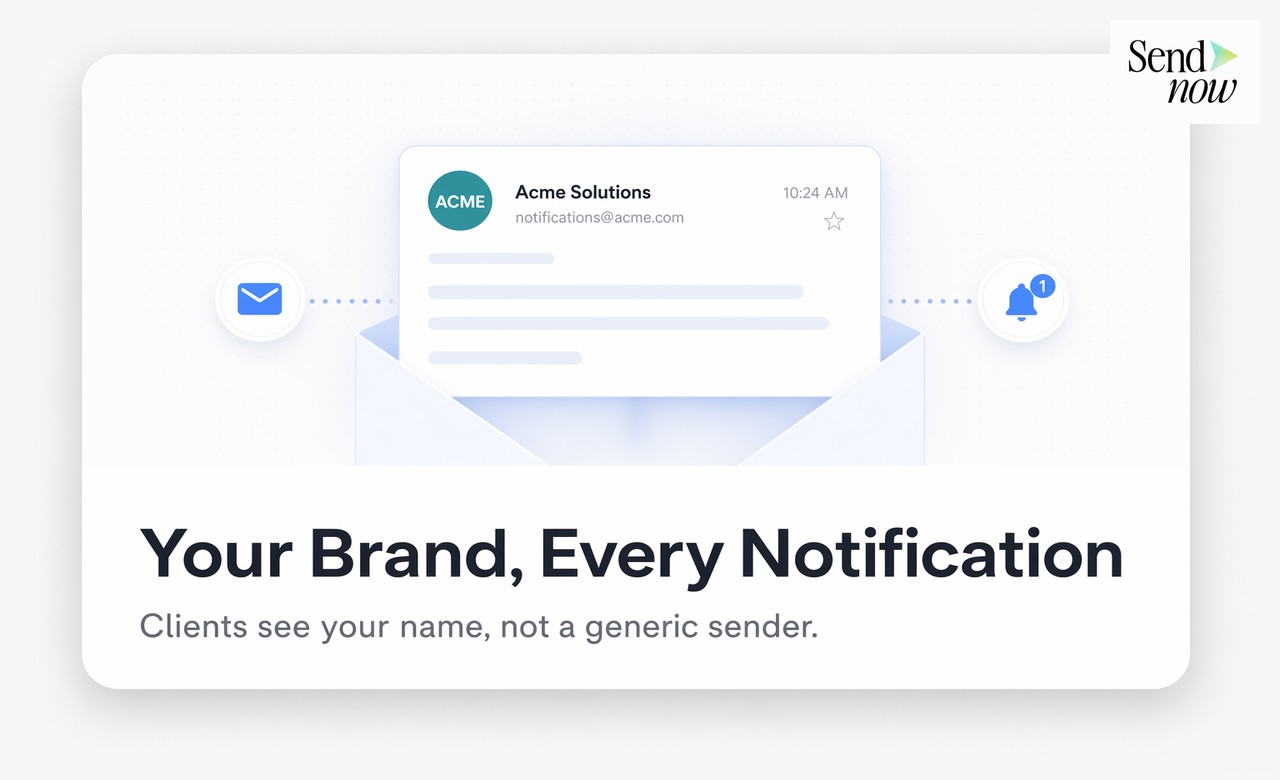
- Custom sender name: The name displayed in the client's inbox (for example, "Morgan & Partners" instead of "SendNow")
- Firm logo: Displayed in the notification email header
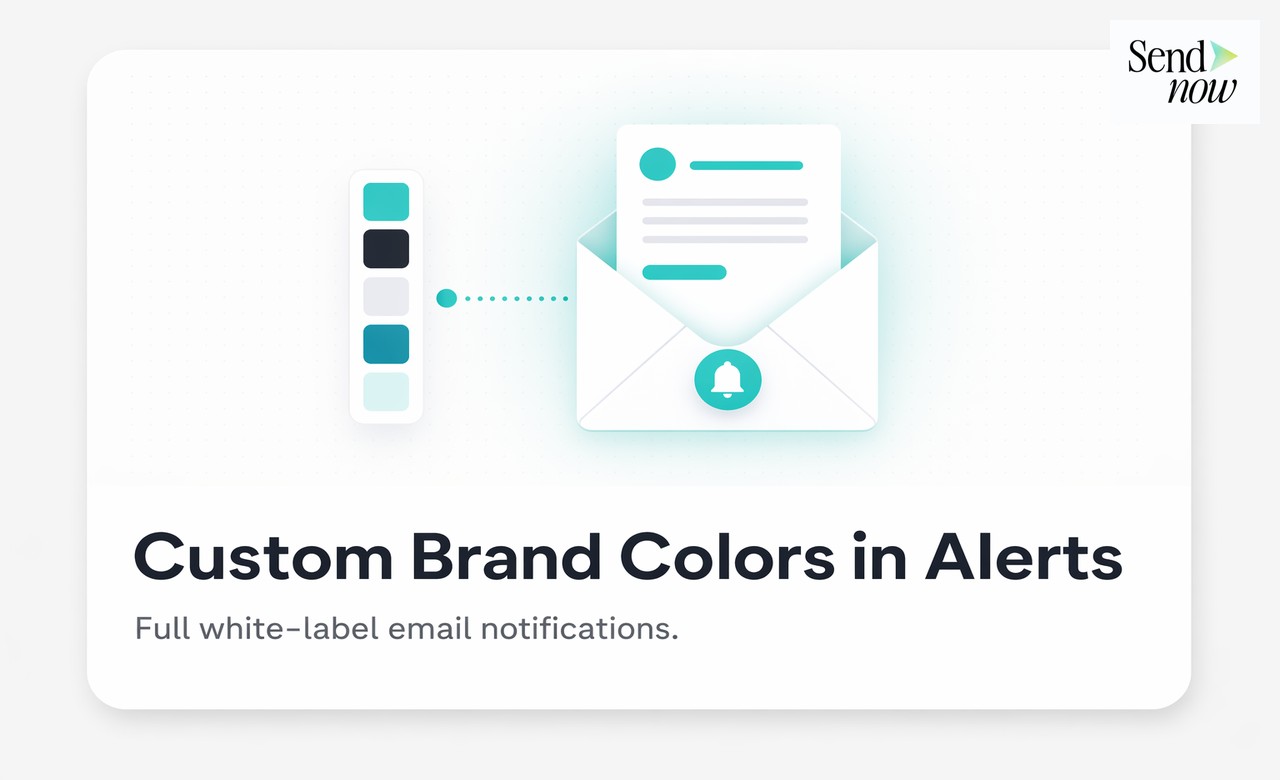
- Brand colours: Applied to buttons and accent elements in the email
- Custom subject line: Set per document or per workspace
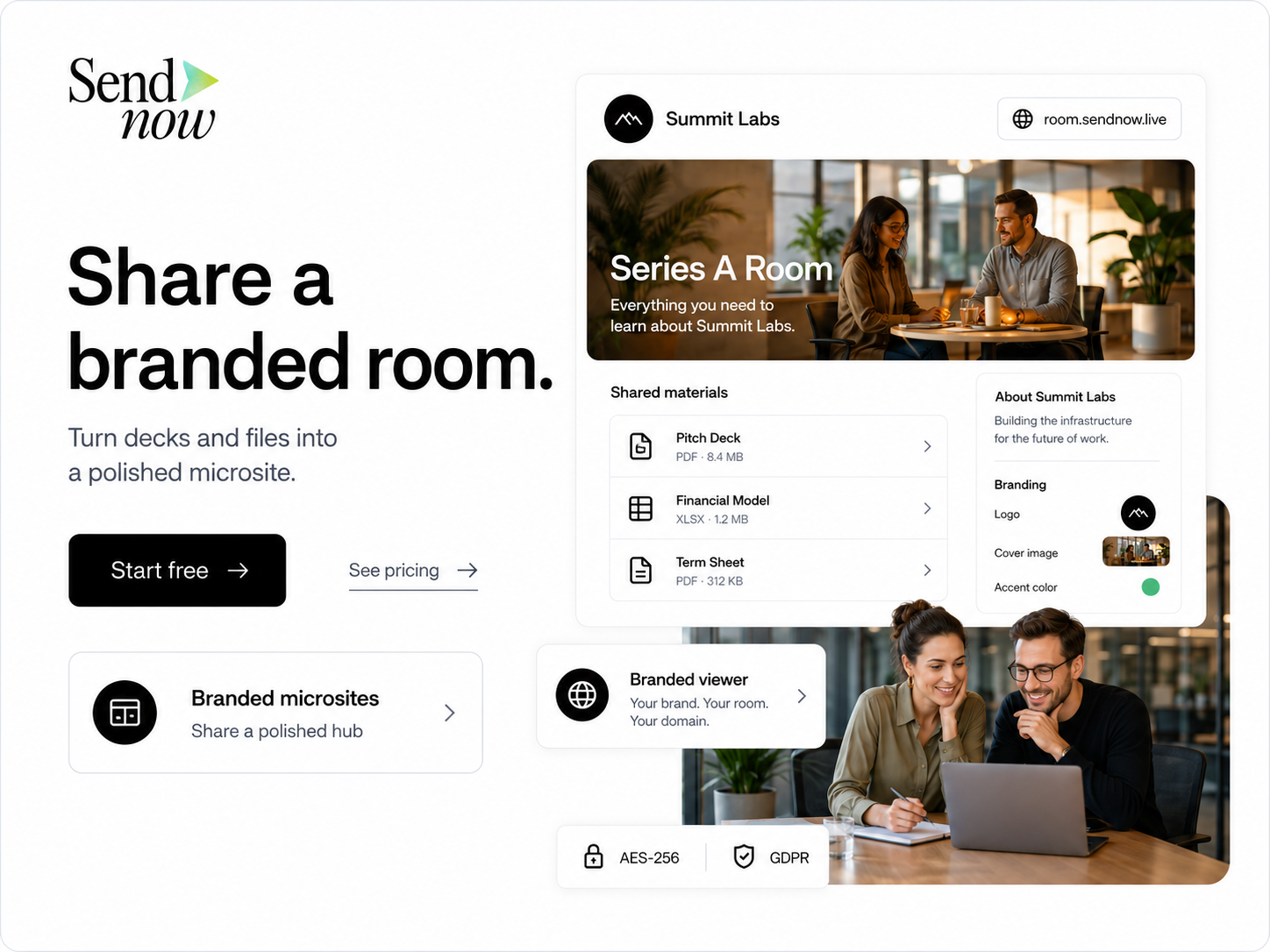
- Branded document viewer: The page where your client opens the document reflects your firm's visual identity
Each of these elements can be configured once at the workspace level and applied to all links, or set individually per document for greater control.
How to Set Up Branded Notifications in SendNow
Configuring branded notifications takes under five minutes:
- Log in to your SendNow workspace and go to Settings, then Branding.
- Upload your firm's logo. Use a transparent PNG for best results.
- Enter your custom sender name, for example your firm name or a specific team name.
- Set your primary brand colour using the hex code from your brand guidelines.
- Save the settings. All new document links created from this point will reflect the updated branding.
- Optionally, customise the notification subject line for individual documents by editing the link settings before sharing.
Your clients will now receive notifications that open with your firm's visual identity, not a third-party platform's branding.
Comparing Generic vs Branded Document Notifications
| Element | Generic Notification | Branded SendNow Notification |
|---|---|---|
| Sender name | Platform name | Your firm's name |
| Email logo | Platform logo | Your firm's logo |
| Brand colour | Platform default | Your hex colour |
| Subject line | Generic | Customisable per document |
| Document viewer | Unbranded | Fully branded |
| Client trust signal | Low | High |
Why Branded Notifications Matter for Finance Professionals
In financial services, brand consistency is directly linked to credibility. Clients who receive a professional, branded notification are more likely to open the document promptly, less likely to mark the email as suspicious, and more likely to associate the quality of the shared content with your firm's reputation.
There is also a practical security consideration. Branded notifications train clients to expect a specific look from your firm's document shares. If a client receives an unbranded or differently branded message claiming to be from you, they are more likely to recognise it as suspicious. Consistent branding therefore supports phishing awareness as a secondary benefit.
For more on building a professional document sharing experience, read our complete secure document sharing guide. If you are interested in setting up a full branded portal for clients, see how to create a branded client document portal.
GDPR and Branded Notification Emails
Under GDPR, notification emails that link to documents containing personal data are themselves subject to data handling obligations. The email must clearly identify who is contacting the recipient and why. Using your firm's name and branding in the notification fulfils the transparency requirement by making it immediately clear who is sharing the document and in what professional context.
SendNow processes notification emails within EU infrastructure, and the document link itself does not transmit the document's contents via email. The recipient clicks through to a secure, access-controlled viewer, meaning the document data stays within SendNow's controlled environment rather than being sent as an attachment.
Best Practices for Branded Document Notifications
- Use your primary firm logo, not a department sub-brand, unless you are creating a separate workspace for a specific team.
- Set a professional sender name that matches how clients know your firm. Avoid abbreviations or internal codes.
- Review your notification subject lines before sharing sensitive documents. A clear, specific subject line increases open rates significantly.
- Test the branded experience before your first client send by sharing a test document to your own email address and reviewing how it appears on both desktop and mobile.
- Align notification colours with your email signature and other client-facing materials for a coherent experience.
Start Sending Professionally Branded Document Notifications
Your clients deserve to receive documents in a way that reflects the quality of your firm. Set up branded notifications in SendNow today and ensure every share reinforces your professional identity.
Get started at sendnow.live.
Frequently Asked Questions
Q: Can I use a different sender name for different clients? A: Yes. While the workspace branding sets a default, you can customise the notification subject line and sender details per link if needed.
Q: Does my client need to know they are using SendNow? A: No. With branded notifications enabled, clients see only your firm's name and logo. SendNow operates as a white-label layer behind your brand.
Q: Can I upload multiple logos for different teams? A: You can create separate workspaces for different teams, each with its own branding settings, logo, and sender name.
Q: Will branded notifications affect email deliverability? A: SendNow's email infrastructure is optimised for deliverability. Using a professional sender name and subject line actually improves open rates compared to generic platform notifications.
Q: Can I preview what the branded notification looks like before sending? A: Yes. You can send a test document to yourself before sharing with a client to verify the branded experience looks correct.
Q: Does branded notification setup require technical knowledge? A: No. The branding settings panel in SendNow requires no coding. Upload a logo, enter a hex code, and type a sender name.
Q: Does the document viewer also show my branding? A: Yes. The viewer page where your client reads the document also reflects your firm's logo and brand colour, creating a consistent experience from inbox to document.
Q: Is branded notification available on all SendNow plans? A: Branding features are available on SendNow's professional tiers. Check sendnow.live for the current plan details.
About the Author: Rifana Hameem
Rifana is the founder of SendNow. She leads the team in building secure, compliant, and analytics-rich document sharing tools for finance and professional teams worldwide.
Connect on LinkedIn